Windows 11 Pro vs Home: BitLocker and Remote Desktop
Should you upgrade to Windows 11 Pro or stick with Home? A straightforward comparison of BitLocker drive encryption, Hyper-V, Remote Desktop hosting, and whether the extra cost is worth it.
When setting up a new PC or configuring business workstations, choosing between Windows 11 Home and Windows 11 Pro represents a classic crossroads. Both editions share the centered taskbar, fluent design visual aesthetics, DirectX 12 gaming support, and core Windows security protections. However, beneath the desktop interface sits a divergent set of hardware limits, encryption capabilities, virtualization tools, and centralized management protocols that dictate whether your computer can function as an enterprise asset.
Quick Decision Matrix
Choose Windows 11 Home for personal web browsing, everyday productivity, and pure gaming PCs where advanced networking is unnecessary. Upgrade to Windows 11 Pro if you need full BitLocker drive encryption on internal and external disks, inbound Remote Desktop hosting, native Hyper-V virtual machines, or connection to Microsoft Entra ID (Azure Active Directory).
Core Hardware Limits and Specifications
For everyday tasks like browsing documentation or editing documents, both editions behave identically. Yet when driving high-end workstation hardware or multi-socket motherboard platforms, Windows 11 Home enforces artificial hardware caps.
Specification Metric
Windows 11 Home
Windows 11 Pro
Maximum Physical RAM Capacity
128 GB
2 TB (2,048 GB)
Maximum CPU Sockets Supported
1 Physical Socket
2 Physical Sockets
Maximum Logical CPU Cores
64 Cores
128 Cores
Local Account Setup Without Internet
Officially Blocked (Microsoft Account Required)
Officially Supported (Local User / Domain)
Remote Desktop Protocol (RDP) Hosting
Client Outbound Only
Inbound Host and Outbound Client
BitLocker Drive Encryption
No (Basic Device Encryption Only)
Full Volume Encryption + BitLocker To Go
If you build high-end rendering workstations or deep machine learning rigs equipped with dual AMD EPYC or Intel Xeon processors, Windows 11 Home will simply ignore the second CPU socket. Windows 11 Pro is mandatory to address dual-socket motherboards and memory pools exceeding 128 GB.
Security Architecture: BitLocker vs Device Encryption
Data protection represents the single most significant architectural difference between the two editions. If a laptop containing sensitive company data, customer databases, or proprietary source code is stolen, unencrypted drives can be read by mounting the NVMe drive into another computer in under two minutes.
Windows 11 Home: Basic Device Encryption
Windows 11 Home includes a stripped-down feature called Device Encryption. While it uses hardware encryption algorithms, it enforces rigid hardware prerequisites:
The motherboard must support connected standby and possess an active TPM 2.0 security chip.
The computer must be signed into a consumer personal Microsoft cloud account, where the recovery key is automatically uploaded.
It provides zero ability to encrypt secondary internal data volumes or external USB flash drives.
Windows 11 Pro: Full BitLocker Drive Encryption
Windows 11 Pro provides full administrative control over drive encryption:
Volume Flexibility: Encrypt operating system partitions, secondary internal hard drives, and external backup arrays with either XTS-AES-128 or XTS-AES-256 cipher suites.
BitLocker To Go: Encrypt portable USB flash drives and external SSDs with password protection, preventing unauthorized data extraction if physical drives are misplaced.
Enterprise Key Management: Automatically back up encryption recovery keys to Microsoft Entra ID, an on-premise Active Directory domain controller, or export them to encrypted offline text vaults.
Pre-Boot Authentication: Require a startup PIN or physical USB startup key before the Windows bootloader even initializes, safeguarding memory buses against DMA attacks.
BitLocker drive encryption safeguards local disks with hardware TPM keys.
Developer Virtualization: Hyper-V and Windows Sandbox
For software developers, system administrators, and security analysts, virtualization capabilities built directly into the operating system kernel are indispensable.
Client Hyper-V
Windows 11 Pro includes Microsoft Client Hyper-V, a native Type-1 bare-metal hypervisor. Hyper-V runs directly below the Windows kernel, allowing developers to spin up production-grade Linux distributions (such as Ubuntu Server or Rocky Linux) and Windows Server evaluation nodes with direct hardware passthrough. Virtual switches can be isolated into private internal subnets, allowing isolated penetration testing and network service prototyping.
Windows Sandbox
Windows Sandbox is a lightweight, disposable desktop environment built on container isolation technology:
Need to test an unfamiliar software executable or inspect an untrusted ZIP file? Launch Windows Sandbox from the Start menu in approximately five seconds.
The sandbox runs an isolated, pristine copy of the Windows operating system using dynamically linked host binaries.
Once you finish your evaluation and close the Sandbox window, the entire guest environment and all created files are permanently discarded into memory oblivion. No malware or registry modifications can touch your primary host system.
Remote Desktop: Client vs Host Capabilities
Remote access represents another sharp dividing line between Home and Pro editions.
Both Windows 11 Home and Pro can launch the Remote Desktop Connection app (mstsc.exe) to connect outward to remote cloud servers, virtual desktops, or corporate gateways. However, Windows 11 Home cannot accept inbound connections. The RDP server component is deliberately omitted from the Home edition operating system image.
With Windows 11 Pro, you can toggle a simple switch inside Settings > System > Remote Desktop to transform your workstation into an accessible host. You can then connect into your multi-monitor desktop from a laptop while on the road, streaming your full computational power over encrypted network connections with zero subscription costs.
Active Directory, Domain Joining and Group Policy (gpedit.msc)
In corporate and institutional settings, managing endpoints individually is unfeasible. Windows 11 Pro integrates the foundational infrastructure required for fleet management:
Local Group Policy Editor (gpedit.msc): Windows 11 Home lacks this critical management console. Pro users can edit thousands of granular system policies, such as disabling telemetry reporting, postponing quality updates, blocking USB mass storage devices, and enforcing strict password complexity rules.
Domain Join and Entra ID: Pro machines can join classic on-premise Windows Server Active Directory domains as well as cloud-native Microsoft Entra ID environments. As enterprise IT teams overhaul directory infrastructure to maintain security compliance ahead of the Windows Server 2019 end of life deadline, Pro workstations are mandatory for centralized group policy enforcement.
Kiosk Mode and Assigned Access: Configure a computer to execute a single sandboxed application (such as an interactive retail catalog or public check-in screen) while locking down the rest of the OS.
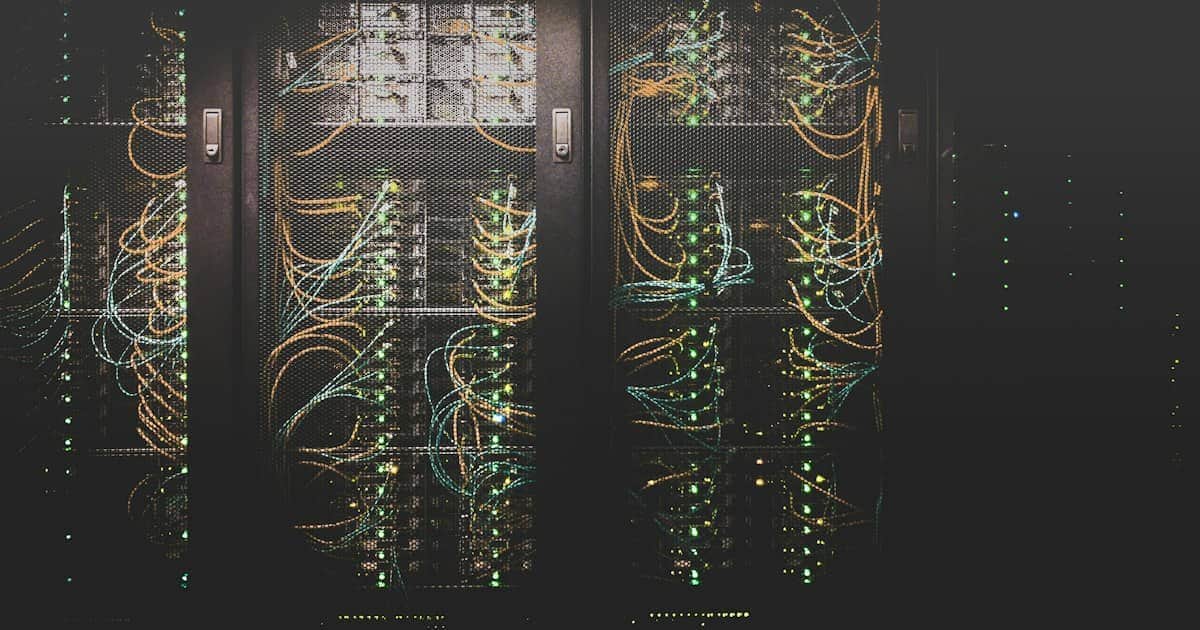
Workstation environments utilize dual-socket CPUs and inbound remote access.
WSL2, Containerization, and Developer Workflows
Developers often ask whether Windows Subsystem for Linux (WSL2) functions on Windows 11 Home. The answer is yes: Microsoft engineered WSL2 to run on both Home and Pro by utilizing the lightweight Virtual Machine Platform feature.
However, developers who run containerized workflows via Docker Desktop or Podman encounter practical friction on Windows 11 Home. Reviewing the fundamental mechanisms in Docker container architecture illustrates why native Hyper-V virtualization and custom virtual network switches in Windows 11 Pro deliver superior container stability:
Windows 11 Pro supports running Docker Desktop over the Hyper-V backend in addition to WSL2, giving DevOps engineers options for custom virtual network switches.
Pro enables Windows Containers, which allow running native Windows-based container images alongside standard Linux containers on the same workstation.
Hyper-V Virtual Machine Management Service (VMMS) allows orchestrating complex local Kubernetes nodes using tools like Minikube and Vagrant with dedicated virtual hardware assignments.
How to Upgrade from Home to Pro Without Reinstalling
If your new computer shipped with Windows 11 Home preinstalled, you do not need to format your SSD or reinstall your software applications to step up to Pro. Windows contains all Pro binary modules already cached on your storage disk; entering a valid license key simply unlocks them.
Open the Settings app on Windows 11 (Windows Key + I).
Navigate to System and click on Activation.
Expand the section titled Upgrade your edition of Windows.
Click Open Store to purchase an official upgrade license directly from Microsoft, or click Change next to Change product key if you already possess a valid Pro license.
Input your 25-character product key and click Next.
Windows will prompt you to save your work. Click Start. The system will download small activation packages, restart once, and boot back up into Windows 11 Pro with all your files, programs, and desktop preferences intact.
The Verdict: Which Edition Fits Your Workload?
Deciding whether the upgrade cost is justified comes down to how your workstation interacts with sensitive data and remote networks:
Stick with Windows 11 Home: If you are a student, everyday home user, or dedicated gamer whose machine never leaves the home desk, Windows 11 Home provides everything you require. You save money without sacrificing any gaming frame rates or daily computing performance.
Upgrade to Windows 11 Pro: If you operate a mobile laptop holding commercial data, require BitLocker drive and USB protection, need inbound Remote Desktop connections to work from outside the office, or rely on Hyper-V and Windows Sandbox for software testing, Windows 11 Pro easily justifies its price tag.
Frequently Asked Questions
Windows 11 Home can act as a Remote Desktop client (initiating outward connections to remote servers), but it cannot function as a Remote Desktop Host (receiving inbound connections). Pro is required to host inbound sessions.
Evan Mitchell• Cloud Infrastructure Specialist & Systems Administrator3+ Years Industry Experience
Systems administrator with 3+ years managing enterprise Linux servers, AWS EC2 instances, and Docker containers. Evan focuses on practical bash scripting and secure network configurations.