Proper maintenance of physical input devices requires a rigorous, systematic approach that protects underlying circuitry from fluid ingress and electrostatic discharge while removing debris accumulation. Understanding how to clean keyboard keys effectively prevents contact degradation, sticky switches, and erratic signal transmission across mechanical builds and portable computing platforms. Whether you are dealing with a standard desktop peripheral, a clean mechanical keyboard, or a sensitive laptop layout, executing structured cleaning protocols guarantees hardware longevity.
Quick Decision Matrix
Selecting the proper cleaning modality depends directly on your chassis architecture. While modular builds support total keycap removal, ultra-slim laptops demand strict surface-level maintenance to prevent structural failure of miniature scissor switches.
Mechanical Versus Laptop Architecture
Structural Differences and Risk Profiles
Mechanical switch assemblies feature modular keycaps mounted over individual spring-loaded stems, which simplifies deep cleaning workflows. Conversely, standard portable computers integrate shallow scissor mechanisms or low-profile butterfly switches bonded directly to delicate membrane layers. When maintaining these compact systems, operators must avoid excessive fluid application because moisture can easily seep past the chassis seams and short-circuit internal components. When performing hardware maintenance on sensitive laptop chassis, such as during a hardware overhaul or diagnostic workflow like an HP laptop system reset, power isolation is essential before servicing internal input assemblies.
Evaluating Debris Ingress Patterns
Dust, skin oils, and particulate matter accumulate rapidly in the gaps between switches. In enterprise environments where workstations run continuously, this particulate buildup increases electrical resistance on circuit pads and causes key registration failures. Regular inspection protocols help mitigate these risks before they result in permanent input failure.
Preparation and Safety Protocols
Before initiating any maintenance procedure, disconnect the peripheral from its power source or shut down the host machine entirely. For integrated portables, ensure the battery is disabled in firmware if possible, or keep the system powered off to prevent accidental keystrokes from executing unintended terminal commands during the cleaning process.
Keyboard Cleaning Methodologies Compared
Choosing the correct procedure depends on the specific hardware type, available tools, and the severity of contamination. The following matrix details the primary approaches used in professional maintenance environments.
Feature
Surface Wipe
Compressed Air
Cap Removal
Ultrasonic Bath
Risk Level
Very Low
Low
Moderate
High (Requires Drying)
Time Required
5 Minutes
10 Minutes
45 Minutes
2 Hours Total
Debris Removal
Top Layer Only
Loose Particles
Full Interior
Total Debris Purge
Hardware Suitability
All Keyboards
All Keyboards
Mechanical Only
Detachable Plastic Caps
Operational Trade-off
Leaves interior dust
Pushes debris deeper
Stem breakage risk
Labor intensive setup
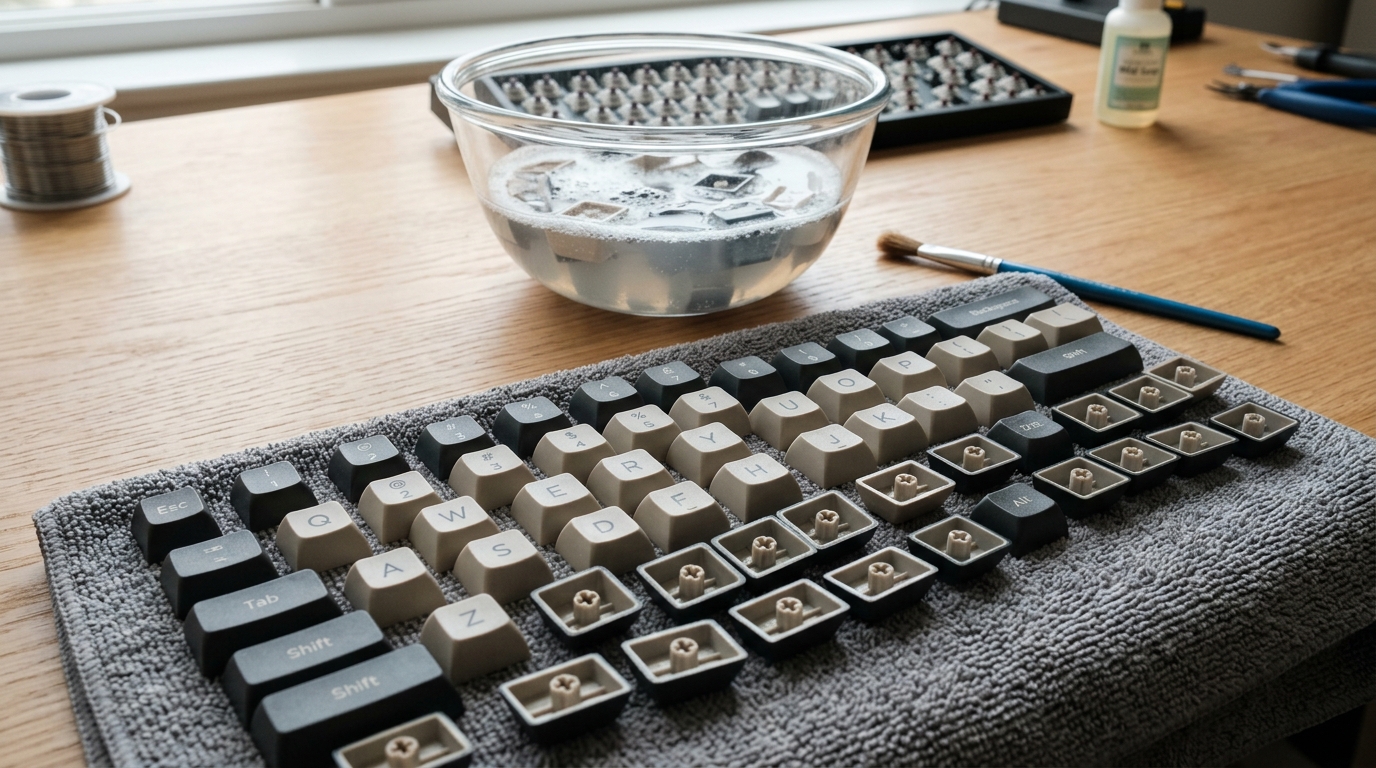
Soaking extracted keycaps in mild soapy water removes finger oils before drying stems facing up.
Step-by-Step Mechanical Cleaning Workflow
Keycap Extraction and Organization
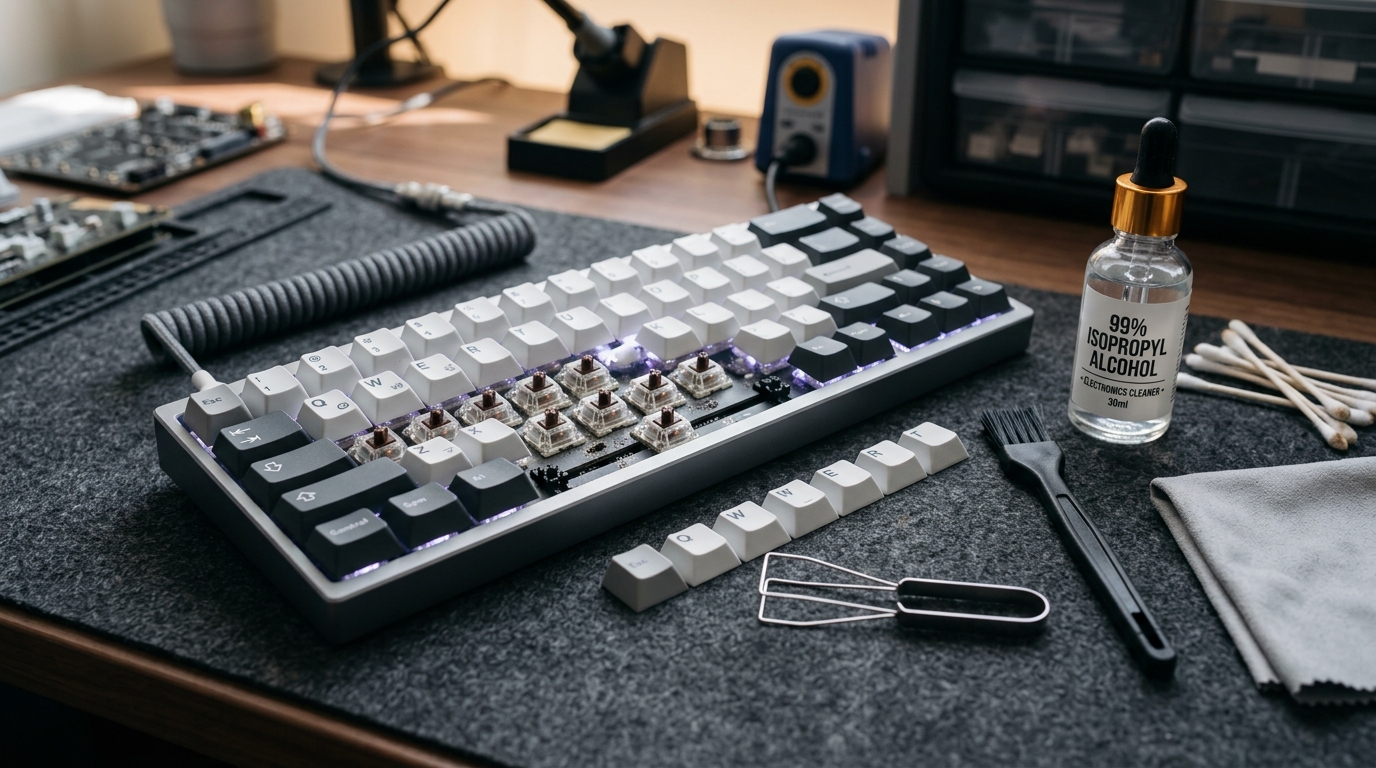
For mechanical builds, start by capturing a reference photograph of your layout to ensure accurate reassembly. Use a wire keycap puller, aligning the prongs securely beneath opposing corners of each cap. Pull straight upward with steady vertical force to prevent stem damage. Never use metal screwdrivers or improvised blades, as these will scratch the polymer finish.
Washing and Drying Plastic Caps
Submerge extracted caps in a basin of warm water mixed with a mild dish soap solution. Allow them to soak for thirty minutes to loosen oils and sticky residue. Agitate gently, rinse thoroughly with clean water, and spread them across a lint-free microfiber towel. Ensure absolute dryness before reattachment, as trapped moisture inside the stem sockets will corrode internal metal leaf contacts.
Cleaning the Switch Plate Base
While the caps dry, address the exposed switch plate. Use an anti-static brush to dislodge stubborn debris from between the housing switches. For sticky spill residue, dampen a cotton swab with ninety-nine percent isopropyl alcohol and wipe the contaminated plate areas carefully. Ensure no liquid pools around the switch housings.
Laptop and Scissor Switch Maintenance
Non-Destructive Surface Cleaning
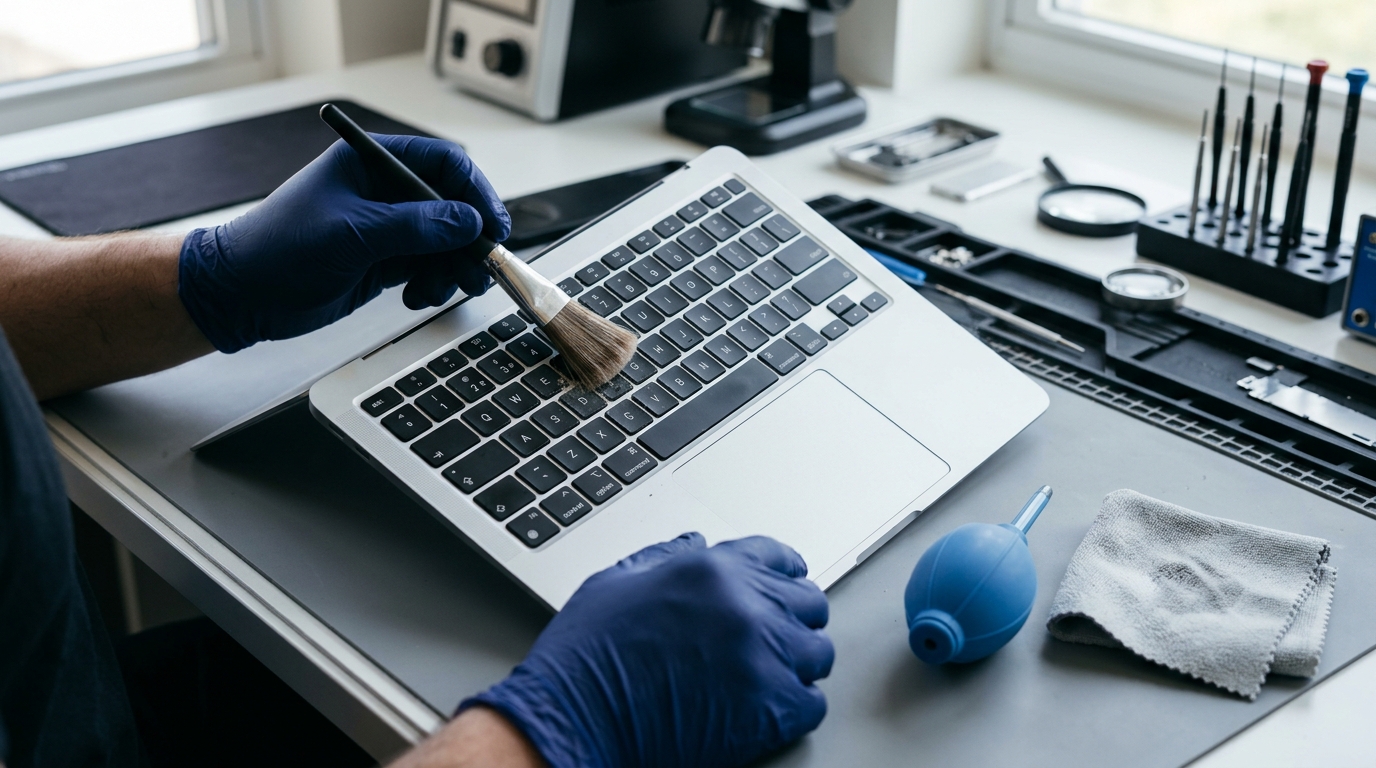
Because laptop keys cannot be easily extracted without risking permanent structural failure of the delicate plastic scissor clips, maintain these devices while assembled. Power down the machine completely. Tilt the chassis at a forty-five-degree angle and use a clean brush to sweep downward, allowing gravity to pull particles away from the matrix.
Handling Liquid Spills and Sticky Keys
If sugary liquids contaminate a laptop keyboard, immediate action is required to prevent permanent switch failure. Power off the device, disconnect the power adapter, and invert the laptop immediately to prevent fluid from reaching the motherboard. Clean affected keys using a microfiber cloth lightly misted with isopropyl alcohol, pressing the key repeatedly while powered off to work the solvent into the hinge mechanism.
Alternative Air Delivery Techniques
When compressed gas canisters are unavailable, technicians utilize electric dust blowers or manual silicone air bulbs. Keep the nozzle at least six inches away from the surface to prevent condensation buildup and avoid spinning individual fan blades at high RPMs, which can induce damaging electrical backflow into the logic board.
Chemical Safety and Solvent Selection
Understanding Alcohol Concentrations
Always select high-purity isopropyl alcohol rated at ninety-nine percent for electronics maintenance. Lower concentrations, such as seventy percent rubbing alcohol, contain excessive water content that leaves mineral deposits and accelerates oxidation on exposed metal contacts. Pure alcohol evaporates rapidly without leaving conductive residue.
Avoiding Harmful Solvents
Never apply acetone, paint thinner, household window cleaners, or abrasive scouring powders to plastic keycaps or chassis surfaces. These chemicals dissolve ABS and PBT plastics, permanently warping textured key finishes and stripping printed legends. Just as administrators apply strict boundaries in Linux file permissions to prevent catastrophic system modification, maintaining strict solvent boundaries prevents irreversible damage to sensitive input hardware.
Application Best Practices
Never pour cleaning solutions directly onto input devices. Always apply the solvent to a cleaning cloth or swab first, ensuring the material is damp rather than dripping. This controlled application prevents liquid migration into sensitive electronic enclosures.
Tilted surface brushing prevents debris from falling deeper into delicate laptop scissor mechanisms.
Troubleshooting and Common Pitfalls
Diagnosing Unresponsive Keys After Cleaning
If a key fails to register input following a cleaning cycle, trapped moisture or incomplete switch seating is usually the root cause. Verify that the keycap stem is aligned correctly on mechanical switches. If fluid ingress is suspected, place the keyboard in a well-ventilated area for twenty-four hours to allow moisture to evaporate fully before reconnecting power.
Resolving Sticky Switch Actuation
Residue from sugary beverages often leaves mechanical or scissor switches feeling sluggish. Flush the affected switch housing with a small amount of high-purity isopropyl alcohol using a precision dropper while the board is disconnected. Actuate the switch repeatedly to dissolve internal sugar crystals, then allow full evaporation.
Preventing Electrostatic Discharge Damage
Static electricity can permanently damage integrated keyboard controllers. Always discharge static charge by touching an unpainted grounded metal object before handling bare circuit boards or internal switch matrices. Utilizing anti-static wrist straps during extensive maintenance procedures further protects sensitive silicon components.
Execution Verification and Testing
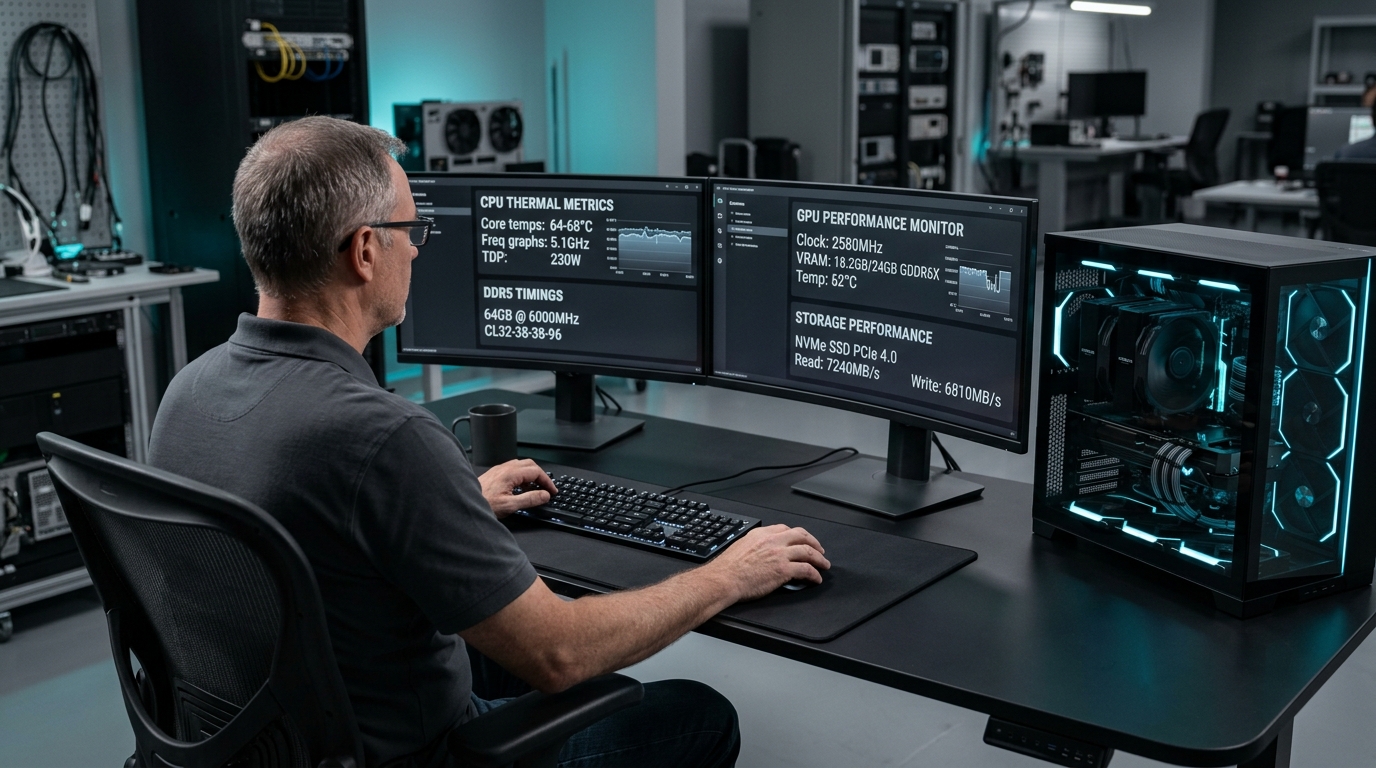
Once maintenance is finished and all components are fully dried and reassembled, verify functionality using specialized diagnostic software. Connect the peripheral to your workstation and execute an interactive input testing utility to confirm every switch registers cleanly without chatter or delay.
Connect the cleaned peripheral to an isolated test port on your workstation.
Launch an online key-testing matrix or operating system diagnostic tool.
Depress every individual key sequentially to confirm immediate visual registration on screen.
Test multi-key rollover and modifier combinations to verify physical switch stability.
# Example script to verify keyboard event streams on Linux systems
sudo evtest /dev/input/event0
# Press keys to monitor raw scancode registration and ensure zero signal chatter
Maintaining a regular cleaning schedule prevents particulate accumulation and extends the operational lifecycle of your input hardware. By adhering to precise solvent guidelines and mechanical handling procedures, you ensure consistent performance across all computing environments.
Frequently Asked Questions
Disconnect the keyboard, apply 99% isopropyl alcohol to a cotton swab or precision dropper, and work the solvent into the sticky switch while actuating it repeatedly until the residue dissolves.
Evan Mitchell• Cloud Infrastructure Specialist & Systems Administrator3+ Years Industry Experience
Systems administrator with 3+ years managing enterprise Linux servers, AWS EC2 instances, and Docker containers. Evan focuses on practical bash scripting and secure network configurations.