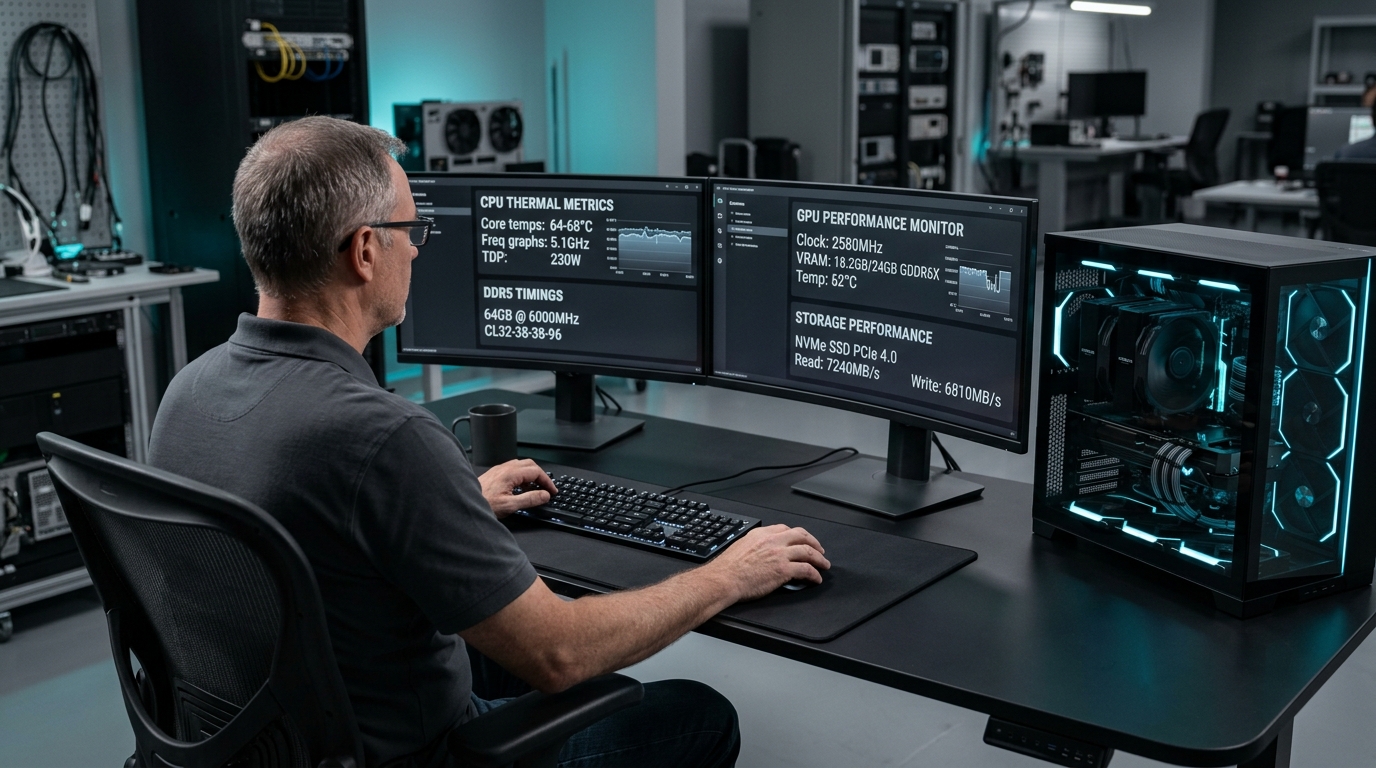
When upgrading system components, diagnosing thermal throttling, or auditing enterprise workstations, knowing how to check pc specs accurately ensures you gather authoritative hardware metrics directly from firmware and operating system interfaces. Modern operating systems contain sophisticated diagnostic layers, reporting processor core topology, memory bus transfer rates, dedicated graphics framebuffers, and solid-state storage bus allocations, without requiring physical chassis disassembly.
Quick Architecture Summary
To quickly audit PC hardware on Windows 11, press Ctrl + Shift + Esc for live CPU, GPU, and RAM telemetry in Task Manager, run msinfo32 for motherboard and UEFI firmware revisions, or execute Get-CimInstance cmdlets in PowerShell for exact DIMM serial numbers and NVMe storage health.
Enterprise administrators and power users frequently encounter conflicting reporting across utilities. A gaming utility may display nominal memory clock frequencies, while Windows Task Manager reports transfer rates in MegaTransfers per second (MT/s). Similarly, integrated graphics allocations can mask physical memory capacity, leading users to believe installed memory modules are defective. Understanding the diagnostic interfaces across Windows 11 Pro vs Home, macOS, and Linux eliminates guesswork and reveals exact hardware configurations.
Core PC Hardware Pillars & Diagnostic Parameters
A comprehensive hardware audit evaluates five primary subsystems: processor, system memory, graphics accelerator, solid-state storage, and the motherboard firmware environment. Each subsystem exposes specific operational parameters that determine processing throughput, software compatibility, and expansion headroom.
Central Processing Unit (CPU)
The CPU dictates serial and multi-threaded computation throughput. Key diagnostic metrics include microarchitecture generation, base clock frequency, maximum turbo boost, physical execution cores versus logical threads, and cache hierarchies (L1, L2, and L3 cache pools).
- - Instruction Set: x86-64 (AMD64/Intel 64) or ARM64
- - Thermal Design Power: TDP rating in watts
- - Core Configuration: P-cores and E-cores on hybrid chips
Random Access Memory (RAM)
System memory provides high-bandwidth workspace for active operating system tasks and running applications. Critical parameters include total capacity in gigabytes (GB), memory generation (DDR4 vs DDR5), transfer speed in MT/s, and channel topology.
- - Channel Mode: Single, Dual, or Quad-channel interleaving
- - Form Factor: Desktop UDIMM vs Laptop SODIMM
- - Timing Profile: CAS Latency (CL) and XMP/EXPO state
Graphics Processing Unit (GPU)
The graphics subsystem handles parallel rendering, display output stages, and compute acceleration. Diagnostic evaluations must distinguish between integrated graphics processors (iGPU) and discrete graphics cards (dGPU).
- - Dedicated Memory: GDDR6/GDDR6X VRAM buffer capacity
- - Memory Bus Width: 128-bit, 256-bit, or 384-bit bus
- - Driver Model: Windows Display Driver Model (WDDM) version
Solid-State Storage (SSD)
Storage drives house persistent files and system binaries. High-performance workstations rely on Non-Volatile Memory Express (NVMe) solid-state storage communicating over high-speed Peripheral Component Interconnect Express (PCIe) lanes.
- - Bus Protocol: NVMe PCIe 4.0/5.0 x4 vs SATA 6 Gbps
- - Health Metrics: S.M.A.R.T. wear level and Terabytes Written (TBW)
- - Controller Buffer: Dedicated DRAM cache vs Host Memory Buffer
Beyond basic capacity and clock speed, system throughput depends on memory bus topologies. Motherboard printed circuit boards (PCBs) implement either daisy-chain or T-topology traces connecting the CPU memory controller to physical DIMM slots. In contemporary DDR5 architectures, installing four physical dual-rank modules places high electrical capacitance on the integrated memory controller (IMC), frequently forcing motherboards to downclock transfer rates from 6000 MT/s to baseline JEDEC 3600 MT/s. Utilizing two matched modules in optimal primary slots (typically slots A2 and B2) ensures full high-speed signal integrity and enables symmetric dual-channel interleaving.
Similarly, PCIe lane allocation governs solid-state storage throughput. Desktop processors provide a dedicated bank of direct PCIe lanes (typically 16 lanes for discrete graphics and 4 lanes for primary NVMe storage). Secondary M.2 slots route through the motherboard chipset, sharing aggregate DMI (Direct Media Interface) uplink bandwidth with USB controllers, Ethernet interfaces, and audio codecs. Verifying whether your storage drives interface via CPU-attached lanes or chipset lanes is essential for high-throughput I/O auditing.
Fast Native GUI Methods on Windows 11 & Windows 10
When systems administrators evaluate how to check your computer specs on a new deployment, native graphical interfaces offer immediate clarity without requiring software installations. Windows couples user-friendly settings dashboards with low-overhead hardware telemetry to reveal core processing and memory capabilities.
Method 1: Windows Settings About Panel
The Windows Settings app provides a concise overview when discovering how to find pc specs windows 11, displaying processor identity, physical memory capacity, and operating system build details. To access this dashboard:
- Press Win + I to launch the Settings application.
- Navigate to System in the left navigation sidebar and scroll down to select About (or execute
ms-settings:about from the Run dialog).
- Locate the Device specifications section to view processor brand string, installed RAM, usable RAM allocation, and system architecture type (e.g., 64-bit operating system, x64-based processor).
- Locate the Windows specifications section to verify your edition (Windows 11 Pro, Enterprise, or Home), version number (e.g., 23H2 or 24H2), and OS build revision.
Method 2: Windows Task Manager Performance Tab
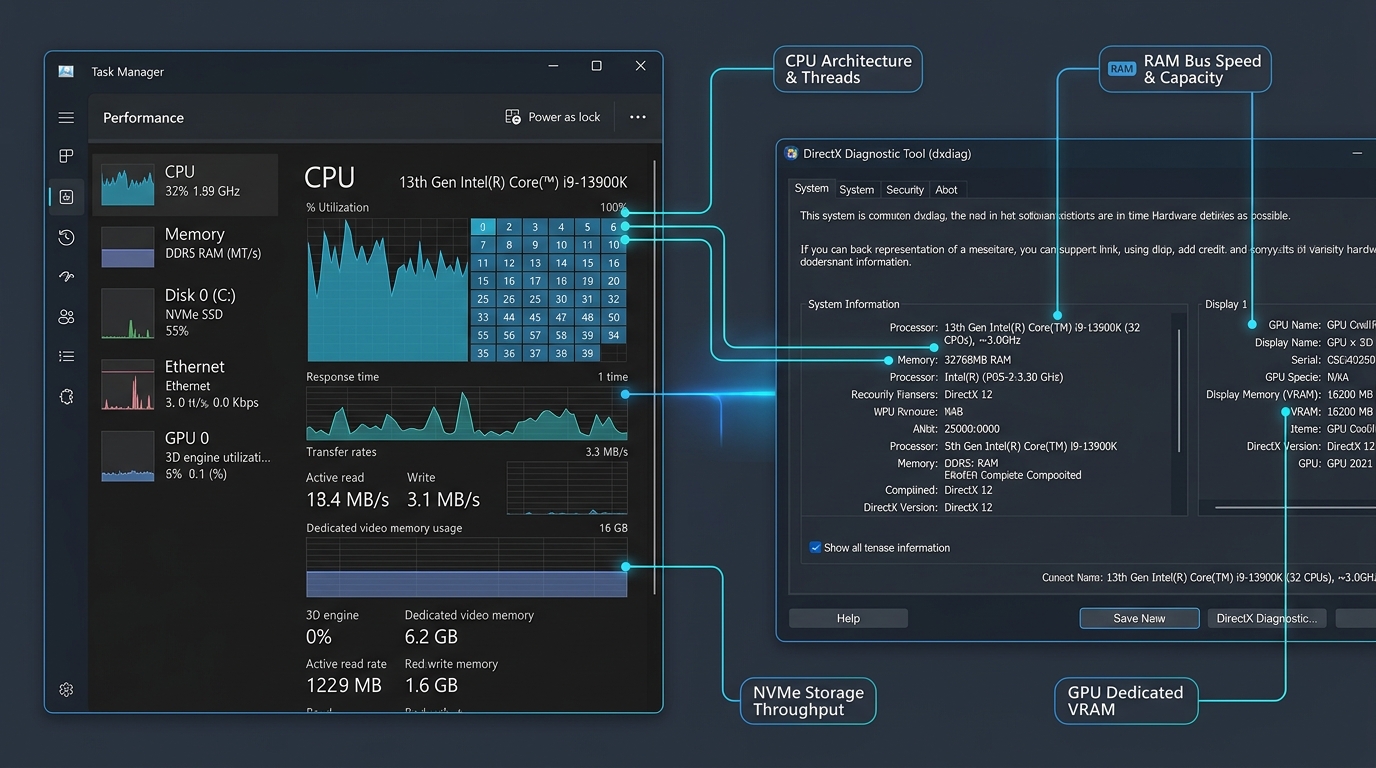
While the About panel shows basic capacities, Task Manager allows administrators to check ram speed and cpu model with live telemetry, memory channel configuration, and discrete graphics specifications. To inspect these detailed metrics:
- Press Ctrl + Shift + Esc or right-click the Start button and select Task Manager.
- Click the Performance tab icon in the left navigation panel.
- Select CPU to inspect your processor model name, active clock speed, base frequency, socket count, physical cores, logical processors (threads), hardware virtualization state, and L1, L2, and L3 cache sizes.
- Select Memory to verify total physical capacity, active in-use memory, available memory, memory bus speed in MT/s, slot occupancy (e.g., 2 of 4 slots used), and hardware form factor (DIMM or SODIMM).
- Select Disk to examine disk media type (SSD or HDD), connection interface, formatted capacity, active read/write response times (latency in milliseconds), and partition volumes.
- Select GPU (GPU 0 or GPU 1) to inspect discrete graphics hardware, dedicated GPU memory (VRAM), shared system memory limits, GPU temperature, and driver version.
When planning hardware upgrades, validating firmware security settings, or troubleshooting device conflicts, Task Manager lacks low-level motherboard and driver details. Windows provides two administrative diagnostic utilities to check gpu specs dxdiag msinfo32: System Information and the DirectX Diagnostic Tool.
Auditing Motherboard & Firmware via System Information (msinfo32)
The System Information utility (msinfo32.exe) extracts comprehensive configuration data from SMBIOS tables and the system registry:
- Press Win + R to open the Run prompt.
- Type
msinfo32 and press Enter.
- Select System Summary in the console tree to retrieve authoritative hardware identifiers:
- BaseBoard Manufacturer and Product: Identifies your motherboard vendor and exact model number (e.g., ASUS B650 series).
- BIOS Version/Date: Reports installed motherboard firmware revision and compile date, necessary for microcode and security patch auditing.
- BIOS Mode: Confirms whether the system boots via modern UEFI or legacy BIOS emulation.
- Secure Boot State and PCR7 Configuration: Validates platform trust state required for BitLocker disk encryption and Windows 11 hardware compliance.
- Kernel DMA Protection and Virtualization-based Security: Displays kernel memory protection and hypervisor isolation status.
- Expand Components > Display to audit GPU display adapters, PCI memory addresses, and driver file versions.
- Expand Components > Storage > Disks to audit individual disk drive models, sector sizes, and partition boundary alignments.
Auditing Graphics & Video Subsystems via DxDiag
The DirectX Diagnostic Tool (dxdiag.exe) audits graphics accelerators, video driver models, and audio hardware layers:
- Press Win + R, type
dxdiag, and press Enter.
- If prompted to verify digital driver signatures, click Yes to ensure WHQL driver validation.
- Under the System tab, confirm system manufacturer, processor string, memory capacity, and direct DirectX runtime version (e.g., DirectX 12).
- Switch to the Display tab (or Display 1 / Display 2 on multi-monitor setups) to audit critical rendering parameters:
- Display Memory (VRAM): The physical high-speed memory dedicated solely to the graphics processor.
- Shared Memory: System RAM accessible by the graphics driver when dedicated VRAM pool is saturated.
- Driver Model: Displays the installed WDDM standard (e.g., WDDM 3.1 or 3.2), indicating support for hardware-accelerated GPU scheduling.
- Feature Levels: Enumerates supported Direct3D rendering features (such as 12_2 for hardware ray tracing).
Advanced PowerShell & Command-Line Hardware Telemetry
System administrators managing fleets of workstations require scriptable commands to extract exact hardware part numbers, serial codes, and bus topology. Windows 11 version 24H2 formally deprecates the legacy Windows Management Instrumentation Command-line (WMIC) utility. Modern automation scripts must use Common Information Model (CIM) cmdlets in PowerShell.
Querying Processor Topology via CIM
To retrieve CPU core count, thread allocation, maximum clock speed, and cache allocation, execute the following PowerShell command in an elevated prompt:
Get-CimInstance -ClassName Win32_Processor | Select-Object Name, NumberOfCores, NumberOfLogicalProcessors, MaxClockSpeed, L3CacheSize, Architecture | Format-List
Auditing Physical RAM Modules & Part Numbers
Opening the PC chassis to check RAM labels is unnecessary. PowerShell directly queries SMBIOS Type 17 structures to output the manufacturer, part number, slot location, and rated clock speed for each individual memory stick:
Get-CimInstance -ClassName Win32_PhysicalMemory | Select-Object DeviceLocator, Manufacturer, PartNumber, Capacity, Speed, ConfiguredClockSpeed | Format-Table -AutoSize
In this output, Speed represents the maximum manufacturer-certified rating, while ConfiguredClockSpeed displays the active operational transfer rate currently negotiated by the motherboard chipset.
Auditing Motherboard Model & BIOS Revision
To identify motherboard vendor strings and firmware compile versions via command line, execute:
Get-CimInstance -ClassName Win32_BaseBoard | Select-Object Manufacturer, Product, SerialNumber, Version
Get-CimInstance -ClassName Win32_Bios | Select-Object SMBIOSBIOSVersion, ReleaseDate, Manufacturer
Auditing Physical Storage Bus Types & NVMe Health
To distinguish between NVMe solid-state drives, SATA SSDs, and legacy mechanical drives while validating storage operational health, execute:
Get-PhysicalDisk | Select-Object DeviceId, FriendlyName, MediaType, BusType, OperationalStatus, HealthStatus, Size | Format-Table -AutoSize
A high-performance storage configuration will report BusType: NVMe with HealthStatus: Healthy. Drives reporting BusType: SATA communicate over legacy AHCI storage controllers capped at 600 MB/s theoretical bandwidth.
Querying Storage Reliability & Controller Wear Telemetry
Solid-state drive degradation manifests in read re-try attempts and reallocated bad blocks long before drive failure. Administrators can audit storage reliability counters using the Windows Storage module in PowerShell:
Get-PhysicalDisk | Get-StorageReliabilityCounter | Select-Object DeviceId, Temperature, ReadErrorsTotal, WriteErrorsTotal, Wear | Format-Table -AutoSize
This cmdlet extracts internal controller telemetry, reporting current operational temperature in Celsius and wear indicators indicating remaining drive endurance percentage.
Cross-Platform Hardware Profiling on macOS & Linux
Heterogeneous IT environments often require auditing hardware on Apple Silicon Macs and Linux system administration server instances. Both platforms expose architectural characteristics distinct from standard Windows x86-64 hardware environments.
Hardware Discovery on macOS (Apple Silicon & Intel)
Apple Silicon workstations (M1, M2, M3, and M4 series) utilize a Unified Memory Architecture (UMA) where the processor, graphics engine, and Neural Engine access a shared pool of high-bandwidth memory integrated directly onto the system-on-chip (SoC) substrate.
To inspect Mac hardware specifications via GUI, click the Apple menu in the top-left menu bar, select System Settings > General > About, and click System Report... to launch the System Information utility.
For automated terminal audits to gather mac system profiler specs, execute the built-in system_profiler command:
# Audit Core Hardware, SoC Model, and Unified Memory
system_profiler SPHardwareDataType

# Audit GPU Core Count and Connected Displays
system_profiler SPDisplaysDataType

# Audit Internal NVMe Storage Controller
system_profiler SPStorageDataType
Hardware Discovery on Linux Distributions
Linux environments expose hardware telemetry directly through kernel pseudo-filesystems (/proc and /sys). System administrators querying linux lscpu lshw hardware terminal commands can inspect component parameters using standard command-line tools without installing graphical desktop packages:
# Display CPU Architecture, Socket Count, and Cache Layout
lscpu

# Inspect Available Memory and Active Swap Usage
free -h

# List Block Storage Devices, Partitions, and Mountpoints
lsblk -o NAME,FSTYPE,SIZE,MOUNTPOINT,ROTA,TYPE,MODEL

# Inspect PCI Bus Hierarchy (Discrete GPUs, NVMe Controllers, NICs)
lspci -nnk | grep -iA3 'vga|3d|display'

# Query DMI Motherboard and DIMM Slot Telemetry (Requires Root)
sudo dmidecode -t bios -t baseboard -t memory
Hardware Diagnostic Utility Comparison Matrix
Selecting the appropriate diagnostic utility depends on whether you require dynamic real-time resource utilization, firmware security validation, or automated hardware inventory across distributed fleets. The matrix below contrasts primary system inspection utilities:
| Diagnostic Tool |
Target Hardware Layers |
Primary Data Points Reported |
Supported Platforms |
Administrative Access Required |
| Task Manager (taskmgr.exe) |
CPU, Memory, GPU, Storage I/O |
Dynamic clock speeds, active core utilization, committed memory, VRAM usage |
Windows 10, Windows 11 |
Standard User Access |
| System Info (msinfo32.exe) |
Motherboard, BIOS/UEFI, CPU, System Devices |
Motherboard chipset model, BIOS release date, PCR7 binding status, Hyper-V extensions |
Windows 10, Windows 11 |
Standard User Access |
| DirectX Diagnostic (dxdiag.exe) |
GPU, Display Subsystem, Audio Codecs |
Discrete GPU VRAM capacity, driver WDDM version, display bus resolution, HDR status |
Windows 10, Windows 11 |
Standard User Access |
| PowerShell (Get-CimInstance) |
CPU microcode, DIMM serials, NVMe link health |
Physical memory part numbers, memory bus MT/s, disk bus type, SMART read errors |
Windows 10, Windows 11, PowerShell Core |
Administrator Privileges Recommended |
| macOS System Profiler |
Apple Silicon SoC, Unified Memory, NVMe Apple Fabric |
Total unified memory bandwidth, GPU core clusters, Neural Engine telemetry, battery cycles |
macOS Sonoma, macOS Sequoia |
Standard User Access |
| Linux CLI (lscpu, lshw, lsblk) |
Linux Kernel procfs, sysfs, PCI bus tree |
Socket core topology, L1/L2/L3 cache latency, PCIe generation link width, block mountpoints |
Linux Distributions (Kernel 4.x+) |
Root or Sudo Required for DMI |
Troubleshooting & Common Hardware Reporting Pitfalls
When auditing system telemetry, whether after performing a factory reset and system recovery or configuring new workstations, engineers frequently encounter unexpected discrepancies between physical packaging specifications and operating system diagnostic outputs. Understanding these standard architectural behaviors prevents misdiagnosing healthy hardware components.
DDR4 & DDR5 Memory Running at Baseline JEDEC Speeds
When users install high-speed memory kits rated for 3200 MT/s, 3600 MT/s, or 6000 MT/s, Task Manager often reports a lower transfer rate such as 2133 MT/s or 4800 MT/s. Modern motherboards initialize memory at conservative JEDEC baseline timings to guarantee stable initial bootup. To operate modules at advertised speeds, enter your UEFI firmware configuration during startup and enable Intel XMP (Extreme Memory Profile) or AMD EXPO (Extended Profiles for Overclocking).
Missing Usable RAM Due to Hardware Reservation
If your system contains 16 GB of physical RAM but Windows reports "13.9 GB usable" with 2.1 GB designated as "Hardware Reserved", the missing capacity is not defective. Systems equipped with integrated graphics processors (iGPU) carve out dedicated system memory addresses at the firmware level to serve as dedicated video memory buffers. This allocation can be adjusted in UEFI BIOS settings under Integrated Graphics Frame Buffer Size.
Discrete GPU Absent in Basic Telemetry on Laptops
On gaming and workstation laptops equipped with dual graphics (integrated Intel/AMD graphics alongside a discrete NVIDIA or AMD GPU), basic diagnostic tools may show only the integrated graphics controller. Mobile architectures utilize dynamic power management (such as NVIDIA Optimus) that powers down the discrete GPU into a deep low-power sleep state (D3cold) during desktop idle. Launching a 3D payload or checking Device Manager (devmgmt.msc) immediately awakens the discrete graphics processor for inspection.
NVMe SSD Link Operating at Sub-Optimal PCIe Generation
An NVMe solid-state drive certified for PCIe 4.0 x4 may deliver half its rated read/write bandwidth if installed into an M.2 slot routed through a secondary chipset bus that shares PCIe lanes with SATA ports or peripheral expansion slots. System administrators should verify the negotiated PCIe link width and speed in storage vendor diagnostics to confirm the drive establishes a full PCIe 4.0 x4 connection rather than falling back to PCIe 3.0 x2 mode.
Thermal Throttling vs Power Limit Throttling (PL1, PL2, Tau)
When executing sustained multi-threaded rendering workloads, processor core clock speeds frequently step down after a brief surge. Administrators observing clock drops often suspect overheating, but modern processors implement two distinct throttling mechanisms: thermal throttling (triggered when junction temperatures reach Tjunction Max, typically 100°C) and power limit throttling. Under standard processor specifications, processors operate at elevated short-duration power limits (PL2) during the Tau timing window before stepping down to sustained base power limits (PL1). Querying hardware counters clarifies whether frequency reductions stem from thermal dissipation limits or expected power state transitions.
Authoritative Operating System Documentation & Standards
For deeper hardware architecture specifications, kernel driver models, and command-line interfaces, refer to official platform documentation: