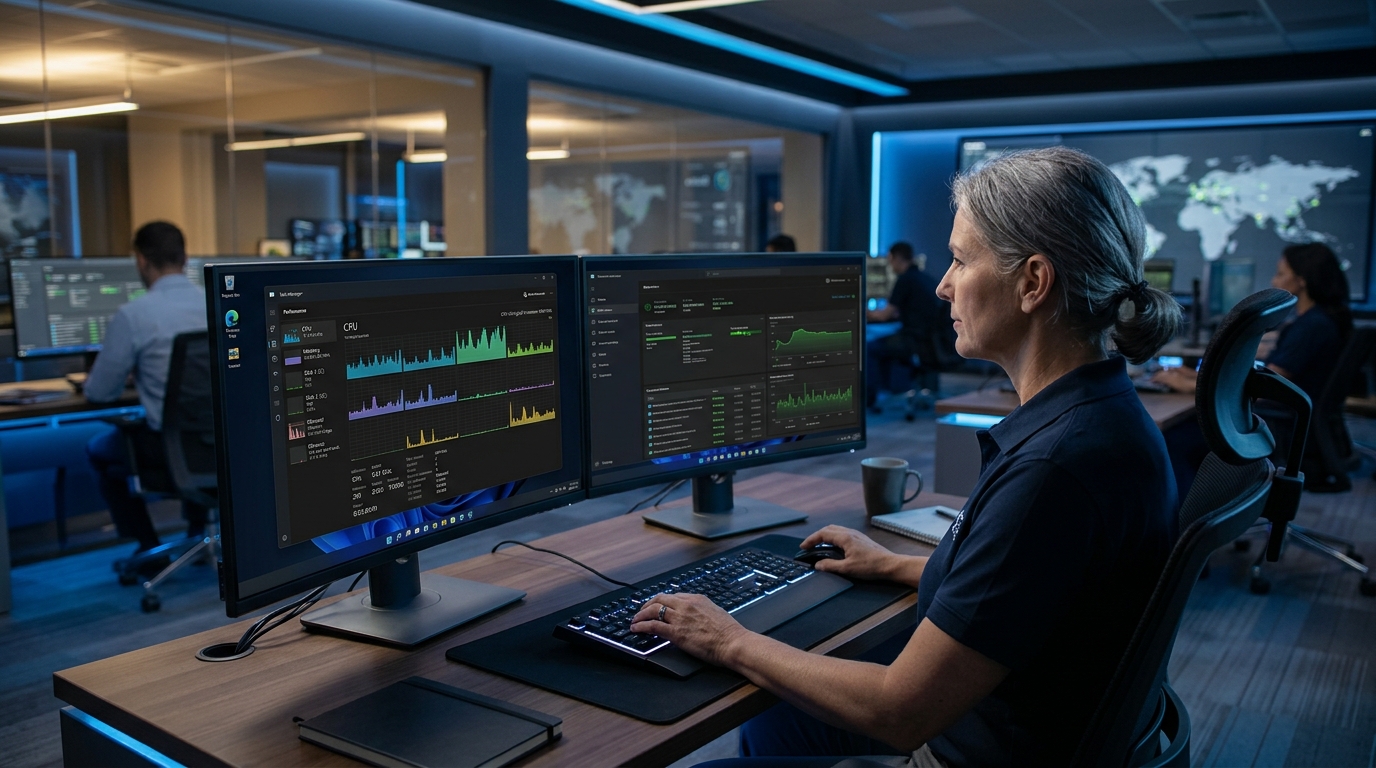
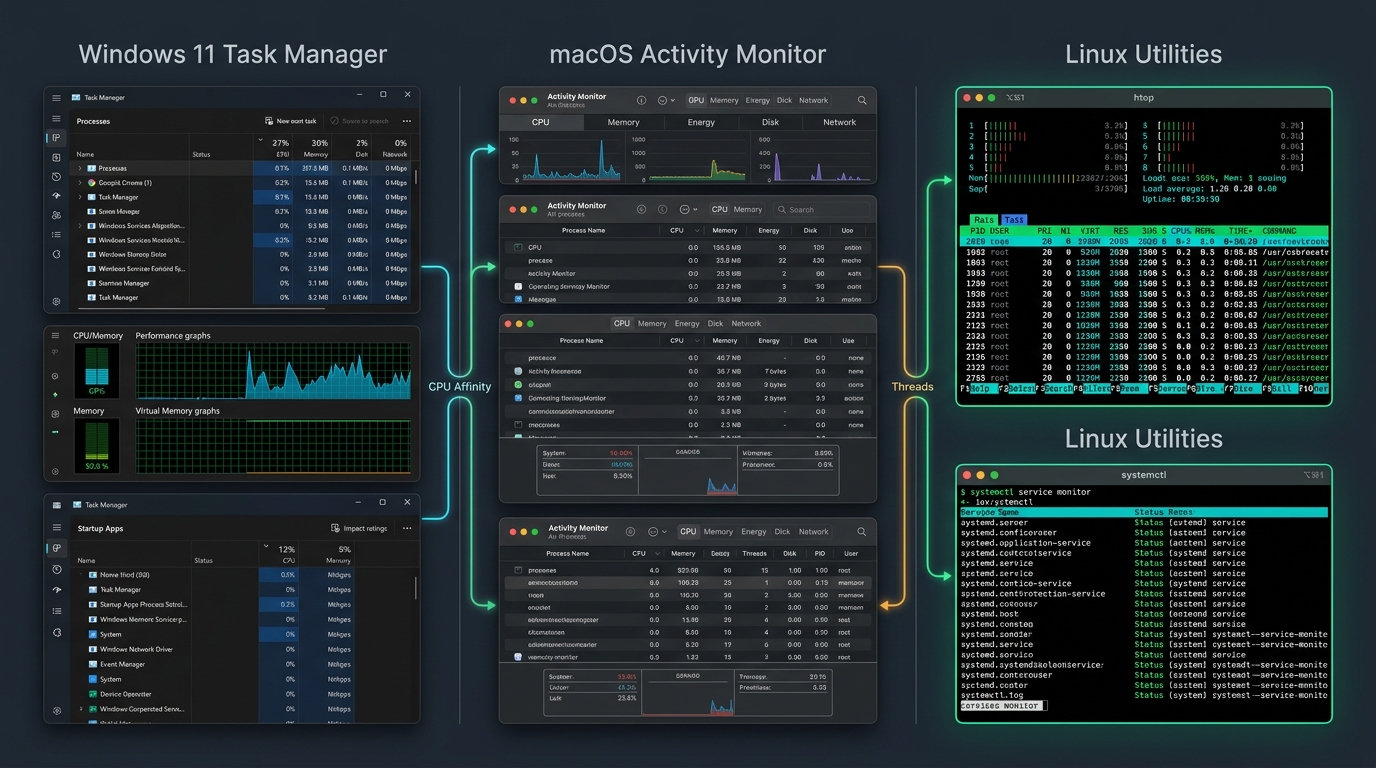
Every modern operating system runs hundreds of concurrent background threads, kernel drivers, system daemons, and user applications simultaneously. When an application stops responding, cooling fans spin up unexpectedly, or computer responsiveness crawls to a crawl, understanding what is a task manager provides technicians and everyday power users with the ultimate control center. Functioning as an interactive diagnostic cockpit, a computer task manager exposes real-time telemetry across processor cores, physical RAM allocations, persistent storage input/output, and network interfaces. Whether executing emergency process termination on Windows 11, diagnosing battery drain via macOS Activity Monitor, managing remote servers over RDP, or monitoring daemon processes in Linux with htop, mastering system process monitoring is foundational to reliable computing operations.
Core System Architecture: What a Task Manager Exposes
A standard operating system task manager operates across three distinct diagnostic layers to bridge kernel hardware telemetry with user-space application controls:
1. Process Lifecycle
PID & State Tracking
Process trees, threads, and kill signals
2. Resource Telemetry
CPU, RAM, Disk & Network
Real-time throughput and utilization graphs
3. System Governance
Startup & Background Daemons
Boot impact scoring and efficiency policies
What is a Task Manager? Core Operating System Functions
At its core architectural definition, a task manager is a specialized system administration utility built into or layered upon an operating system kernel. It queries low-level operating system APIs, such as the Windows NT Executive subsystem, macOS XNU Mach kernel interfaces, or the Linux /proc pseudo-filesystem, to extract operational state information about every active thread and process executing in memory.
Without a dedicated process viewer, troubleshooting computer slowdowns would be entirely opaque. When an enterprise application freezes, the operating system GUI often remains locked in a waiting state, leaving users unable to click standard close buttons. The task manager operates independently of the frozen application window, giving administrators the authority to issue process termination signals directly to the kernel scheduler.
The Four Essential Pillars of Task Management
- Resource Consumption Monitoring: Tracks how many CPU clock cycles, megabytes of RAM, disk read/write megabytes, and network packets each process consumes every second.
- Force Process Termination: Delivers non-maskable kill interrupts (such as SIGKILL on Unix or TerminateProcess on Windows) to halt rogue, looped, or crashed software threads immediately.
- Boot Optimization and Startup Management: Lists third-party applications configured to launch during operating system initialization, measuring their impact on system boot latency.
- Hardware Performance Diagnostic: Visualizes physical hardware telemetry, revealing whether a performance bottleneck stems from thermal CPU throttling, saturated SATA/NVMe storage queues, or exhausted physical memory.
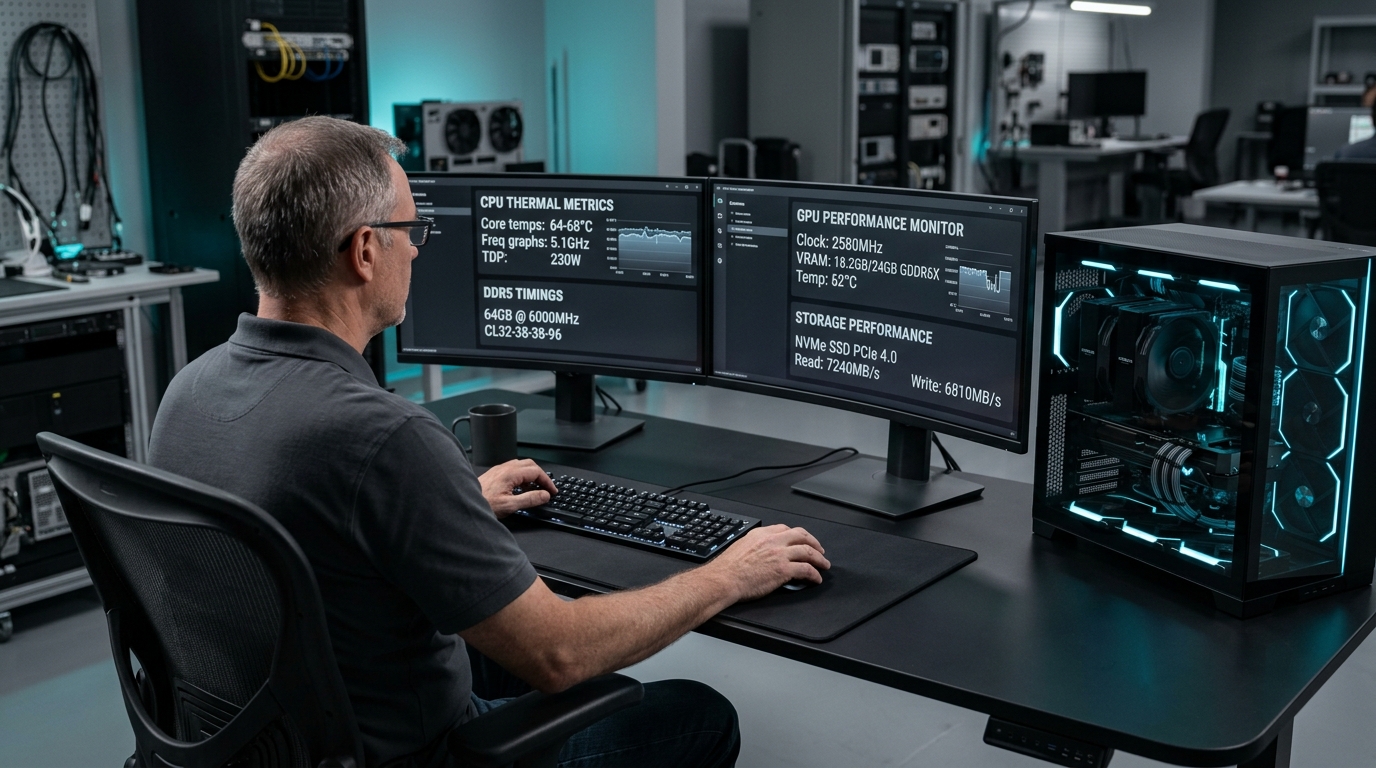
To understand your underlying physical hardware before diagnosing utilization spikes, review our comprehensive technician walkthrough on how to check detailed pc hardware specs to inspect your base processor core count, RAM channel speeds, and NVMe read/write maximums.
Windows 11 Task Manager: Deep Dive into Tabs & Metrics
In Windows 11 (24H2 and 23H2), Microsoft overhauled the legacy interface into a modern, responsive XAML-based dashboard featuring a collapsible vertical navigation sidebar, global search filtering, and native dark mode support. Understanding each dedicated tab allows administrators to pinpoint system anomalies rapidly:
1. Processes Tab (Live Workload View)
The default view categorizes running software into three clean tiers: Apps (interactive desktop windows you currently have open), Background processes (utility services, updaters, cloud sync clients, and tray tools), and Windows processes (critical OS subsystems such as Explorer.exe, dwm.exe, and lsass.exe). Real-time columns display CPU percentage, Memory in megabytes, Disk transfer rate, Network bandwidth, GPU utilization, and Power usage trends.
Right-clicking any application allows you to perform an immediate End task, expand child helper processes, open the containing file directory on disk, or search the web for unfamiliar process descriptions.
2. Performance Tab in Task Manager (Hardware Telemetry Graphs)
The performance tab in task manager serves as an integrated performance task manager screen, providing high-fidelity, real-time wave graphs for core hardware components. Selecting CPU displays base speed, active frequency boost, total uptime counter, thread count, handle count, and virtualization status (Hyper-V / VT-x / AMD-V). Selecting Memory reveals committed virtual memory vs physical in-use RAM, cached file data, and hardware-reserved pools. Selecting individual Disks displays active time percentage, average response time in milliseconds, and read/write speeds, while Ethernet / Wi-Fi tracks IPv4 throughput and adapter packet drops.
3. Startup Apps Tab (Boot Impact Mitigation)
Replaces legacy msconfig tools by listing every autorun application registered in Windows Registry run keys (HKLM and HKCU) or shell startup folders. Each item displays its verified publisher, current status (Enabled or Disabled), and an automated Startup impact score (High, Medium, Low, or None). Disabling heavy background updaters and telemetry agents here significantly shortens operating system cold boot times.
4. Details Tab (Raw Process IDs & Thread Priorities)
The power-user tab for systems administrators. Unlike the simplified Processes tab, the Details tab reveals the unmasked executable image name, unique Process ID (PID), execution user account, working set memory, base priority level (Realtime, High, Above Normal, Normal, Below Normal, Low), and CPU core affinity. If a software process locks a file handle or crashes silently, sorting by PID or Image Name lets you identify the exact culprit.
5. Services Tab (Windows Background Daemons)
Provides an inline management console for native Windows Services. You can inspect service short names (such as Spooler, wuauserv, or WinDefend), their operational status (Running or Stopped), and associated Process IDs. Right-clicking lets you start, stop, or open the full services.msc snap-in directly without navigating Control Panel menus.
The System Process & Task Manager Priority Settings Explained
When exploring the Details tab, users frequently encounter specific kernel processes and wonder what is system in task manager. The entry labeled System (which consistently maintains Process ID 4) is not a standard third-party application. Instead, this system task manager process hosts kernel-mode threads, including file system storage drivers, hardware interrupt handlers, graphics driver dispatchers, and operating system memory compression pools.
Because the System process represents the Windows NT kernel (ntoskrnl.exe) executing in ring-0 protected memory, it cannot and should not be terminated. If you observe the System process consuming sustained high CPU usage (above 15% to 20%), it almost always indicates a misbehaving hardware driver generating deferred procedure call (DPC) interrupt storms, or an SSD experiencing severe storage queue read timeouts.
Configuring Task Manager Priority Settings and CPU Affinity
Within the Details tab, power users can adjust task manager priority settings by right-clicking any active process and navigating to Set priority. Priority task manager configurations determine how aggressively the Windows thread scheduler grants CPU execution time:
- Realtime: Grants the process uninterrupted access to CPU cores, pre-empting keyboard inputs, mouse drivers, and disk flushing. Warning: Setting non-kernel apps to Realtime can freeze your entire operating system.
- High / Above Normal: Prioritizes audio processing, video rendering, or real-time simulation pipelines over routine desktop applications.
- Normal (Default): Standard scheduling priority allocated to everyday user applications and productivity suites.
- Below Normal / Low: Ideal for background data compression, archival hashing, or distributed batch computations that should yield CPU cycles whenever interactive applications request compute power.
- Set Affinity: Allows administrators to restrict a process to run strictly on designated CPU cores (for example, pinning a legacy game to Cores 0 through 3, or confining a CPU-heavy render job away from primary interactive cores).
Direct Windows Taskbar End Task Feature (Windows 11 & Windows 10 Workarounds)
A major convenience feature introduced in Windows 11 allows users to perform an immediate end task windows operation directly from the desktop taskbar without opening Task Manager first. When enabled, right-clicking any open app icon on the taskbar presents an immediate End task context option.
To enable this native shortcut in Windows 11:
- Open Settings (Win + I) and navigate to System → For developers.
- Toggle the switch for End Task to On.
- Now, right-click any frozen software on your taskbar and select End task to kill the process tree instantly.
Note for Windows 10 users: If you are searching how to add end task to taskbar windows 10, this native developer toggle is exclusive to modern Windows 11 builds. On Windows 10, achieving a similar end taskbar workflow requires third-party utilities or custom desktop shortcut scripts executing taskkill commands.
Keyboard Shortcuts & Terminal Methods to Open Task Manager
When a system locks up or you need to call task manager immediately, knowing how to open task manager using keyboard shortcuts ensures you can regain control even if your mouse cursor is stuttering or desktop windows are unresponsive. Whether you want to know how to go to task manager, how to start the task manager, how to pull up task manager, or how to bring up task manager during an emergency freeze, several verified methods exist:
| Method |
Shortcut / Command |
Speed & Behavior |
Recommended Scenario |
| Direct Instant Shortcut |
Ctrl + Shift + Esc |
Instant (Bypasses intermediate menus) |
The fastest day-to-day task manager shortcut across all Windows versions; optimal quick key for task manager |
| Security Interrupt Shortcut |
Ctrl + Alt + Delete |
Hardware Kernel Interrupt Screen |
Emergency recovery when a full-screen game or crashed app captures mouse focus; also provides access to shortcut to lock computer |
| Taskbar Context Menu |
Right-click Taskbar / Start Button (Win + X) |
GUI Mouse Click |
Convenient one-click access via the Windows 11 Power User menu |
| Run Dialog Box |
Win + R → taskmgr |
Direct Process Launch |
Standard task manager in run command; useful when Windows Explorer shell has crashed and taskbars are missing |
| Command Prompt / PowerShell |
taskmgr.exe |
Terminal Process Spawning |
Start task manager from cmd or automated administrative scripting |
If users wonder where is the task manager on windows 10 or where do i find task manager in Windows 11, the primary binary executable is located at C:\Windows\System32\Taskmgr.exe. In terminal sessions, you can execute a command prompt open task manager call simply by typing start taskmgr or entering taskmgr.exe.
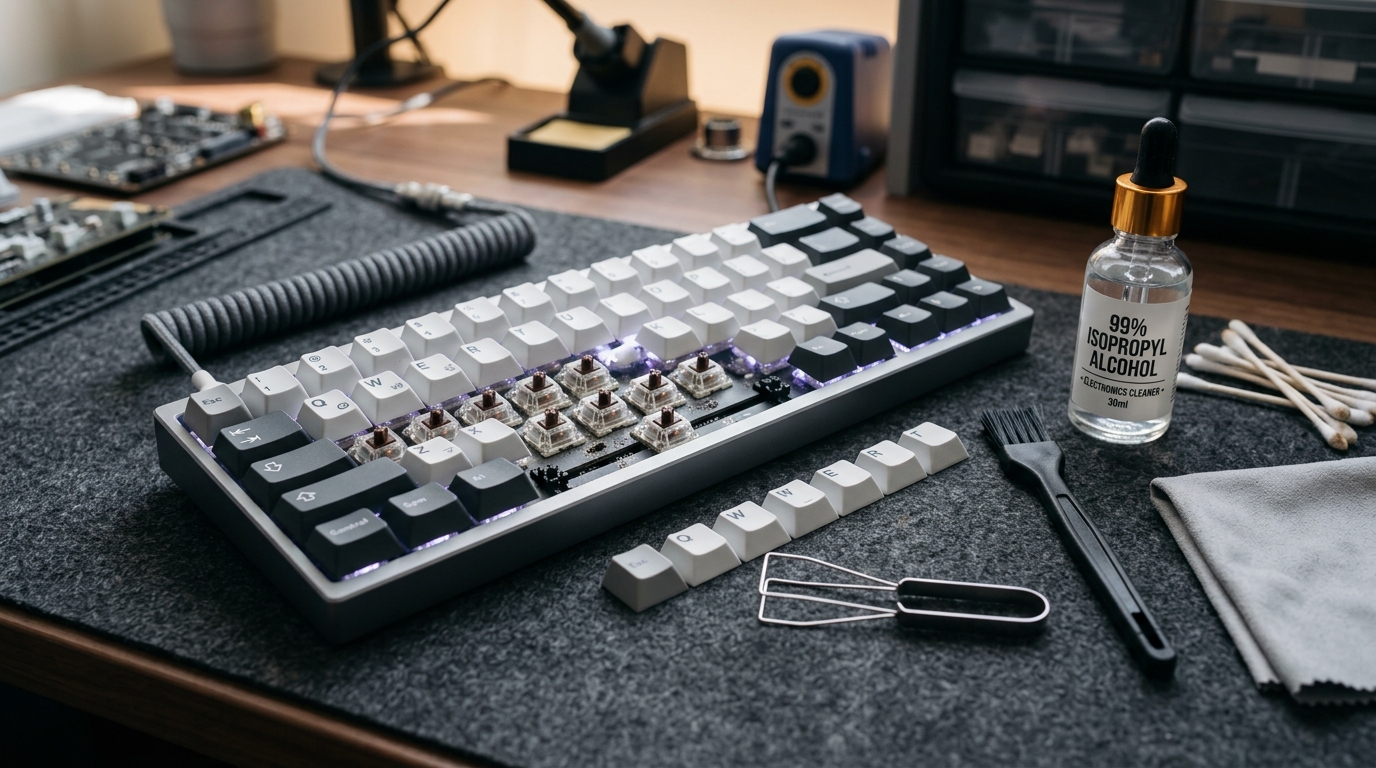
If physical keyboard keys stick during emergency input sequences, make sure to read our maintenance guide on how to clean mechanical and laptop keyboards to keep your key switches responsive during high-intensity operations.
Managing Remote Servers: Remote Desktop (RDP) Task Manager Workflows
Systems administrators managing headless virtual machines or remote server instances over Remote Desktop Protocol (RDP) frequently encounter a classic dilemma: pressing standard keyboard shortcuts like Ctrl + Alt + Delete intercepts on the local management computer rather than the remote workstation. If you need to run task manager on remote desktop or want to know how to open task manager in remote desktop, several purpose-built techniques exist:
1. The Dedicated RDP Security Shortcut: Ctrl + Alt + End
When working inside an active Microsoft Remote Desktop (mstsc.exe) window, press Ctrl + Alt + End. In RDP protocol architecture, this keyboard sequence is mapped specifically to transmit a GINA/Credential Provider security interrupt to the remote session, presenting the remote Windows security screen where you can click Task Manager or access lock controls on the remote host.
2. Direct In-Session Shortcut: Ctrl + Shift + Esc
If your Remote Desktop Connection client is running in full-screen mode with the top connection bar active, pressing Ctrl + Shift + Esc directly summons the remote desktop task manager on the target server rather than your local PC.
3. Remote Command-Line Process Management (Tasklist & Taskkill)
If a remote machine is completely frozen and GUI task managers fail to paint over RDP, you can query and terminate rogue software remotely from your local command prompt without opening a desktop graphical session:
# Query all active processes on a remote computer over the network
tasklist /S srv-prod-01.corp.internal /U domain\admin /P SecretPassword

# Forcefully terminate an unresponsive remote process by PID
taskkill /S srv-prod-01.corp.internal /U domain\admin /P SecretPassword /PID 8412 /F

# Launch taskmgr directly inside an active remote session from PowerShell
Invoke-Command -ComputerName srv-prod-01 -ScriptBlock { Start-Process taskmgr.exe }
macOS Activity Monitor: The Mac Equivalent to Task Manager
Apple users transitioning from Windows frequently search for task manager on mac, task manager apple computer, or ask does mac have a task manager or is there a task manager for macbook. In the macOS operating system environment, the native mac equivalent of task manager is named Activity Monitor.
How to Open Task Manager on Mac (Activity Monitor Access)
- Spotlight Search (Recommended): Press Command + Spacebar, type
Activity Monitor, and press Return. This is the fastest way when wondering how to get task manager on macbook.
- Finder Navigation: Open Finder, navigate to the Applications directory, open the Utilities folder, and double-click Activity Monitor.app.
- Quick Force Quit HUD (Task Killer on Mac): If you only need to terminate a frozen application without viewing resource graphs, press Option + Command + Esc. This opens the lightweight Force Quit Applications dialog, functioning as an instant task manager mac shortcut on any MacBook or iMac.
Activity Monitor organizes system performance into five specialized tabs designed for Apple Silicon (M-series) and Intel architectures:
- CPU Tab: Displays percentage of total compute power consumed, thread count, and CPU time. At the bottom, the system graph shows overall User, System, and Idle percentages alongside dynamic core load curves.
- Memory Tab: Replaces simple percentage counters with an intelligent Memory Pressure graph. Green indicates sufficient headroom, yellow indicates the OS is compressing memory pages, and red indicates excessive swap file thrashing on SSD storage.
- Energy Tab: Crucial for laptop users, showing the Energy Impact score of running apps, whether apps prevent system sleep, and which background software drains MacBook battery cycles fastest.
- Disk Tab: Tracks cumulative bytes written and bytes read per process, identifying rogue background programs that cause excessive SSD write wear.
- Network Tab: Monitors incoming and outgoing packet counts and data volumes, helping identify unauthorized data exfiltration or bandwidth-heavy background downloads.
To terminate a process in Activity Monitor, select the offending item from the list, click the Stop (X) button in the top toolbar, and choose either Quit (sends an orderly SIGTERM shutdown signal) or Force Quit (sends an immediate SIGKILL interrupt).
Linux Process Management: htop, top & systemctl CLI Tools
In Linux and Unix server environments where graphical user interfaces are frequently omitted to preserve system memory, process management relies on high-speed terminal utilities. While the classic top command ships with every standard distribution, systems administrators universally prefer htop for its interactive color-coded bars, mouse support, and intuitive sorting controls.
Installing and Launching htop on Linux
# Install htop on Ubuntu / Debian systems
sudo apt update && sudo apt install -y htop

# Install htop on RHEL / Rocky / Fedora systems
sudo dnf install -y htop

# Launch the interactive process manager
htop
Inside htop, press F6 to sort processes by CPU, Memory, or PID. Press F9 to send kill signals directly (Signal 15 SIGTERM for graceful exit, Signal 9 SIGKILL for forced termination), and press F10 to quit back to your bash shell.
For programmatic and automated process termination from the command line across Linux or Windows PowerShell, administrators rely on native CLI binaries:
# Linux: Search for active processes matching a name
pgrep -l nginx

# Linux: Terminate a process by Process ID gracefully
kill 14285

# Linux: Force kill an unresponsive process immediately
kill -9 14285

# Windows PowerShell: Query high-memory processes
Get-Process | Sort-Object -Descending WorkingSet | Select-Object -First 5

# Windows PowerShell: Stop an unresponsive task by process name
Stop-Process -Name "excel" -Force
For complete guidance on configuring user privileges and process ownership across server filesystems, explore our manual on Linux file permissions chmod and chown.
Mobile Process Management: Android Task Manager & Device Care
Smartphone users frequently ask whether they need an android task manager or an android process manager app to keep mobile devices running smoothly. In modern versions of Google Android, the underlying Linux kernel utilizes an automated driver known as the Low Memory Killer (LMK).
How Android Handles Background Apps Automatically
Unlike desktop operating systems where idle applications can consume active CPU cycles indefinitely, Android places background applications into cached RAM states where CPU execution is frozen. When active foreground games or camera apps require additional memory, the kernel LMK daemon automatically flushes the oldest cached processes without user intervention.
Installing third-party task killer applications from app stores is actually detrimental: when a third-party app forcefully closes background services, the Android OS automatically relaunches essential daemon processes seconds later. This continuous kill-and-restart cycle increases CPU thrashing and drains mobile battery significantly faster.
For Samsung Galaxy users searching for a task manager for samsung, Samsung provides native diagnostic controls directly in Settings → Device care → Memory. Here, users can inspect background memory reservations, clear app cache safely, and configure Auto optimization restarts without third-party utilities.
Disambiguation: OS Task Manager vs Task Management Software
In modern digital workflows, the terminology around "task managers" often creates confusion between two completely distinct categories of tools:
1. Operating System Process Monitors
Tools like Windows Task Manager, macOS Activity Monitor, and Linux htop monitor computational threads, CPU utilization, physical RAM allocation, and device hardware health. Their objective is maintaining computer stability and terminating frozen software processes.
Scope: Low-level kernel threads, system performance, PIDs, and hardware diagnostics.
2. Productivity & Project Task Management Software
Platforms like Microsoft To Do, Todoist, Asana, Notion, and Trello function as human workflow organizers. These tools help teams answer how to keep track of tasks, how to organize tasks at work, and how to maintain collaborative to-do lists across daily business operations.
Scope: Human deliverables, deadline tracking, collaborative checklists, and project management.
Different operating systems structure process monitoring around distinct administrative philosophies. The table below contrasts native task managers across Windows 11, macOS, and Linux distributions:
| Feature Dimension |
Windows 11 Task Manager |
macOS Activity Monitor |
Linux htop / top |
| Primary Native Tool |
Task Manager (taskmgr.exe) |
Activity Monitor.app |
htop / top / GNOME System Monitor |
| Default Quick Shortcut |
Ctrl + Shift + Esc |
Option + Command + Esc (Force Quit) |
Terminal Command: htop |
| Interface Paradigm |
Modern Desktop GUI with Search Filter |
Clean Tabbed macOS Native Window |
Text-Based Color Terminal (ncurses) |
| Startup App Control |
Built-in (Startup Apps Tab) |
Separate (System Settings → Login Items) |
Separate (systemctl / ~/.config/autostart) |
| Power Throttling Mode |
Efficiency Mode (EcoQoS API) |
Automatic macOS App Nap Subsystem |
nice / renice / cgroups v2 |
| Termination Mechanism |
TerminateProcess (Win32) |
SIGTERM / SIGKILL (POSIX) |
kill -15 / kill -9 (POSIX) |
Diagnostic Playbook: Troubleshooting 100% CPU, Memory Leaks & Frozen Apps
When a computer exhibits system stutter, loud cooling fans, or sudden battery depletion, systematic diagnostic triage inside the task manager restores stability without requiring an immediate, disruptive hard reboot:
- Isolate Saturated Process Columns: Open Task Manager (Ctrl + Shift + Esc). In the Processes tab, click the CPU header once to sort running items in descending order. Identify whether a single application (such as a runaway browser rendering process or compiler thread) is pegging an entire processor thread at 100%.
- Distinguish System Idle Process: On Windows systems, you may see System Idle Process utilizing 90% or more of your CPU. This is completely normal and healthy: System Idle Process measures the percentage of CPU cycles that are currently unoccupied and ready for user workloads.
- Diagnose Progressive Memory Leaks: Click the Memory header. If an application steadily accumulates gigabytes of RAM over several hours without releasing memory when windows are closed, it suffers from an unhandled heap memory leak. End the task to reclaim system RAM before the OS triggers disk paging freezes.
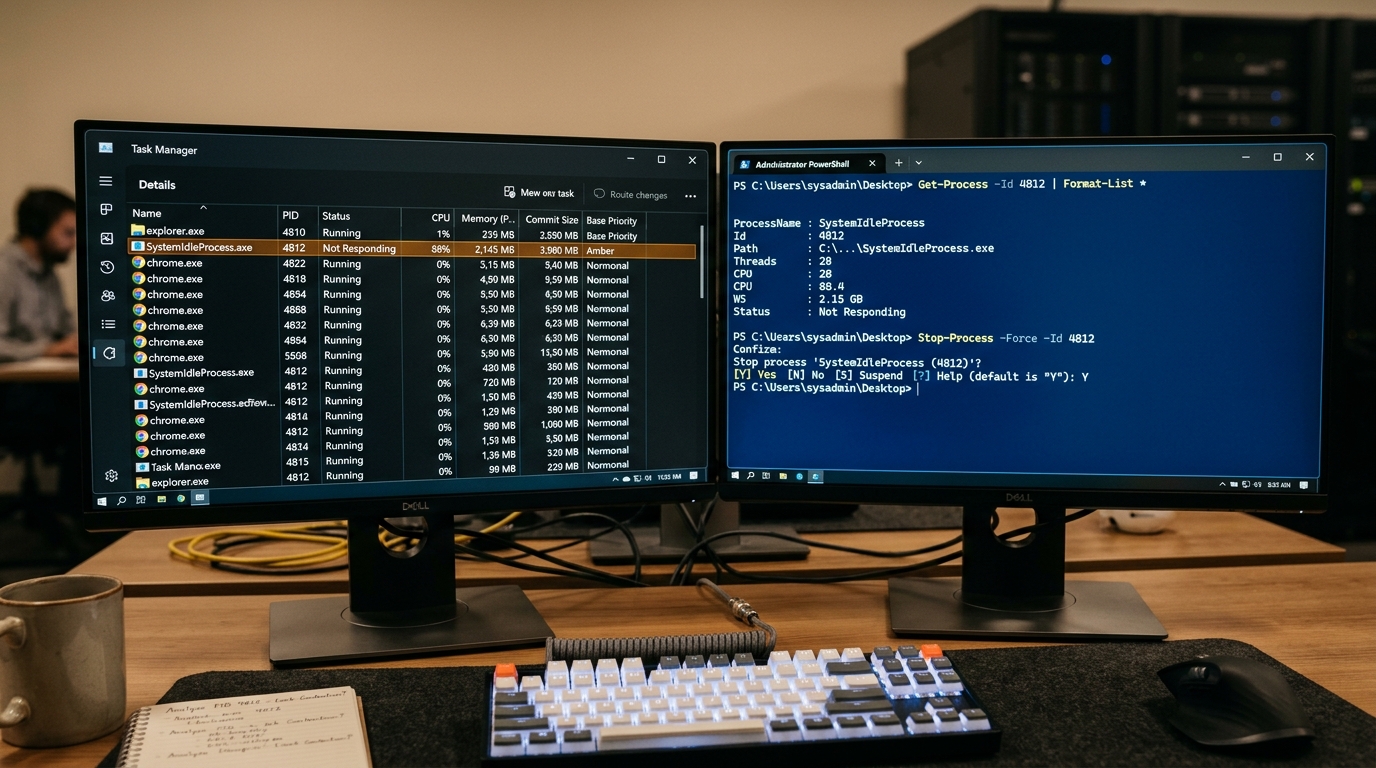
- Safely Terminate Hung Applications: When an app displays "(Not Responding)" in the title bar, select it in Task Manager and click End task in the top command bar. If the app refuses to exit within 10 seconds, switch to the Details tab, locate its executable name, right-click, and select End process tree to terminate the parent and all spawned worker threads.
- Inspect Disk Queue Spikes: If CPU and RAM usage remain low but the system feels sluggish, examine the Disk column on the Performance tab. An active time of 100% paired with response times above 100 ms indicates saturated disk queues, often caused by background file indexing, pending Windows updates, or failing storage drive sectors.
If you are comparing operational features between enterprise operating systems, review our technical breakdown on Windows 11 Pro vs Home feature breakdown to understand how Group Policy, BitLocker, and Remote Desktop affect administrative access to process controls.
Startup App Optimization & Efficiency Mode Configuration
One of the most powerful built-in performance features in Windows 11 Task Manager is Efficiency Mode. Built on Microsoft's EcoQoS application programming interface, Efficiency Mode enables administrators and users to manually throttle low-priority background applications without closing them entirely.
How Efficiency Mode Works Internally
When you enable Efficiency Mode on a process:
- Lowering Process Priority: The Windows thread scheduler lowers the task priority class to IDLE_PRIORITY_CLASS, guaranteeing that interactive foreground apps receive processor cycles first.
- Executing on Efficiency Cores (E-Cores): On hybrid architectures (such as Intel 12th through 15th Gen Core processors), the OS scheduler migrates the throttled process strictly onto low-power Efficiency cores, keeping high-performance P-cores clear for demanding tasks.
- Thermal and Battery Savings: Reduces overall CPU package power draw and prevents background cloud synchronizers or video converters from triggering thermal throttle limits.
To activate Efficiency Mode on Windows 11, expand an application in the Processes tab, select an individual child worker process, and click the Efficiency mode button in the top toolbar (or right-click the process and check Efficiency mode). A green leaf icon confirms that the process is operating under EcoQoS power constraints.
To audit startup applications and eliminate boot drag:
- Click the Startup apps icon in the Task Manager navigation sidebar.
- Sort the table by clicking the Startup impact column.
- Identify third-party launchers, gaming overlays, and media updaters labeled with "High" impact.
- Right-click unnecessary background agents and select Disable. Disabling startup apps does not uninstall the software; it simply prevents the utility from launching until you explicitly click its icon.
For additional operating system tutorials, performance optimization roadmaps, and systems administration manuals, browse our complete collection in the OS & Systems category hub.