Deploying a bare-metal or virtualized Linux node in an enterprise data center requires far more than clicking through default operating system menus. When systems administrators evaluate how to install ubuntu for production infrastructure, configuration choices made during initial disk partitioning, network stack initialization, and privilege delegation determine system resilience for years to come. Ubuntu Server 24.04 LTS (Noble Numbat) and 22.04 LTS provide an enterprise operating foundation across cloud clusters, hypervisors, and on-premises hardware. This production engineering guide walks through certified provisioning workflows, covering manual LVM volume grouping, Netplan YAML syntax, SSH key enforcement, UFW packet filtering, and automated security patching.
Enterprise Implementation Architecture
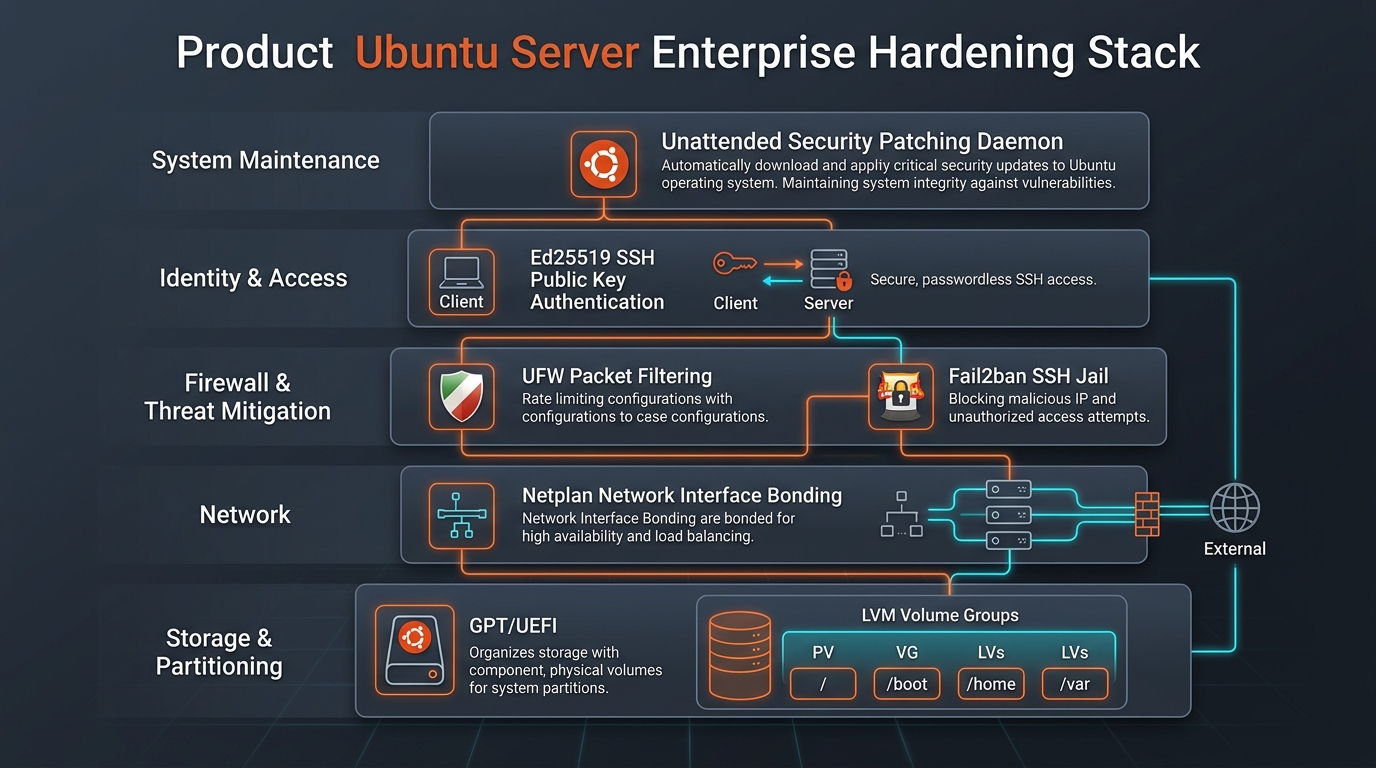
A standard production deployment isolates storage, network, and access control into distinct hardened layers before application services touch the operating system:
1. Hardware & Media
UEFI Boot & SHA256
Verified ISO checksums
2. Storage Subsystem
LVM Dynamic Volumes
Separate /var & /home
3. Network Layer
Netplan Static YAML
Deterministic routing
4. Security Posture
SSH Keys & UFW
Zero password login
Production Hardware Prerequisites & ISO Verification
Before booting installation media on enterprise server hardware (such as Dell PowerEdge, HPE ProLiant, or Lenovo ThinkSystem platforms), verify baseline compute allocations and image authenticity. Running production databases, containerized microservices, or hypervisor agents requires strict adherence to minimum hardware boundaries:
- Processor Architecture: 64-bit x86-64 (AMD64) or ARM64 (AArch64) processor with virtualization hardware acceleration (Intel VT-x or AMD-V) enabled in system firmware.
- System Memory: Minimum 2 GB RAM for base operating system tasks; 8 GB to 64 GB+ recommended when provisioning application nodes, Docker daemons, or database clusters.
- Persistent Storage: Minimum 25 GB NVMe or SAS storage for core root filesystem; 100 GB+ recommended to allocate dedicated volumes for application persistence and system logs.
- Network Interfaces: Dual Gigabit or 10-Gigabit Ethernet NICs to support production interface bonding (LACP) and redundant gateway failover.
Alternative Installation Media: Deploying from ISO Files & Network Boots
While most administrators write bootable media to USB drives, enterprise engineers frequently ask how to install ubuntu without usb or question can i install linux without a usb. If you are preparing to install ubuntu from iso image or install ubuntu from iso file in headless data centers, several proven methods exist:
- Virtual Media & IPMI/iDRAC/iLO: In enterprise server racks, mount the ISO file directly through out-of-band management consoles (Dell iDRAC, HPE iLO, or Supermicro IPMI) to execute installing ubuntu from iso over the network without physical flash drives.
- GRUB Loopback Booting (No USB Required): When installing linux without usb on an existing Linux host (installing via loopback), you can place the ISO in your boot partition, configure GRUB to boot the ISO directly, or install ubuntu on ubuntu into a secondary partition using debootstrap. In international documentation, this method is also referenced as instal ubuntu tanpa flashdisk.
- Windows Host Without USB: If wondering how to install linux on windows without usb, you can use tools like UNetbootin or EasyBCD to configure a temporary boot entry directly from your Windows partition, allowing the system to boot straight into the Ubuntu live environment.
Deploying on Apple Hardware: Installing Linux on Mac & MacBook
Systems administrators frequently inquire can you install linux on a mac or can you install linux on a macbook when repurposing retired corporate Apple laptops as dedicated servers or development machines. The answer is yes: you can install linux on mac, install linux on macbook, install linux on macbook pro, and install linux on mac pro (Intel-based models from 2012 to 2020):
- To begin, learn how to download linux on mac or how to download linux on macbook by visiting the official Ubuntu release portal in Safari or Chrome.
- Format a USB drive using Disk Utility as MS-DOS (FAT) with a GUID Partition Map. Use BalenaEtcher or the macOS terminal dd utility to flash the ISO.
- Insert the flash drive, power on the Mac, and immediately hold the Option (Alt) key until the startup manager appears. Select the gold EFI Boot drive icon.
- Note for Apple Silicon (M1/M2/M3/M4): On modern ARM-based Macs, running Ubuntu virtualized via UTM or Parallels Desktop is the primary production standard, while bare-metal users utilize the community Asahi Linux project kernel tree.
Never deploy an operating system ISO without verifying its cryptographic SHA256 checksum. Compromised distribution media introduces critical supply-chain vulnerabilities into your enterprise perimeter. On your workstation, verify the downloaded live server image against Canonical's published signed checksums:
# Generate the SHA256 checksum of your downloaded installation ISO
sha256sum ubuntu-24.04-live-server-amd64.iso

# Compare the terminal output against Canonical's official release hashes:
# Expected 24.04 LTS hash format:
# 8762f7e1e3e5108640305578d45007388e650454343d65e22de5a4028336b560 *ubuntu-24.04-live-server-amd64.iso
Flash the verified ISO onto high-speed USB media using reliable block-level utilities such as dd on Linux/macOS or Rufus (in DD image mode) on Windows. In virtualized platforms such as VMware ESXi, Proxmox VE, or cloud environments, attach the ISO directly to the virtual machine virtual optical drive.
Storage Architecture: UEFI, GPT & Enterprise LVM Partitioning
A critical error during initial server provisioning is accepting default installer disk partitioning that creates a single monolithic root partition (/). If an unchecked application log, temporary export file, or core dump fills this shared volume to 100% capacity, the Linux kernel cannot write process tables, systemd crashes, and the server becomes unbootable.
To establish an enterprise-grade storage topology, utilize a GUID Partition Table (GPT) with UEFI boot records and configure Logical Volume Management (LVM). LVM decouples physical disk geometry from logical boundaries, allowing administrators to resize partitions on active running servers without taking services offline.
| Mount Point |
Type / Layer |
Recommended Size |
Filesystem |
Operational Purpose |
| /boot/efi |
Physical Partition |
1 GB - 2 GB |
vfat (FAT32) |
Contains UEFI bootloader binaries (GRUB EFI) and kernel stubs |
| /boot |
Physical Partition |
2 GB |
ext4 |
Houses static Linux kernel images (vmlinuz) and initramfs archives |
| / (root) |
LVM Logical Volume |
20 GB - 30 GB |
ext4 / XFS |
Core operating system binaries, configuration files, and libraries |
| /var |
LVM Logical Volume |
30 GB - 100 GB+ |
ext4 / XFS |
Isolates dynamic logs, package caches, Docker images, and spool files |
| /home |
LVM Logical Volume |
20 GB - 50 GB |
ext4 / XFS |
User home directories; prevents user storage exhaustion from locking system |
| [swap] |
LVM Logical Volume |
4 GB - 8 GB |
swap |
Emergency virtual memory paging for unexpected memory spikes |
Always leave 20% to 30% of your Volume Group (VG) as unallocated free space. Keeping unallocated extents within the volume group allows you to dynamically grow any logical volume on demand in seconds using lvextend and resize2fs without rebooting the server.
Step-by-Step Subiquity Installer Walkthrough
Ubuntu Server uses Subiquity, a clean, text-based terminal installer that supports both interactive keyboard setups and headless automated cloud-init deployments. Power on your server, enter firmware boot settings (typically by pressing F11 or F12), and boot from your verified installation media.
- Language and Keyboard Selection: Select your operating language (default: English) and keyboard layout. Choosing the correct variant avoids password misconfiguration during setup.
- Installer Base Selection: Select Ubuntu Server rather than Ubuntu Server (minimized). The standard server profile includes essential diagnostic tools, networking utilities, and hardware drivers while remaining entirely headless.
- Network Connections: The installer attempts automatic DHCP discovery on connected NICs. While you can continue with DHCP temporarily, production servers require a deterministic static IP, which we will configure permanently via Netplan.
- Configure Proxy: If your enterprise data center routes outbound traffic through an HTTP/HTTPS inspection proxy, enter the URL string here (e.g.,
http://proxy.corp.internal:8080); otherwise leave blank.
- Ubuntu Archive Mirror: Subiquity selects a geographic default mirror (e.g.,
http://us.archive.ubuntu.com/ubuntu). Verify connectivity to ensure fast package downloads.
- Guided vs Custom Storage Layout: Select Custom storage layout. This unlocks full manual disk partitioning, allowing you to configure the GPT boot partition, create the LVM Volume Group, and define dedicated logical volumes for
/, /var, and /home.
- Profile Setup: Enter your server hostname (e.g.,
srv-app-01.prod.internal), your primary administrator username, and a strong password. Do not set the username to "admin" or "root", as automated brute-force attacks target these defaults constantly.
- Ubuntu Pro Token: Canonical offers Ubuntu Pro tokens for extended security maintenance. You may attach your subscription token here or skip and register via the command line post-installation.
- SSH Setup: Check the box for Install OpenSSH server. Do not import SSH keys from public GitHub or Launchpad handles in enterprise environments; configure verified internal keys manually.
- Featured Server Snaps: Leave all featured snaps unselected. Installing software suites (such as Docker, Nextcloud, or Kubernetes) through native APT repositories or hardened configuration management tools (Ansible, Terraform) offers superior security version control.
Dual-Boot Deployment: Running Ubuntu Alongside Windows 10 & 11
For developers requiring both operating systems on a single computer, an ubuntu dual boot setup allows seamless switching between platforms. Whether configuring a linux ubuntu dual boot windows 10 workstation, a windows 10 and ubuntu dual boot machine, or dual boot windows and ubuntu on modern Windows 11 hardware, follow these essential guidelines:
- Automated Side-by-Side Installation: If Windows is already installed, the Ubuntu installer automatically detects it and provides an option to install ubuntu alongside windows (also displayed as install ubuntu along with windows). This allocates partition space dynamically and configures GRUB to install ubuntu alongside windows boot manager.
- UEFI Multiboot Architecture: In multiboot windows and ubuntu or multiboot ubuntu windows 10 environments, GRUB replaces the default bootloader, creating a menu where you can boot into Ubuntu or select windows boot to ubuntu restart options.
- Critical Fast Startup Warning: Before attempting to install ubuntu dual boot or ubuntu dual boot linux, you must disable Fast Startup in the Windows Control Panel (Power Options). Fast Startup leaves NTFS partitions in a hibernated state, which corrupts shared data drives when mounted under Linux.
- Switching Back or Installing Windows from Ubuntu: If you ever need to transition from ubuntu to windows 10 or need to install windows 10 from ubuntu (instal windows from ubuntu), you can use open-source utilities like WoeUSB-ng or Ventoy to create a bootable Windows installation drive directly from within Ubuntu.
Operating System Recovery: How to Reinstall Ubuntu Without Losing Data
When package corruption or misconfigured system files cause instability, understanding how to reinstall ubuntu restores operational health quickly. Depending on your storage architecture, you have two primary recovery paths:
- Preserving Personal Data & Configurations: If you followed our recommended LVM partitioning with a separate
/home volume, you can reinstall ubuntu without losing data. Boot the live installer, select Something Else, set your root mount point (/) to format, but leave your existing /home volume unformatted. All user profiles, SSH keys, and configurations remain intact.
- Complete Fresh Clean Install: If legacy malware or filesystem corruption necessitates an ubuntu clean install or fresh install of ubuntu, select the primary erase disk option to lay down clean partition tables.
- Terminal-Based In-Place Reinstallation: For live systems requiring repairs without booting external media, you can reinstall ubuntu from terminal or reinstall ubuntu from ubuntu by executing
sudo apt-get install --reinstall ubuntu-server (or the core package set) to repair corrupted base binaries in place.
Confirm write operations to disk and proceed with installation. Once packages finish copying and kernel updates complete, select Reboot Now, unmount the installation media when prompted, and press Enter to boot into your fresh Ubuntu Server installation.
Enterprise Network Configuration with Netplan YAML
Ubuntu Server deprecated legacy /etc/network/interfaces in favor of Netplan, a declarative network configuration utility that generates backend configurations for systemd-networkd. Netplan configuration files use YAML syntax, which strictly mandates indentation using spaces (tabs trigger syntax parse failures).
Log in to your server console and inspect available physical network interface names using the ip command:
# Identify network device identifiers (e.g., enp3s0, ens18, or eth0)
ip link show
Locate your active Netplan configuration file within /etc/netplan/ (typically named 50-cloud-init.yaml or 00-installer-config.yaml). Create a backup copy before making modifications, then edit the file with sudo privileges:
# Backup existing network configuration
sudo cp /etc/netplan/50-cloud-init.yaml /etc/netplan/50-cloud-init.yaml.bak

# Edit the declarative Netplan configuration
sudo nano /etc/netplan/01-netcfg.yaml
Configure a static IP address, default gateway route, and enterprise DNS resolvers using the verified YAML template below. Adjust interface names, IP ranges, and subnets to match your local data center network topology:
network:
  version: 2
  renderer: networkd
  ethernets:
    enp3s0:
      dhcp4: no
      dhcp6: no
      addresses:
        - 192.168.10.50/24
      routes:
        - to: default
          via: 192.168.10.1
      nameservers:
        addresses:
          - 1.1.1.1
          - 8.8.8.8
        search:
          - prod.internal
Test and apply the network configuration safely using Netplan's built-in validation mechanism:
# Verify Netplan configuration syntax and test connectivity with automated rollback
sudo netplan try

# Apply the validated configuration permanently
sudo netplan apply

# Verify assigned static IP and routing table
ip addr show dev enp3s0
ip route show
Production SSH Hardening: Ed25519 Keys & Root Lockdown
Exposing standard SSH port 22 with password authentication to enterprise networks or public cloud subnets guarantees automated brute-force attacks within minutes. Securing OpenSSH requires transitioning entirely to modern elliptic curve cryptography (Ed25519), disabling direct root logins, and disabling password prompts completely.
On your administrative workstation, generate a high-entropy Ed25519 SSH keypair (never use obsolete RSA 1024 or 2048-bit keys):
# Generate Ed25519 keypair on local management workstation
ssh-keygen -t ed25519 -C "admin@techopswire.com"

# Copy the public key to your new Ubuntu Server
ssh-copy-id -i ~/.ssh/id_ed25519.pub sysadmin@192.168.10.50
Once you verify successful key-based login, harden the OpenSSH daemon configuration. In modern Ubuntu releases, drop-in configuration files placed in /etc/ssh/sshd_config.d/ override defaults cleanly without touching package-managed base files:
# Create a dedicated production hardening drop-in file
sudo nano /etc/ssh/sshd_config.d/99-production-hardening.conf
Insert the following security directives into the hardening configuration:
# Enforce key-based authentication and disable passwords
PasswordAuthentication no
KbdInteractiveAuthentication no
PubkeyAuthentication yes

# Prevent root logins entirely
PermitRootLogin no

# Session limits and brute-force protection
MaxAuthTries 3
LoginGraceTime 30
ClientAliveInterval 300
ClientAliveCountMax 2

# Disable insecure legacy protocols
X11Forwarding no
AllowAgentForwarding no
Validate configuration syntax prior to restarting the SSH daemon. Keep your current active terminal session open while testing a secondary connection from a separate window to prevent accidental lockouts:
# Test sshd syntax for parse errors
sudo sshd -t

# Restart the SSH daemon
sudo systemctl restart ssh
Network Defense: UFW Firewall Rules & Fail2ban Jails
Ubuntu includes Uncomplicated Firewall (UFW), a robust frontend for managing underlying netfilter/iptables rules. In enterprise environments, implement a strict "default deny" posture where all inbound traffic is blocked except explicitly allowed services, combined with Fail2ban to ban aggressive port scanners.
Configure baseline packet filtering rules before enabling the firewall:
# Set default policies to deny incoming and allow outgoing traffic
sudo ufw default deny incoming
sudo ufw default allow outgoing

# Allow SSH with rate limiting to throttle brute-force bursts
sudo ufw limit ssh comment 'Rate-limited SSH access'

# Allow standard HTTP and HTTPS ports for web infrastructure
sudo ufw allow 80/tcp comment 'HTTP Web Port'
sudo ufw allow 443/tcp comment 'HTTPS Web Port'

# Enable the firewall and verify status
sudo ufw enable
sudo ufw status verbose
Next, install Fail2ban to monitor authentication logs and dynamically inject temporary firewall blocks against offending IP addresses:
# Install fail2ban
sudo apt update && sudo apt install -y fail2ban

# Create local configuration override
sudo cp /etc/fail2ban/jail.conf /etc/fail2ban/jail.local
sudo nano /etc/fail2ban/jail.local
Configure the SSH jail parameters to enforce strict ban times:
[sshd]
enabled = true
port = ssh
filter = sshd
logpath = /var/log/auth.log
maxretry = 3
findtime = 600
bantime = 3600
# Restart fail2ban and inspect active jails
sudo systemctl restart fail2ban
sudo fail2ban-client status sshd
Zero-Day Vulnerability Mitigation: Automated Unattended Upgrades
Maintaining manual patching schedules across dozens of enterprise Linux nodes frequently leaves servers exposed to known Common Vulnerabilities and Exposures (CVEs). Canonical provides unattended-upgrades, a system daemon that automatically downloads and installs verified security patches directly from the Ubuntu security archive.
# Install unattended-upgrades and update-notifier-common
sudo apt install -y unattended-upgrades update-notifier-common

# Enable automated security patch execution
sudo dpkg-reconfigure --priority=low unattended-upgrades
Fine-tune automated patching parameters by editing /etc/apt/apt.conf.d/50unattended-upgrades to ensure automatic removal of obsolete kernel packages and configure scheduled reboot windows if critical patches require a kernel restart:
// Configure unattended-upgrades behavior
Unattended-Upgrade::Allowed-Origins {
    "${distro_id}:${distro_codename}-security";
};

// Automatically remove unused dependencies and old kernels
Unattended-Upgrade::Remove-Unused-Kernel-Packages "true";
Unattended-Upgrade::Remove-New-Unused-Dependencies "true";

// Optional: Reboot automatically at 03:00 AM if kernel updates mandate restart
Unattended-Upgrade::Automatic-Reboot "true";
Unattended-Upgrade::Automatic-Reboot-Time "03:00";
Command Line Software Management & Hardware Drivers Installation
Once the core operating system boots into the shell, administering applications and hardware drivers through the terminal is the central workflow of production Linux engineering. Whether managing headless servers via ubuntu install cli or terminal windows (install ubuntu cmd), understanding how to install software in linux ubuntu ensures secure, reproducible environments.
Essential Package Management: APT Commands & Best Practices
When new administrators ask how to install programs on linux ubuntu, how to install programs on ubuntu, or seek the universal command to install software in ubuntu, the Advanced Package Tool (APT) is the primary engine. While older documentation references install apt get ubuntu, modern Linux standards prioritize ubuntu apt install:
# Refresh available package index metadata from configured repositories
sudo apt update

# Primary install command ubuntu standard syntax
sudo apt install package-name

# Example: installing essential systems diagnostic utilities
sudo apt install -y htop ncdu curl git net-tools
For standalone packages, administrators exploring how to install apps on ubuntu, how to install application in ubuntu, or how to install a software on ubuntu can install Debian binaries directly using sudo apt install ./package.deb or use Snap containers via sudo snap install application-name, enabling administrators to install ubuntu from command line with full dependency resolution.
Hardware Driver Provisioning: Proprietary GPU & Network Adapters
Production computing nodes (such as AI inferencing clusters or specialized storage arrays) require proprietary hardware drivers. When users ask ubuntu how to install drivers or how to install hardware drivers in ubuntu, Ubuntu includes a built-in automated installer driver ubuntu command:
# Detect attached hardware devices requiring proprietary kernel modules
ubuntu-drivers devices

# Automatically install all recommended certified hardware drivers (Nvidia, Broadcom)
sudo ubuntu-drivers install

# Verify loaded driver modules (e.g. for Nvidia accelerators)
nvidia-smi
Desktop Environments on Ubuntu: GNOME vs Lubuntu System Requirements
Although Ubuntu Server operates strictly as a headless command-line environment by default, certain enterprise workloads (such as kiosk monitoring stations, developer workstations, or testing labs) benefit from a graphical user interface. Ubuntu provides multiple certified desktop environments that can be layered on top of a server base.
Flagship GNOME Desktop Environment
When users evaluate how to ubuntu install desktop or install gnome desktop ubuntu, Canonical's standard desktop shell is ubuntu gnome (often referred to in European enterprise environments as ubuntu mit gnome). Installing gnome desktop provides full Wayland display server integration, modern window management, and native accessibility controls:
# Command to execute ubuntu install gnome minimal desktop
sudo apt install -y ubuntu-desktop-minimal

# Full ubuntu gnome desktop suite with LibreOffice and tools
sudo apt install -y ubuntu-desktop
Resource Consumption: ~1.2 GB to 2 GB idle RAM; requires modern 3D accelerated graphics.
Lightweight Lubuntu (LXQt) Architecture
For resource-constrained virtual machines, edge gateways, or legacy laptops, Lubuntu offers a featherweight alternative utilizing the modular LXQt desktop environment. Understanding linux lubuntu system requirements helps determine whether your hardware is compatible:
- CPU: 64-bit Dual-Core 1.0 GHz or higher.
- RAM: 1 GB minimum (2 GB recommended for comfortable browsing).
- Storage Footprint: When evaluating how much space does lubuntu need, it requires only 10 GB to 15 GB of persistent disk space (compared to 25 GB+ for standard Ubuntu GNOME).
# Install Lubuntu desktop environment on top of Ubuntu
sudo apt install -y lubuntu-desktop
Systemd Daemon Management & Performance Kernel Tuning
Production server performance depends heavily on operating system kernel parameters, TCP socket buffers, and file descriptor limits. By default, Linux distros ship with conservative network stack limits optimized for desktop hardware.
Create a custom sysctl configuration to optimize TCP throughput, socket recycling, and virtual memory paging behavior:
# Create enterprise sysctl kernel tuning profile
sudo nano /etc/sysctl.d/99-production-tuning.conf
# Enhance file descriptor limits for high-concurrency services
fs.file-max = 2097152

# TCP socket tuning for high-throughput network workloads
net.core.somaxconn = 65535
net.ipv4.tcp_max_syn_backlog = 8192
net.ipv4.tcp_slow_start_after_idle = 0
net.ipv4.tcp_tw_reuse = 1

# Virtual memory swappiness (prioritize physical RAM over disk paging)
vm.swappiness = 10
vm.vfs_cache_pressure = 50
# Apply sysctl parameters immediately without rebooting
sudo sysctl --system
For containerized services or database workloads, ensure your service management integrates cleanly with modern orchestration. Learn more in our architectural guide on Docker container architecture and review our breakdown on Linux file permissions chmod and chown to guarantee strict privilege separation across daemon processes.
Storage Hygiene: Journalctl Retention & Logrotate
By default, systemd journal logs persist in /var/log/journal/ and can expand to consume up to 10% of your root filesystem if left unconstrained. Restricting journal retention prevents storage exhaustion while preserving critical audit trails.
# Configure systemd-journald storage boundaries
sudo nano /etc/systemd/journald.conf
[Journal]
Storage=persistent
SystemMaxUse=2G
SystemKeepFree=5G
MaxRetentionSec=1month
# Restart journald and verify disk usage
sudo systemctl restart systemd-journald
journalctl --disk-usage
Enterprise Linux Distribution Comparison Matrix
Selecting the appropriate Linux distribution for enterprise servers requires evaluating support lifecycles, kernel cadence, and commercial certification. The matrix below contrasts Ubuntu Server with industry alternatives:
| Evaluation Metric |
Ubuntu Server (LTS) |
Debian Stable |
Red Hat Enterprise Linux (RHEL) |
| Release Cadence |
Predictable 2-Year Cycle (Even Years) |
~2 Years (When Ready) |
3-Year Major Version Cadence |
| Standard Support |
5 Years Direct Security Patches |
~3 Years (+2 Years Community LTS) |
10 Years Full Production Life |
| Kernel Version |
Modern with HWE Kernel Backports |
Conservative Long-Term Stable |
Vendor-Hardened Enterprise Kernel |
| Cloud Ecosystem |
Universal (AWS, Azure, GCP First-Class) |
Broad Cloud Image Availability |
Comprehensive Hybrid Cloud Support |
| Network Configuration |
Netplan (YAML Declarative) |
ifupdown / systemd-networkd |
NetworkManager (nmcli / keyfile) |
| Commercial Licensing |
Free Community, Optional Ubuntu Pro |
100% Free Open Source Software |
Commercial Subscription Required |
Troubleshooting Boot Failures, Network Drops & Recovery Shells
When managing enterprise Linux deployments, hardware incompatibilities or syntax errors during initial setup can cause boot stalls or network dropouts. Understanding recovery workflows resolves outages quickly:
Troubleshooting Netplan YAML Formatting Errors
If running sudo netplan apply generates Invalid YAML: tabs are not allowed for indentation, open the configuration in nano and verify that every indentation level uses strictly 2 or 4 spaces. Never use tabs. To quickly locate hidden tab characters, execute: grep -P '\t' /etc/netplan/*.yaml. If found, replace tabs with two spaces.
Resolving Predictable Network Interface Renaming (ens3 vs eth0)
Linux assigns network interface names based on firmware slot topography (e.g., enp3s0 or ens18). If cloning a virtual machine or swapping a PCIe NIC causes the interface name to change, Netplan fails to bind the static IP address. Run ip link show to identify the newly assigned interface name and update your Netplan YAML file accordingly before running sudo netplan apply.
Emergency Root Password Recovery via GRUB
If credentials are lost during deployment, reboot the server and access the GRUB boot menu. Highlight the default Ubuntu kernel entry, press e to edit boot parameters, locate the line starting with linux, and append init=/bin/bash to the end. Press Ctrl + X to boot directly into a root shell, remount the root filesystem read-write with mount -o remount,rw /, reset credentials using passwd username, and reboot cleanly.
Authoritative Linux Systems Documentation
For deeper Linux kernel specifications, Subiquity autoinstall automation, and Canonical security hardening standards, consult official documentation: