How to Take Screenshots on Dell Laptops and Computers
Capture screenshots on Dell laptops and desktops: master PrtScn keyboard shortcuts, Windows Snipping Tool hotkeys, and automated PowerShell capture scripts.
Capturing high-resolution visual data on Dell hardware requires an understanding of the underlying Windows display stack and the specific input mapping of Dell keyboards. Whether you are documenting system errors for Windows Server 2019 end of life migrations or generating engineering documentation, knowing how to screenshot on Dell systems efficiently is a core operational skill. This manual details the hardware-level commands, software-based capture utilities, and the architectural trade-offs between various image formats and storage methods.
Quick Decision Matrix
Select your capture method based on the required output fidelity and workflow integration. For rapid documentation, use the Snipping Tool; for automated scripting, utilize PowerShell or CLI-based capture tools.
Hardware Input Mapping and Keyboard Commands
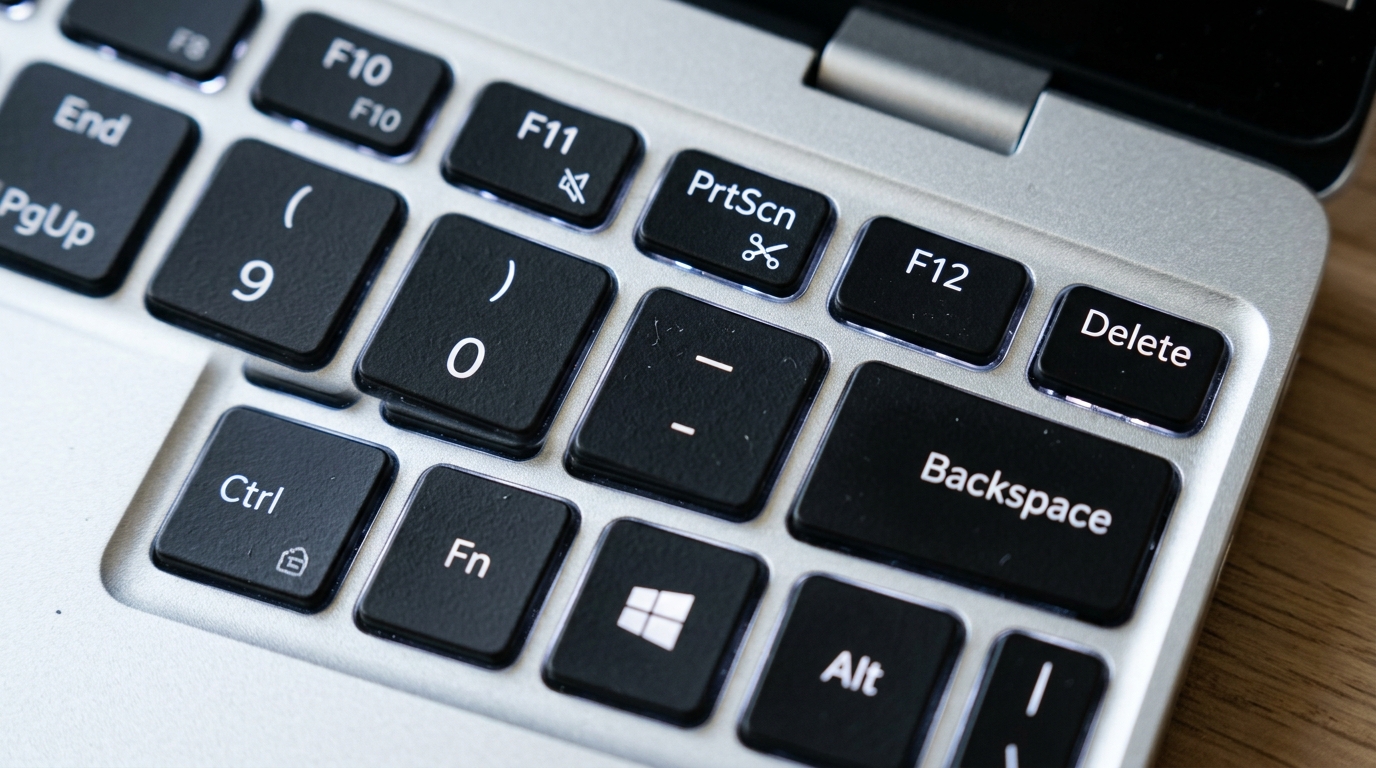
The primary method to initiate a capture on a Dell laptop or desktop involves the Print Screen (PrtScn) key. On many Dell Inspiron 15 models, this key is often multiplexed with the Function (Fn) key. If a simple press of the PrtScn key does not trigger a visual response or copy data to the clipboard, you must verify if the key requires the Fn modifier. This is a common point of confusion when managing mixed-fleet environments where keyboard layouts vary between Latitude, Precision, and Inspiron series.
When you press the Windows key combined with the PrtScn key, the operating system automatically saves the screen buffer to the Pictures/Screenshots directory. This bypasses the clipboard, which is useful for high-volume capture tasks where you do not want to overwrite existing clipboard data. This behavior is standard across Windows 10 and 11, providing a consistent experience regardless of the specific Dell monitor resolution or scaling settings.
For users operating on a Dell Chromebook, the command structure differs significantly from Windows-based Dell desktops. On a Chromebook, you must use the Ctrl and Show Windows (the key with a rectangle and two lines) keys simultaneously. This triggers a capture overlay that allows for region selection. Understanding these variations is essential for systems administrators who support diverse hardware, much like managing Linux file permissions across different distributions.
Software Capture Utilities and Advanced Features
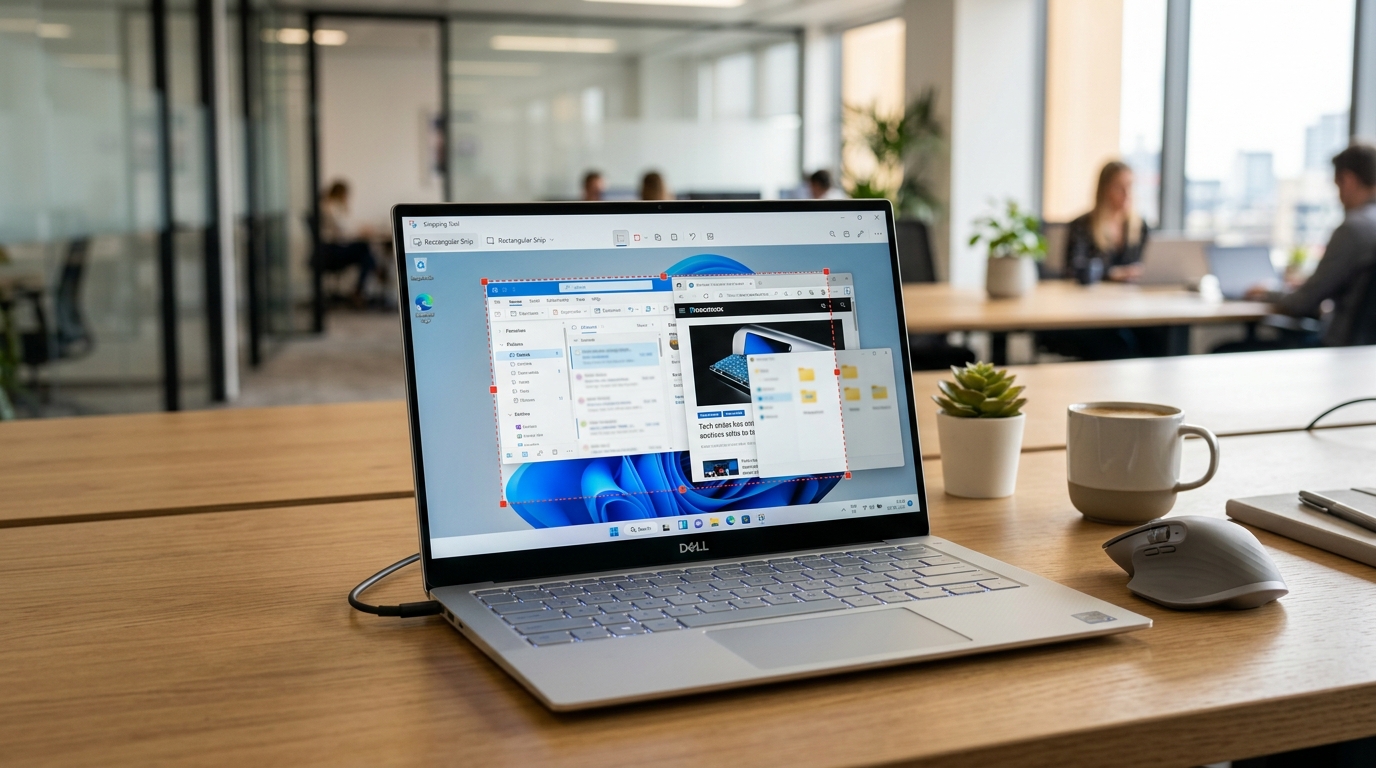
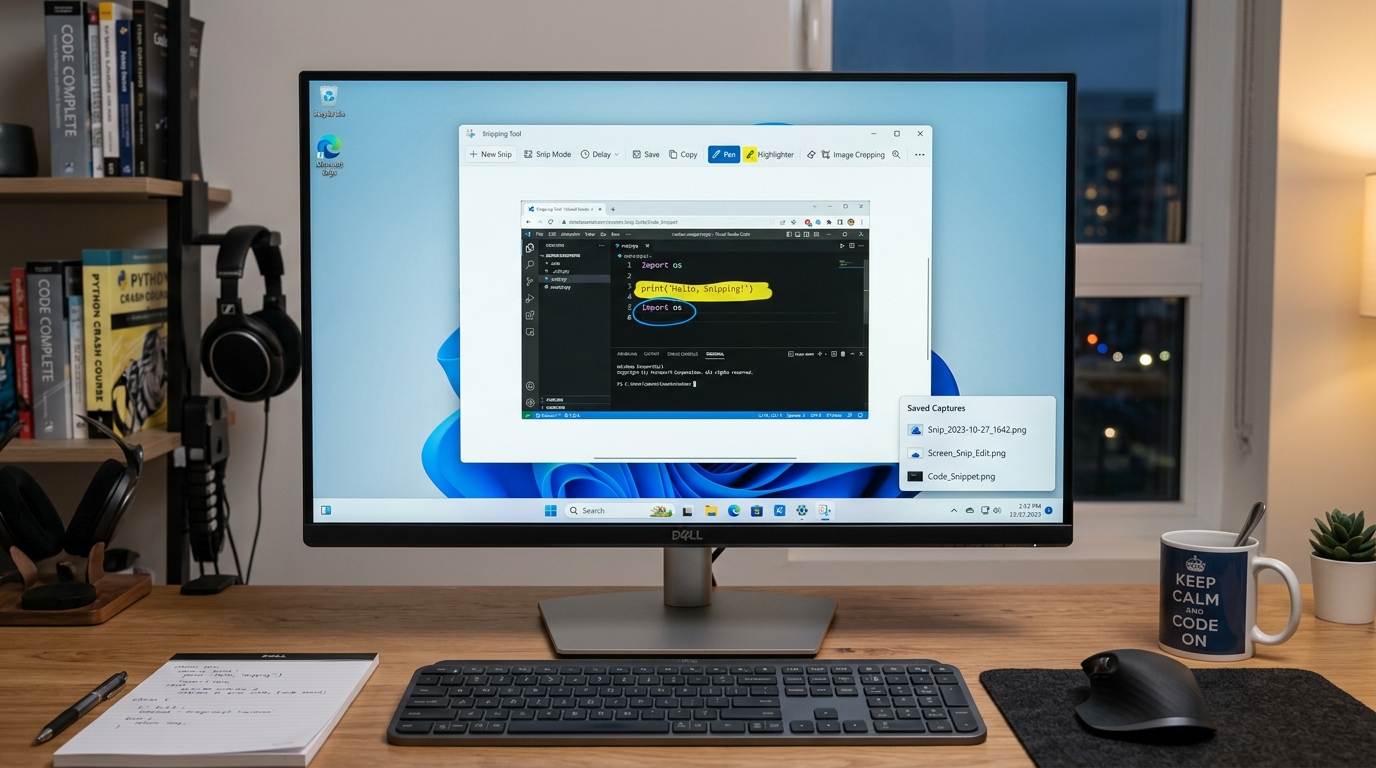
Windows 11 includes an integrated Snipping Tool that offers advanced functionality beyond simple full-screen captures. By using the Windows + Shift + S shortcut, you invoke a capture overlay that supports rectangular, freeform, window, and full-screen modes. This utility is the preferred method for generating high-resolution assets because it allows for immediate annotation and metadata preservation before the file is written to the disk.
If you require programmatic control over screen captures, you can utilize PowerShell to invoke system-level commands. This is particularly useful when you need to automate the documentation of system states during an audit. Unlike manual methods, CLI-based capture allows for consistent naming conventions and automated storage into specific network shares or local directories, preventing the clutter often found in default user folders.
When comparing these methods, consider the impact on system resources. While the Snipping Tool is lightweight, running multiple instances of third-party capture software can lead to memory overhead. If you are experiencing performance issues, it is worth investigating if your system is suffering from similar bottlenecks as those discussed in our analysis of why is ChatGPT so slow, where background processes often compete for CPU cycles and memory bandwidth.
Method
Shortcut
Output Destination
Best Use Case
Full Screen
Win + PrtScn
Pictures/Screenshots
Rapid archival
Region Select
Win + Shift + S
Clipboard/Editor
Documentation
Active Window
Alt + PrtScn
Clipboard
UI testing
Chromebook
Ctrl + Show Windows
Downloads
Web-based tasks
The PrtScn and Function key combinations trigger instant screen capture to clipboard or storage.
Troubleshooting and Operational Pitfalls
One common issue users encounter is the failure of the PrtScn key to trigger a capture. This is frequently caused by keyboard remapping software or conflicting background services that intercept the key event. If your screenshots are not saving, verify that your OneDrive or other cloud synchronization services are not locking the Pictures folder. A locked directory will prevent the operating system from writing new image files, resulting in silent failures.
Another pitfall involves resolution mismatch. When capturing from a high-DPI monitor, the resulting image may appear blurry if the capture utility is not scaling correctly. Ensure that your display settings in Windows are set to the native resolution of the Dell monitor. If you are using multiple monitors, the system may capture the entire desktop span, which can result in extremely wide, low-height images that are difficult to read in standard documentation viewers.
Finally, consider the storage implications of high-resolution captures. If you are performing bulk captures for a project, you may quickly exhaust local disk space. It is recommended to redirect your screenshot output to a secondary drive or a network location if you are performing large-scale documentation tasks. This prevents the primary system drive from reaching capacity, which can trigger performance degradation similar to the issues seen when mismanaging Docker container architecture volumes.
Scripting and Automation for Power Users
For enterprise environments, manual screenshots are inefficient. You can use PowerShell to automate the capture process by calling the .NET Graphics library. This allows you to define the exact coordinates of the capture area, the file format (PNG vs. JPG), and the compression level. This level of control is necessary when you need to ensure that all screenshots in a systems manual have identical dimensions and color profiles.
This script provides a foundation for building custom tools that integrate with your existing workflow. By wrapping this logic in a function, you can trigger captures based on specific system events or time intervals. This is particularly useful for monitoring UI changes in applications that do not provide native logging capabilities. Always ensure that the directory path defined in the script exists, as the .NET library will throw an exception if it cannot write to the target location.
When deploying these scripts across a fleet of Dell workstations, ensure that the execution policy is configured to allow local scripts. You should also consider the security implications of running automated scripts that interact with the display buffer. Restrict access to these scripts to authorized personnel to prevent unauthorized capture of sensitive information displayed on the screen.
The integrated Snipping Tool provides region selection, pen annotations, and rapid image saving.
Best Practices for Image Management
Effective image management starts with a consistent naming convention. Using timestamps and descriptive tags in your filenames will save significant time when searching for specific assets later. For instance, a format like YYYYMMDD_HHMMSS_TaskName.png allows for chronological sorting and easy identification of the context in which the screenshot was taken. This is a fundamental practice in maintaining organized project documentation.
Compression is another factor to consider. While PNG is the standard for lossless captures, it can result in large file sizes. If you are embedding these images into documents that will be shared over email or web platforms, consider using a batch processing tool to optimize the images. Reducing the file size without sacrificing readability is a balance that requires testing different compression algorithms to pinpoint the ideal balance for your specific use case.
Lastly, always inspect your screenshots for sensitive data before sharing them. It is common to accidentally capture system tray icons, notification pop-ups, or open browser tabs that contain proprietary information. Using the region-select tool (Windows + Shift + S) is the most effective way to minimize the risk of leaking sensitive data, as it allows you to isolate only the necessary components of the screen.
Frequently Asked Questions
Many Dell laptops require the Fn key to be pressed simultaneously with the PrtScn key. Check if your keyboard has a secondary function label on the PrtScn key.
Evan Mitchell• Cloud Infrastructure Specialist & Systems Administrator3+ Years Industry Experience
Systems administrator with 3+ years managing enterprise Linux servers, AWS EC2 instances, and Docker containers. Evan focuses on practical bash scripting and secure network configurations.