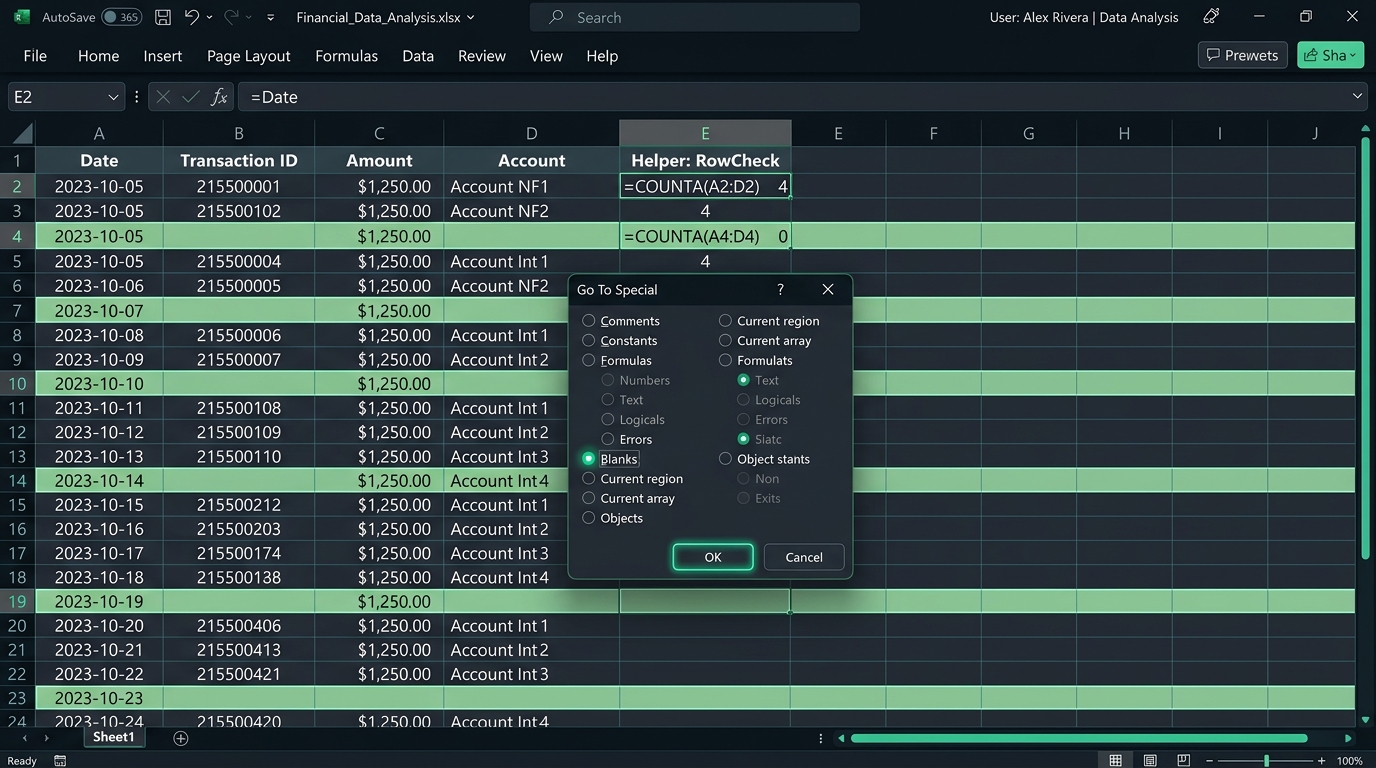
Importing raw enterprise exports from ERP databases, Salesforce, or legacy accounting systems frequently populates workbooks with hundreds of empty gaps, fragmented delimiters, and unaligned records. Learning how to remove blank rows in excel accurately is essential for maintaining data integrity, ensuring downstream VLOOKUP and XLOOKUP formulas do not terminate prematurely, and preventing pivot tables from miscalculating record totals.
Quick Decision Matrix
For single mandatory columns, select the column and press F5 > Alt + S > K > Enter, followed by Ctrl + - to delete entire rows. For multi-column datasets with optional fields, use a =COUNTA(A2:Z2) helper column to prevent accidental data loss, or build an automated pipeline using Power Query.
While knowing how to remove empty rows in excel sounds straightforward, standard techniques taught in entry-level tutorials carry severe operational risks. Applying bulk deletion across multi-column datasets without proper isolation frequently deletes valid records that merely contain optional missing fields. Additionally, formulas that return empty text strings, imported non-breaking web spaces, and unaligned tables present unique failure points that standard keyboard shortcuts cannot detect. Whether you need to delete empty rows in excel worksheets, clear blanks excel data ranges, or eliminate empty rows excel models, understanding the technical mechanics of each cleanup method allows data operations specialists to clean workbooks rapidly without compromising data accuracy.
Why Blank Rows Break Spreadsheets & The Fatal Go To Special Trap
Blank rows in modern spreadsheets represent more than an aesthetic nuisance. In professional data workflows, empty rows fragment contiguous data blocks, leading to systemic failures across formulas and analytical engines:
- Premature Formula Range Termination: Double-clicking the fill handle to auto-populate formulas downward stops at the first empty row, leaving lower records uncalculated.
- Lookup and Dynamic Array Breakages: Lookup routines and legacy table references interpret blank cells as zero or empty values, generating false positives or triggering a spill error in Excel when dynamic arrays encounter unexpected blocking cells.
- Pivot Table and Chart Fragmentation: Excel Pivot Tables group empty rows under a dedicated "(blank)" category, distorting summaries and causing sorting filters to misalign.
- Keyboard Navigation Roadblocks: Pressing Ctrl + Down Arrow stops at every empty gap rather than jumping to the true end of the dataset.
Warning: The Fatal Go To Special Multi-Column Trap
The most widely circulated internet tip instructs users on how to delete blank rows in excel by selecting the entire table range, pressing F5, choosing Special > Blanks, and selecting delete entire row. Never do this on multi-column tables. If row 45 contains a customer name, transaction ID, and order total, but the optional secondary phone number cell is blank, Excel selects that single empty cell and deletes the entire row. Thousands of valid customer records can be erased silently in seconds. Always use a helper column or select a single mandatory column.
Understanding How to Delete Entire Rows vs Isolated Cells
A frequent point of confusion when learning how to delete in excel involves deciding whether to delete blank cells in excel or remove complete rows. If an analyst attempts how to remove cells in excel or how to delete a cell in excel by choosing "Shift cells up" when wondering how to remove empty cells in excel or how to delete empty cells in excel, Excel shifts only the selected column upward. This causes catastrophic columnar misalignment (for example, shifting prices up so they no longer match the correct product names). Understanding how to delete entire row in excel or how to delete a whole row in excel ensures that all associated fields across every column remain perfectly synchronized.
Before performing any bulk structural deletions, save a versioned backup copy of your workbook. Unlike standard cell edits, deleting thousands of entire rows clears Excel's undo stack if external calculation threads trigger during the process, making programmatic data recovery impossible without version history.
Safe Multi-Column Deletion via COUNTA Helper Column
When deciding how can i delete empty rows in excel safely or trying to excel erase empty rows across complex operational ledgers, the helper column technique is the industry gold standard for relational datasets containing optional fields. Analysts frequently ask how to get rid of empty rows in excel or excel remove empty lines when periodic data exports introduce unwanted breaks. By calculating the exact count of populated cells across each row, you guarantee that a row is only purged when every single column within that record is completely empty, preventing accidental removal of partially filled rows.
To remove unwanted rows in excel and know with certainty how to delete empty lines in excel, how to remove blank lines in excel, how to delete blank lines in excel, and how to delete lines on excel, follow the verified formula procedure below:
Standard Text and Numeric Records
Evaluates whether any alphanumeric data exists in columns A through F:
=COUNTA(A2:F2)
Returns 0 only when all columns in the row are completely empty.
Formulas Returning Empty Text Strings ("")
COUNTA treats formula empty strings as populated. Use COUNTIF instead:
=COUNTIF(A2:F2, "?*") + COUNT(A2:F2)
Accurately detects both numbers and non-empty text strings.
Conditional Deletion and Rows with Specific Values:
This helper framework also solves requests where administrators ask how to delete multiple rows in excel with condition, or need to excel remove rows with certain values. For example, if you want to excel delete rows with specific text such as "Discontinued" or "N/A" alongside blank rows, expand your helper formula:
=IF(OR(COUNTA(A2:F2)=0, A2="Discontinued", A2="N/A"), "DELETE", "KEEP")
Step-by-Step Implementation:
- Insert a temporary helper column to the right of your data (for example, in Column G, titled RowStatus).
- In cell G2, enter the formula
=COUNTA(A2:F2), replacing A2:F2 with your table's horizontal column boundary.
- Double-click the fill handle in cell G2 to copy the formula down to the bottom of your data range.
- Select your header row (A1:G1) and activate filtering by pressing Ctrl + Shift + L (or click Data > Filter on the ribbon).
- Click the filter drop-down arrow in the RowStatus header, uncheck Select All, and check only 0. Click OK.
- Select all visible filtered rows by highlighting the row number headers on the far left.
- Right-click any selected row header and click Delete Row, or press Ctrl + - (Minus) to eliminate blank rows in excel safely.
- Clear the filter by pressing Ctrl + Shift + L, then delete the temporary helper column G.
This method provides peace of mind when auditing messy financial sheets: partial records remain intact, while completely unused rows and unwanted records are eliminated.
Fast Keyboard Shortcut via Go To Special Blanks (Single Column)
When managing normalized tables where one primary key column is strictly mandatory (such as an Employee ID, Order Number, or SKU), executing a delete row shortcut excel sequence via Go To Special provides the fastest manual path. Knowing how to delete blank rows in excel in bulk takes less than five seconds once memorized.
Precision Keyboard Execution Sequence:
- Highlight only the cells within your mandatory key column containing data (e.g., A2:A5000). Do not select empty cells below the table boundary.
- Press F5 (or press Ctrl + G) to open the Go To dialog.
- Press Alt + S to open the Special sub-menu directly.
- Press K to choose the Blanks radio button, then press Enter. Excel highlights every empty cell in that single column simultaneously, allowing you to excel delete empty selections across the worksheet.
- With the blank cells highlighted, invoke the shortcut key for deleting a row in excel (also functioning as a remove row excel shortcut and delete row or column excel shortcut) by pressing Ctrl + - (Ctrl + Minus). This universal keyboard shortcut to delete row in excel activates the deletion prompt instantly.
- In the Delete dialog that appears, press R to select Entire row, then press Enter.
Deleting Blank Cells vs Deleting Entire Rows
When executing keyboard commands, users often ask about the difference between how to remove blank cells in excel versus how to delete a whole row in excel. If you press Ctrl + - and leave the default selection on "Shift cells up", Excel deletes only the highlighted cells and pulls lower cells in that single column upward. This desynchronizes columns across your table. If your intention is to remove excess rows in excel, always verify that you select Entire row.
Universal Keyboard Shortcut Reference (Windows & Mac):
To speed up worksheet maintenance without touching the mouse, memorizing the standard keystroke to delete row in excel across platforms is invaluable. Many power users look for an excel delete keyboard shortcut or seek how to delete row using keyboard in excel to accelerate repetitive data cleaning. When you need a reliable short cut to delete rows in excel, combining row selection with deletion keystrokes is the fastest approach. Once you learn the excel delete row keyboard sequence, knowing how to delete a row in excel or how to remove a row in excel takes less than a second.
| Action / Goal |
Windows Keyboard Shortcut |
macOS / MacBook Shortcut |
Operational Behavior |
| Delete Row Dialog |
Ctrl + - (Minus) |
Cmd + - (Minus) |
Opens prompt to delete cells, entire row, or entire column |
| Select Entire Row First |
Shift + Space |
Shift + Space |
Selects active horizontal row; pressing Ctrl + - then deletes instantly without dialog |
| Direct Ribbon Hotkey |
Alt > H > D > R |
N/A (Use Cmd + -) |
Executes Delete Sheet Rows command directly via ribbon access keys |
| Select Entire Column |
Ctrl + Space |
Ctrl + Space |
Selects active vertical column; pressing Ctrl + - provides a delete column shortcut excel |
| Select All Trailing Rows |
Ctrl + Shift + Down |
Cmd + Shift + Down |
Highlights all rows below cursor down to table or sheet boundary |
When managing workbooks on macOS, users exploring how to delete rows in excel in macbook should note that Cmd + - serves as the primary hotkey to delete row in excel, while pressing Ctrl + G accesses the Special dialog identical to Windows.
Bulk Deletion: Targeting Specific and Multiple Rows
Spreadsheet specialists often ask how to mass delete rows in excel or how to delete several rows in excel when cleaning raw external dumps. If you need how to delete certain rows in excel or how to delete specific rows in excel based on conditions, holding Ctrl while clicking row numbers lets you select multiple non-contiguous rows, after which pressing Ctrl + - executes the deletion. This demonstrates how to delete multiple lines in excel without freezing system memory.
Quick Data Cleanup via Table AutoFilter
If you prefer an entirely visual approach to how to delete blanks in excel without memorizing multi-key shortcuts, the AutoFilter method offers quick isolation. To ensure the filter encompasses all records, highlight the complete table boundary manually before toggling filters, rather than relying on Excel's auto-detection.
Step-by-Step Filter Deletion:
- Select your entire dataset from A1 through the last populated cell in the bottom-right corner. If your table has frozen panes, review our guide on how to freeze columns in Excel to ensure headers remain visible during navigation.
- Press Ctrl + Shift + L to activate filter drop-down arrows on all header cells.
- Click the filter arrow on your primary identifier column (e.g., Column A).
- Uncheck Select All, scroll to the bottom of the value list, and check only (Blanks). Click OK.
- Excel collapses the table, displaying only rows where Column A is empty.
- Highlight the filtered row headers on the left margin, right-click, and select Delete Row to remove extra lines in excel efficiently.
- Press Ctrl + Shift + L again to remove the filter. All populated records reappear cleanly without gaps.
Alternative: Find and Delete in Excel
Another fast visual workflow is find and delete in excel using the Find dialog. Press Ctrl + F, leave the Find what box blank, set Look in to Values, and ensure Match entire cell contents is checked. Click Find All, then press Ctrl + A to select all matches simultaneously. Close the Find box and press Ctrl + - followed by Entire row to delete the found records immediately.
Non-Destructive Blank Row Elimination with FILTER Formula
In enterprise audit environments, destroying source data by physically deleting rows is often prohibited by compliance regulations. In Microsoft 365 and Excel 2021, modern dynamic array formulas allow analysts to remove blanks excel records and extract clean, gap-free datasets onto a reporting sheet while preserving the raw source intact.
Formula 1: Single Mandatory Column Condition
If Column A represents a required primary key, write the following delete blank rows excel formula in cell A2 of your clean reporting worksheet:
=FILTER(RawData!A2:E500, RawData!A2:A500<>"")
Formula 2: Multi-Column LAMBDA Elimination (All Columns Must Be Blank)
To ensure a row is only excluded when every single cell across columns A through E is completely empty, apply the BYROW and LAMBDA helper functions:
=FILTER(RawData!A2:E500, BYROW(RawData!A2:E500, LAMBDA(r, COUNTA(r)>0)))
This modern formula evaluates each row dynamically. As upstream users enter new records or delete rows in the raw sheet, the destination table automatically updates without requiring manual re-filtering or shortcut execution. If duplicate records are present alongside empty rows, combine this with UNIQUE as detailed in our tutorial on how to remove duplicates in Excel.
Automated Recurring Cleaning via Power Query (Get & Transform)
When managing automated data ingestion from external databases, scheduled CSV drops, or financial system extracts, repeating manual row deletions daily is inefficient. Power Query provides an enterprise ETL pipeline that permanently removes blank rows upon every automated data refresh.
Configuring the Power Query Pipeline:
- Select any cell inside your data range and click Data > From Sheet (or From Table/Range). If your data is not already a formal Excel table, press Ctrl + T to convert it.
- In the Power Query Editor window, navigate to the Home tab on the ribbon.
- Click the Reduce Rows split button, select Remove Rows, and click Remove Blank Rows.
- Power Query evaluates every record, removing rows where all attributes contain
null values.
- If you need to filter rows where a specific business key is missing, click the filter arrow in that column's header, uncheck (null) and uncheck empty text strings, then click OK.
- Click Close & Load in the top-left corner to return the clean data table to your workbook.
The underlying Power Query M-code automatically logs this transformation in the query pipeline:
let
    Source = Excel.CurrentWorkbook(){[Name="Table1"]}[Content],
    #"Changed Type" = Table.TransformColumnTypes(Source,{{"ID", Int64.Type}, {"Name", type text}, {"Amount", type number}}),
    #"Removed Blank Rows" = Table.SelectRows(#"Changed Type", each not List.IsEmpty(List.RemoveMatchingItems(Record.FieldValues(_), {"", null})))
in
    #"Removed Blank Rows"
Moving forward, whenever you paste new raw data into Table1, simply right-click the clean destination table and click Refresh (or press Ctrl + Alt + F5). Power Query automatically cleans, strips blanks, and reloads the sanitized dataset instantly.
Production VBA Macro for Massive Datasets (100k+ Rows)
When spreadsheets scale beyond 50,000 to 500,000 rows, manual GUI row deletions trigger severe performance bottlenecks. Excel attempts to recalculate dependencies and redraw the display grid after every deleted slice, frequently freezing the application or crashing the workbook. A production-ready delete blank rows excel vba routine disables screen rendering and calculation overhead, executing tens of thousands of deletions in seconds.
Optimized Bottom-Up Deletion Macro:
Sub DeleteEntirelyBlankRows()
    Dim ws As Worksheet
    Dim lastRow As Long, lastCol As Long
    Dim r As Long
    Dim delRange As Range
    Dim rowCount As Long

    Set ws = ActiveSheet

    ' Optimize execution environment
    Application.ScreenUpdating = False
    Application.Calculation = xlCalculationManual
    Application.EnableEvents = False

    ' Determine active boundaries
    lastRow = ws.Cells(ws.Rows.Count, "A").End(xlUp).Row
    lastCol = ws.Cells(1, ws.Columns.Count).End(xlToLeft).Column

    ' Loop backwards from bottom to top to preserve index order
    For r = lastRow To 2 Step -1
        If Application.WorksheetFunction.CountA(ws.Range(ws.Cells(r, 1), ws.Cells(r, lastCol))) = 0 Then
            If delRange Is Nothing Then
                Set delRange = ws.Rows(r)
            Else
                Set delRange = Union(delRange, ws.Rows(r))
            End If
            rowCount = rowCount + 1

            ' Batch delete every 500 rows to prevent memory saturation
            If rowCount Mod 500 = 0 Then
                delRange.Delete
                Set delRange = Nothing
            End If
        End If
    Next r

    ' Purge any remaining identified rows
    If Not delRange Is Nothing Then delRange.Delete

    ' Restore execution environment
    Application.ScreenUpdating = True
    Application.Calculation = xlCalculationAutomatic
    Application.EnableEvents = True

    MsgBox "Cleanup completed. Successfully removed " & rowCount & " empty rows.", vbInformation, "TechOps Wire"
End Sub
Notice the backward iteration (For r = lastRow To 2 Step -1). Looping top-to-bottom causes row index shifting: when row 5 is deleted, row 6 immediately becomes the new row 5, causing the loop counter to skip evaluating the newly shifted record. Iterating bottom-up eliminates index collision entirely.
In modern cloud collaboration environments, data teams frequently migrate workbooks between Microsoft Excel and Google Sheets. Understanding how to delete empty rows in google sheets and how to remove empty rows in google sheets ensures consistent data hygiene regardless of spreadsheet platform. When you need a fast google spreadsheet remove empty rows routine, several native methods achieve instant results.
Method 1: Native Google Sheets Filter Cleanup
To remove empty rows in google sheets using built-in controls:
- Highlight your table columns (e.g., A through F) by clicking and dragging across the letter headers.
- Click Data > Create a filter in the top menu bar.
- Click the green filter funnel icon on your primary identifier column header.
- Click Clear to deselect all items, then scroll down and check only Blanks. Click OK.
- Highlight all filtered visible row number headers on the left margin, right-click, and select Delete selected rows.
- Click Data > Remove filter to display your clean table.
Method 2: Rapid Sort Sheet Elimination
When sheets delete empty rows quickly is your primary objective, sorting is the fastest zero-formula technique. In Google Sheets, blank cells are automatically sorted to the very bottom of the sheet. Right-click your primary column header and select Sort sheet A to Z. All populated records cluster neatly at the top, instantly relocating every empty line beneath your data.
Method 3: How to Delete All Rows Below in Google Sheets
Google Sheets creates sheets with 1,000 default rows, leaving hundreds of trailing blank lines beneath smaller tables. To delete excess rows in excel or learn how to delete all rows below in google sheets:
- Click the row number header directly underneath your final populated data row (for example, row 51).
- Press Ctrl + Shift + Down Arrow (or Cmd + Shift + Down Arrow on Mac) to select all trailing empty rows down to the very bottom of the worksheet.
- Right-click any selected row header and click Delete rows 51 - 1000.
Trimming unused rows significantly accelerates cloud calculation speeds and reduces mobile rendering latency across shared Google Drive workbooks.
Cell Deletion vs Whole Row Deletion in Google Sheets
When users look up how to remove blank cells in google sheets or how to remove empty cells in google sheets, they often right-click an isolated empty cell and select Delete cells > Shift up. As in Excel, doing this without selecting the entire row breaks relational data integrity across adjacent columns. Always delete the complete row rather than isolated cells unless working with independent single-column lists.
Resolving Ghost Blanks: Formula Strings, Hidden Spaces & Non-Breaking Spaces
One of the most frustrating errors occurs when rows appear completely white and empty, yet Go To Special reports "No cells were found" or filters fail to isolate them. These are known in enterprise database operations as "ghost blanks" or pseudo-empty cells.
1. Formula Empty Strings ("")
Formulas like =IF(B2="", "", C2) produce zero-length text strings. Excel classifies these as text cells, not blanks.
Fix: Copy table > Paste Special Values > Run Text to Columns on column.
2. Standard Space Characters
Users or legacy exports frequently enter a single space (' ') to clear a cell. Excel treats ASCII 32 as a valid text string.
Fix: Press Ctrl + H > Find ' ' > Replace with nothing > Match entire cell.
3. Non-Breaking Web Spaces
Data copied from HTML tables or web portals contains ASCII 160 ( ). Standard TRIM and space finders ignore it.
Fix: Use formula =SUBSTITUTE(A2, CHAR(160), "") across table.
To quickly sanitize an entire column of ghost blanks, highlight the column, navigate to Data > Text to Columns, and click Finish immediately without altering delimiters. This native utility forces Excel to re-evaluate the underlying data types, converting formula blanks and zero-length strings into true empty cells that Go To Special can instantly target.
Eliminating Trailing Sheet Bloat: How to Remove Empty Rows in Excel at the Bottom
A common headache in enterprise spreadsheets is unexplained file bloat and sluggish scroll bars. If Excel's scroll bar shrinks to a tiny thumb and scrolls through thousands of blank lines, the worksheet's "used range" has expanded to row 1,048,576. Learning how to remove empty rows in excel at the bottom and how to delete excess rows in excel resolves this immediately.
- Navigate to the end of your actual data by clicking on the first empty row header directly beneath your table.
- Press Ctrl + Shift + Down Arrow to select all remaining unused rows to the very bottom of the worksheet.
- Press Ctrl + - (or right-click the row numbers and choose Delete). This is the exact process for how to delete extra rows in excel and how to delete unused rows in excel.
- Immediately save your file (Ctrl + S). Saving forces Excel to recalculate and reset its used range, restoring normal scroll bar behavior and reducing file size.
Blank Row Removal Technique Comparison Matrix
Selecting the appropriate cleanup technique depends on dataset volume, the presence of optional columns, and whether the workflow requires permanent automated pipelines. The matrix below contrasts the operational characteristics of each method:
| Cleanup Method |
Execution Speed |
Data Safety Level |
Formula Blank Support |
Best Operational Use Case |
| COUNTA Helper Column |
Fast (30-60 sec) |
Maximum (100% Safe) |
Requires COUNTIF modification |
Multi-column tables containing optional fields or jagged rows |
| Go To Special Blanks |
Ultra-Fast (5-10 sec) |
Medium (Single Column Only) |
No (Requires Text to Columns first) |
Single primary key columns where blanks guarantee invalid rows |
| Table AutoFilter |
Moderate (15-30 sec) |
High |
Yes (Filter catches empty strings) |
Small to medium worksheets requiring visual confirmation |
| Dynamic Array FILTER |
Real-Time (Instant) |
Absolute (Non-Destructive) |
Yes (Direct logic evaluation) |
Reporting dashboards where raw source data must remain untouched |
| Power Query Pipeline |
Automated Refresh |
Maximum (Versioned ETL) |
Yes (Handles null and "" natively) |
Recurring daily or weekly database imports and CSV data pipelines |
| VBA Batch Macro |
High-Speed (Batch) |
High (Programmatically Verified) |
Yes (CountA evaluation) |
Massive enterprise datasets (100,000+ rows) prone to GUI freezes |
Troubleshooting Common Row Deletion Errors & Memory Freezes
When managing enterprise spreadsheet cleanups, analysts occasionally encounter system freezes, hidden row complications, or Excel alert dialogs. Understanding these operational boundaries prevents data corruption:
Distinguishing Empty Row Deletion from Hiding Gridlines & Cell Lines
When spreadsheet users search for how to get rid of lines in excel, how to remove the lines in excel, or how to eliminate lines in excel, they are frequently seeking how to remove gridlines in excel rather than purging actual data records. Understanding how to hide gridlines in excel (or how to hide grid lines in excel) instantly produces a clean, polished executive report canvas.
- Global Worksheet Gridlines: If your goal is to remove grid on excel worksheets or excel hide cell lines across the entire page, navigate to View > Show and uncheck Gridlines. The fastest shortcut to remove gridlines in excel on Windows is Alt + W + V + G.
- Specific Cells & Custom Borders: If you are wondering how to remove specific gridlines in excel, how to remove gridlines in excel for specific cells, how to remove cell lines in excel, or how to delete cell lines in excel without altering table structure, select the target range, right-click, choose Format Cells > Border, and select None, or set the cell background fill to solid white.
Excel Alert: "No cells were found"
When pressing F5 > Special > Blanks, Excel displays this message if the selected range contains zero true null cells. This occurs when empty cells contain formula strings (""), non-printing characters, or single spaces. To resolve, apply Text to Columns or run a Find and Replace on space characters.
Excel Freezes on "Deleting..." With Large Workbooks
Deleting 20,000 discontinuous rows simultaneously forces Excel to evaluate millions of cell intersection pointers. To eliminate the freeze, switch calculation to manual by clicking Formulas > Calculation Options > Manual prior to deletion. Alternatively, use the Sort technique: sort your key column ascending (A to Z) to force all blank rows to the bottom of the worksheet, where they can be deleted in a single contiguous block in less than one second.
Accidentally Deleting Hidden Filtered Data
If your worksheet already has hidden rows from previous analyses, applying Go To Special or deleting rows can inadvertently purge hidden valid records. Before performing bulk deletions, verify row continuity and review our detailed field guide on how to unhide rows in Excel to ensure all records are fully visible and accounted for.
Authoritative Spreadsheet Engineering Documentation
For deeper spreadsheet architecture specifications, formula syntax trees, and Power Query M reference guides, consult official documentation: