How to Fix the #SPILL! Error in Excel Dynamic Arrays
Resolve the #SPILL! error in Excel dynamic array formulas by clearing spill range blockages, removing merged cells, and fixing table structural limits.
Diagnose and eliminate the #spill error in excel by isolating blocked dynamic array ranges, overriding implicit intersection mechanics, and reconfiguring structured data boundaries. Standard spreadsheet architecture relies on dynamic arrays that auto-populate adjacent cells, but unexpected obstructions, formatted grid cells, or legacy formula behaviors break execution. Data analysts and systems administrators must understand how to clear spill paths, manage array expansion limits, and stabilize multi-cell outputs without crashing production models.
Quick Decision Matrix
Analyze your error trigger by inspecting the evaluation drop-down inside Excel. If the issue stems from an occupied cell, clear the obstructing data. If the fault occurs inside a structured grid, convert the array into standard ranges or employ the implicit intersection operator (@) to restrict output to a single scalar value.
Understanding Spill Mechanics and Error Anatomy
Understanding the excel spill meaning begins with how the calculation engine handles multi-value calculations. In spreadsheets, a "spill" occurs when a single formula returns an array of multiple results that automatically flow into adjacent blank cells downwards and across columns. The #spill error in excel indicates that while the formula computed successfully, Excel cannot display the output because the designated destination cells contain pre-existing text, numeric values, formatting artifacts, or structural boundaries.
To diagnose an excel spill error accurately, click the cell displaying the error indicator or hover over the formula to view the diagnostic flag. Excel pinpoints the exact collision type: an occupied cell, a merged cell, or a structured table boundary. For example, if a dynamic calculation generates a 12-row output, but row 5 contains an unformatted space character or a static zero, Excel halts execution and displays the error rather than overwriting existing data. This safeguard protects financial models from silent data loss.
Every dynamic calculation establishes an anchor cell containing the formula, highlighted by a thin blue border that visualizes the intended spill range. If any cell inside that blue perimeter contains content, the calculation breaks. Resolving the issue involves clearing the destination cells or repositioning the formula to an unconstrained sheet canvas.
Legacy CSE Arrays vs Dynamic Array Formulas
To understand what does spill mean in excel, analysts must distinguish between legacy array calculations and contemporary dynamic arrays. In legacy Excel versions, generating an array formula required highlighting the exact target range and pressing ctrl shift enter excel (frequently referred to as CSE formulas). These legacy formulas wrapped expressions in curly brackets {=...} and locked the selected cells into rigid multi-cell blocks that could not be resized or edited independently.
In current spreadsheet engines, excel dynamic arrays calculate natively. Users enter functions like =UNIQUE(), =FILTER(), or =SORT() into a single cell and press standard Enter. Excel automatically creates an array that expands dynamically as underlying records grow or shrink. However, confusion often arises regarding how to change an array in excel or how to delete array in excel:
To edit a dynamic formula, select the top-left anchor cell. Cells within the spill boundary display ghosted formula syntax in the formula bar and cannot be modified directly.
To delete a dynamic array, press Delete on the primary anchor cell. Excel instantly clears the entire spilled array across all populated rows and columns.
If a legacy workbook containing CSE arrays is opened, avoid pressing Ctrl + Shift + Enter when updating formulas, as mixed array states can trigger unexpected spill conflicts.
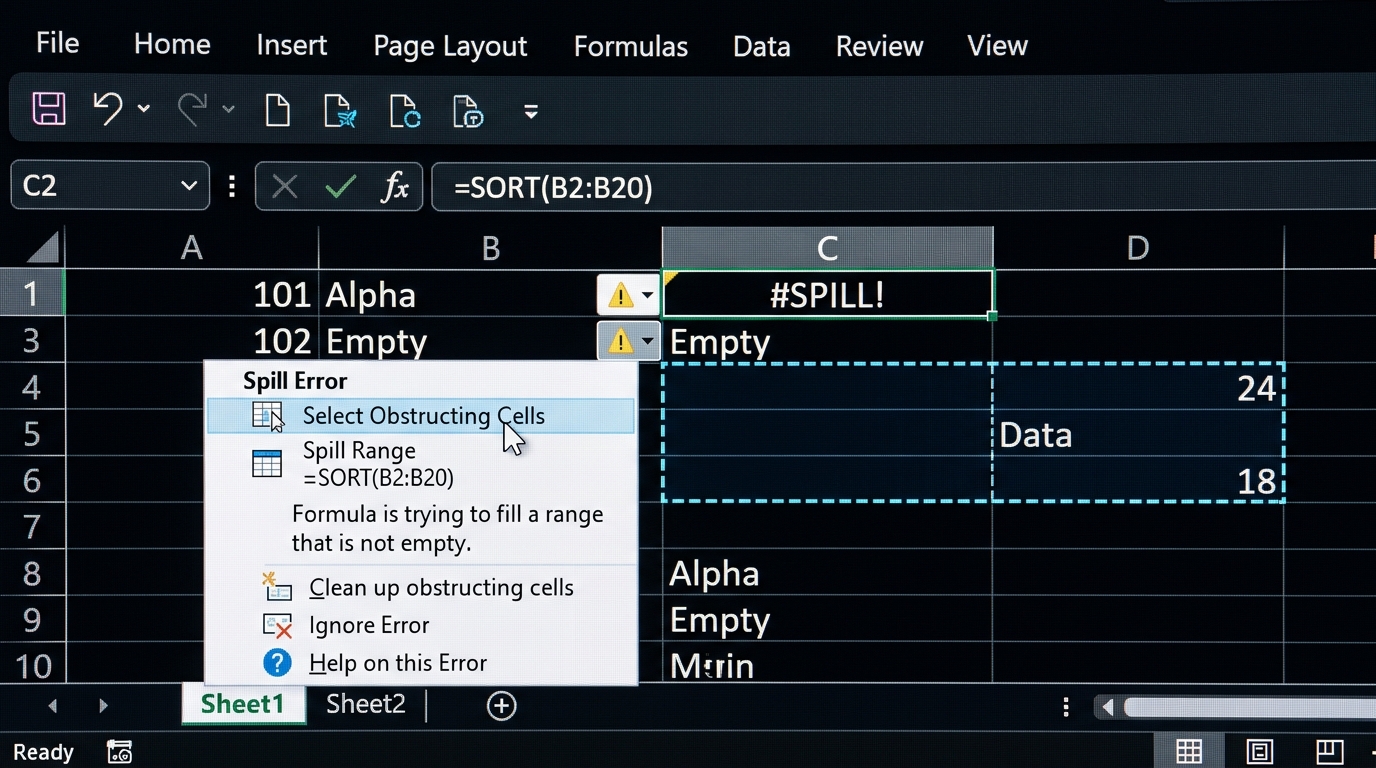
Using the Select Obstructing Cells option highlights exact cells blocking dynamic array expansion.
Resolving Spill Errors in Tables and Structured Grids
One of the most common user queries is whether excel allow spill in table objects. Native Excel Tables (created via Ctrl + T) enforce a calculated-column model where every row in a table column must contain the identical single-row formula. Because dynamic array formulas expand across variable row counts, Excel strictly prohibits spilled arrays inside structured table columns, resulting in an immediate excel spill error in table alert.
To resolve this constraint, decouple your dynamic calculation from the formal table object. Place your array formula in standard worksheet cells outside the table perimeter and use an excel table reference (also known as a structured reference excel). For example, to generate a unique list of departments from a table named Staff, write the formula outside the table grid:
=UNIQUE(Staff[Department])
This configuration allows the formula to expand freely across unconstrained cells while maintaining live links to the structured table. If downstream validation menus require this list, pair the anchor cell with a spill operator (F2#) to create and edit dynamic drop-down lists in excel that expand automatically when new table records are appended.
Handling Lookups and Aggregations Without Spills
Spreadsheet users frequently encounter calculation stoppages during lookup tasks and ask what does spill mean in vlookup. A vlookup spill error occurs when the lookup_value argument is passed as an entire column range (such as A2:A100) rather than a single cell reference (A2). When VLOOKUP receives an array of lookup keys, it attempts to return 99 simultaneous result rows. If any cell below the formula contains data, Excel triggers a #SPILL! flag.
To fix a lookup spill error, choose between two architectural approaches:
Single-Row Evaluation: Change A2:A100 to A2 and drag the formula down manually, or use the implicit intersection operator @A2:A100 to restrict evaluation to the active row.
Full Dynamic Spill: Delete all existing values in the destination column below the formula, allowing the array to spill all 99 results downward automatically from a single cell.
Production workflows heavily favor how to use xlookup in excel, which handles vertical array lookups more reliably than legacy VLOOKUP syntax. When dealing with aggregations like SUMIF or AVERAGEIF, supplying multi-criteria arrays also outputs an array of summary metrics. Wrap multi-criteria formulas in SUMPRODUCT or BYROW wrappers to compress array dimensions back into a single summary cell.
Fixing Spill Range Too Big and Merged Cell Blockages
Two specific edge cases generate persistent calculation errors across corporate workbooks: full-column references and merged cells.
When Excel displays the message spill range is too big, the formula references unbounded worksheet columns, such as =FILTER(A:A, B:B="Active") or =A:A * 1.15. Because Excel cannot determine where data ends, it attempts to project the calculation across all 1,048,576 rows on the sheet, reaching the physical limits of the worksheet grid. To resolve this error, define explicit boundaries (such as A2:A5000) or convert your data into a structured table and reference Table1[Amount] directly.
Another common conflict occurs when analysts merge cells in excel across report headers. Dynamic arrays require completely uniform, unmerged grid cells to write values. If a single merged cell sits within the downstream spill range, Excel halts with #SPILL! - Spill range contains merged cells. To fix this:
Select the merged cells in the destination path and click Merge & Center on the Home ribbon to unmerge them.
To keep visual header styling without breaking dynamic arrays, open Format Cells > Alignment and set Horizontal Alignment to Center Across Selection. This centers text across columns visually without altering underlying cell geometry.
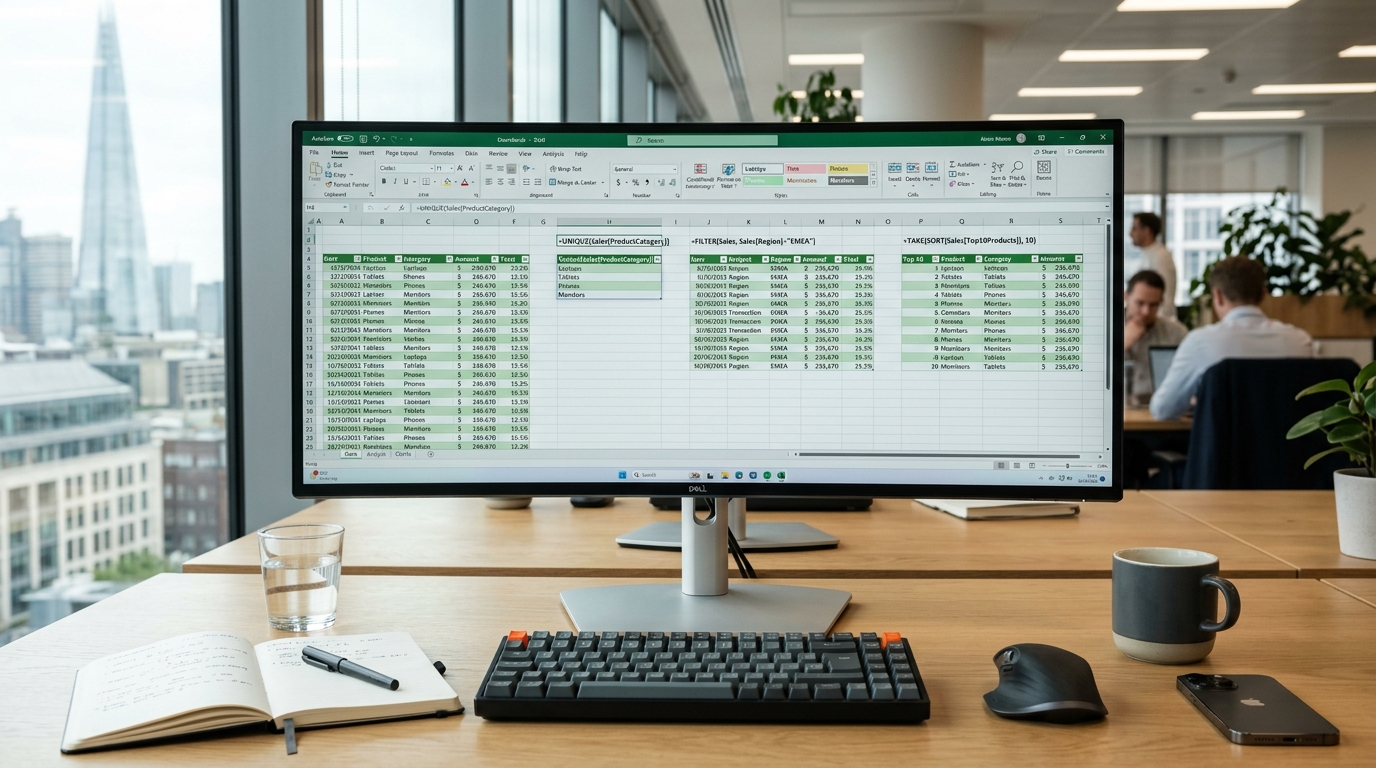
Constraining dynamic array outputs with TAKE and FILTER prevents overflow and accidental spill errors.
Comparison of Spill Remediation Strategies
Selecting the correct mitigation strategy depends on whether your workflow requires maintaining multi-value array outputs or restricting formulas to single-cell results. The decision matrix below outlines the primary remediation approaches, their operational impacts, and their ideal use cases within complex financial and operational models.
When deploying models across enterprise environments, maintaining clean separation between data ingestion zones and reporting canvases prevents unexpected collision errors. If your reporting workflow requires cleaning up duplicate source rows before feeding data into dynamic arrays, you should highlight and remove duplicates in excel beforehand to stabilize row counts and prevent calculation overflows.
Step-by-Step Troubleshooting Workflow
Resolving persistent calculation blockages requires a systematic diagnostic sequence. By following a structured remediation workflow, you can isolate root causes quickly without dismantling your entire workbook architecture.
Locate the anchor cell displaying the error indicator and select it to inspect the formula syntax in the formula bar.
Click the floating error warning flag and select the Select Obstructing Cells diagnostic option to instantly highlight the exact cells blocking the array expansion.
Examine the highlighted obstruction cells for stray text, numbers, blank spaces, or background formatting that might confuse the calculation engine.
Clear the obstructing contents entirely or move the dynamic array formula to a dedicated reporting sheet with zero downstream interference.
If the error persists inside a structured data layout, check for invisible formatting artifacts and apply find and replace in excel to clean up unexpected non-printing characters.
For advanced scenarios where dynamic arrays interact with pivot structures, remember that direct spill formulas cannot output values inside standard pivot report filters. If you encounter a #spill error in excel pivot table or a #spill error in pivot, you must extract your source data into a flat tabular range using Power Query or standard formulas before applying dynamic array transformations.
Advanced Formula Syntax and Edge Cases
Mastering dynamic arrays requires understanding how concatenation, text manipulation, and multi-conditional logic behave under pressure. A spill error concatenate issue typically arises when joining multiple vertical arrays of unequal length using the ampersand operator or CONCAT function. Because Excel cannot pair unmatched array dimensions, it throws a sizing mismatch error. To fix this, pad your shorter arrays with empty strings or apply sequence-matching logic via LAMBDA helper functions like MAP and REDUCE.
When building automated financial reporting tools, data scaling anomalies can trigger unexpected boundary expansions. To prevent spill range too big errors, wrap your core array generator inside the TAKE or DROP functions to hardcode maximum row boundaries. For example, setting =TAKE(SORT(Data), 50) guarantees that the output will never exceed 50 rows, regardless of how many records are added to the underlying database.
Finally, always ensure your workbook calculation options are set correctly. If manual calculation mode is enabled, dynamic arrays will not update their spill borders when source data changes, leading to ghost error states. Toggle your calculation settings back to automatic, or press F9 to force a full workbook recalculation cycle and clear stale error flags across your sheets.
Published by Sarah Blake | Senior Data Operations Analyst & Spreadsheet Automation Specialist at TechOps Wire.
Frequently Asked Questions
A spill occurs when a formula returns multiple values that automatically populate adjacent blank cells. The #SPILL! error triggers when those destination cells are blocked by data, formatting, or boundaries.
Sarah Blake• Senior Data Operations & Spreadsheet Analyst3+ Years Industry Experience
Data analyst with 3+ years designing automated reporting engines, dynamic financial spreadsheets, and clean data workflows in Microsoft Excel and Google Sheets.