How to Use Advanced Find and Replace in Excel Sheets
Execute precise data modifications in Excel using advanced Find and Replace techniques, wildcard operators, and VBA automation for high-volume datasets.
Mastering the find and replace in excel function is a fundamental requirement for data integrity and efficient spreadsheet maintenance. Whether you are normalizing legacy datasets, correcting formula references, or performing bulk string manipulation, understanding the operational mechanics of the Find and Replace dialog box prevents common data corruption errors. The procedures below detail the precise execution of these commands, the use of wildcard operators for pattern matching, formula-based alternatives, and the troubleshooting steps required when standard operations fail to produce expected results.
Quick Decision Matrix
Use this matrix to select the appropriate data manipulation method based on your current operational requirements and the scope of your target dataset.
Operational Mechanics and Keyboard Shortcuts
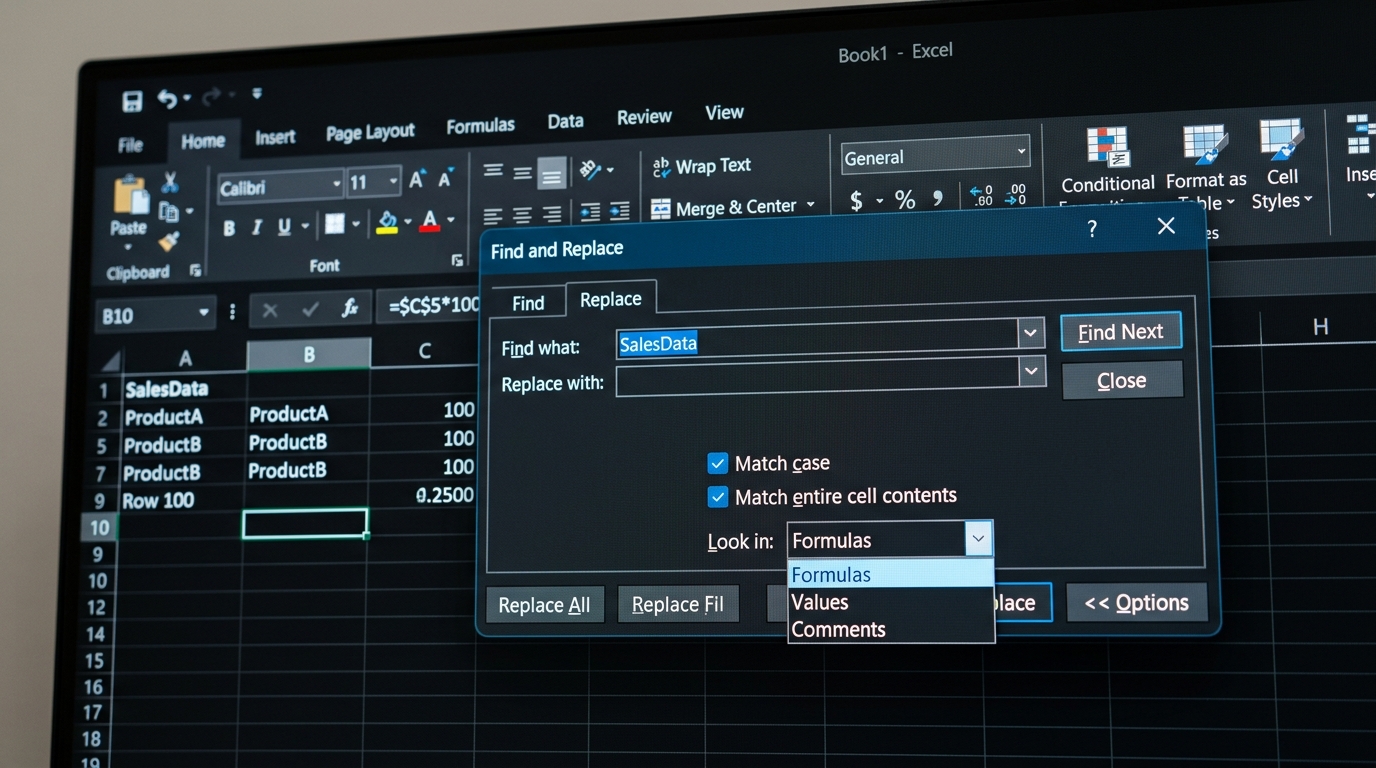
The Find and Replace command in Excel operates by scanning the active worksheet or the entire workbook for specific character strings. On the Excel ribbon, users wondering where is find and select in excel can navigate to the Home tab, move to the Editing group on the right, and click Find & Select. Choosing Replace from the menu reveals the primary window. For macOS users asking where is find and replace in excel, access the top menu via Edit > Find > Replace.
Keyboard navigation offers faster access. The standard find and replace in excel shortcut is Ctrl + H on Windows (or Control + H on macOS), which directly launches the Replace tab. If you only need to locate coordinates without updating them, the shortcut key for find in excel is Ctrl + F. While users familiar with word processors recognize Ctrl + H as the standard ms word find and replace shortcut, Excel executes replacements across structured tabular cells and formula syntax rather than flowing document text. Knowing this keyboard shortcut for replace in excel eliminates repetitive ribbon clicks during heavy editing sessions.
To execute a targeted search, define your cell boundaries before opening the tool. By default, Excel inspects every populated cell on the active sheet. If you highlight a specific column or range first, Excel restricts its evaluation strictly to that block. When working with complex sheets, remember to how to unhide rows in excel first, as hidden rows may be bypassed depending on filter conditions.
When you need to replace string in excel worksheets, input the search criteria into the Find what box and the replacement text into the Replace with box. Clicking Replace All updates all instances in one pass, resolving how to replace all instances of a word in excel immediately. If you need to replace numbers in excel, such as remapping accounting codes or tax tiers, enter raw numeric values into both fields. Excel preserves numeric integrity as long as no conflicting cell format rules override the output.
Advanced Pattern Matching and Literal Asterisks
Wildcards are essential when you need to match variable character patterns across diverse data strings. Excel supports two standard wildcard operators: the asterisk (*), which represents zero or more characters, and the question mark (?), which matches exactly one character. These symbols allow analysts to clean inconsistent prefixes, suffixes, and serial codes rapidly.
A dangerous error occurs when analysts attempt to find asterisk in excel or replace char in excel records that contain symbol characters. Because the asterisk is evaluated as an open wildcard matching any string, searching for * and running Replace All will clear and overwrite the entire contents of every cell in your range. To safely execute a find and replace asterisk in excel operation, prefix the asterisk with a tilde escape character: ~*. Entering ~* tells the search parser to treat the symbol as a literal asterisk character rather than an evaluation wildcard. The same escape pattern applies to question marks (~?) and literal tildes (~~).
Using wildcard combinations simplifies bulk normalization. For example, searching for ID-* and replacing it with blank text strips outdated prefixes across thousands of product rows. This direct approach prepares datasets for how to use xlookup reconciliation routines where mismatched string prefixes cause search failures.
Before executing global wildcard substitutions, always click Find All first. The dialog generates an itemized table showing every matching cell reference and current value. Inspecting this list guarantees that your pattern is not capturing unintended text strings before irreversible modifications occur.
Expanding options in the Excel Find and Replace dialog enables granular search filtering.
Non-Destructive Replacements: SUBSTITUTE and REPLACE
While the dialog box modifies cell values in place, certain data workflows require non-destructive, dynamic string updates. For these cases, Excel provides two core formula functions: the substitute function excel and the replace function in excel.
The SUBSTITUTE function replaces existing text with new text based on literal string matching, regardless of where the text appears in the cell. The formula syntax is:
If you omit instance_num, Excel replaces every occurrence. To handle multi-character cleanup, you can nest functions to perform an excel substitute multiple strings routine. For instance, to remove both dashes and parentheses from phone records in cell A2:
In contrast, the REPLACE function swaps text based on numerical character positions rather than matching string values. The syntax requires start position and length:
Use REPLACE when data fields follow rigid positional structures, such as masking customer identifiers (e.g., swapping the first five digits of an ID with asterisks): =REPLACE(A2, 1, 5, "*****"). Formulas leave source data untouched, allowing teams to verify calculations before converting outputs to static values.
Text Case Transformations and Number Formatting
Spreadsheet users often ask where is change case in excel or search for a button to change case to uppercase in excel. Unlike Microsoft Word, Excel does not provide a ribbon button to toggle sentence, lower, or title case. In the Find and Replace dialog, enabling the Match case checkbox forces the search to respect exact capitalization, but the dialog cannot convert lowercase text into uppercase characters.
To transform text casing in Excel, apply dedicated text formulas or Flash Fill:
To change uppercase to lowercase in excel, enter =LOWER(A2).
To convert text to all capital letters, enter =UPPER(A2).
To change to title case excel (proper case where the first letter of each word is capitalized), enter =PROPER(A2).
To transform case without formulas, type the desired casing for the first item in an adjacent column and press Ctrl + E to trigger Flash Fill across the entire column.
Another common consideration involves number formatting during replacements. When cleaning serial codes or SKU numbers with leading zeroes (such as 00451), Excel may treat the replacement as a standard integer and drop the leading zeros. To retain numeric string representations, use the excel text function: =TEXT(A2, "00000"). Alternatively, format the column as Text (format code @) before running Find and Replace, or prefix entries with an apostrophe (') to store numbers as text permanently.
Comparison of Data Transformation Methods
Transformation Method
Execution Mode
Reversibility
Case Sensitivity
Optimal Scenario
Find and Replace (Ctrl+H)
In-place (Direct)
Irreversible post-save
Optional checkbox
Ad-hoc bulk string replacement
SUBSTITUTE Formula
Calculated Column
Non-destructive
Always case-sensitive
Dynamic replacement of known strings
REPLACE Formula
Calculated Column
Non-destructive
Positional index
Fixed-width field masking & slicing
Flash Fill (Ctrl+E)
Pattern Extraction
Manual undo
Follows visual pattern
Quick case conversions without code
VBA Range.Replace
Programmatic Script
No native undo
Configurable parameter
Multi-sheet scheduled automation
Using wildcard operators enables bulk normalization across complex alphanumeric dataset columns.
Troubleshooting and Common Pitfalls
When you find and replace in excel not working as expected, the most common cause is the "Look in" setting. If you are searching for a value that is the result of a formula, you must set the "Look in" dropdown to "Values" rather than "Formulas." Conversely, if you are attempting to update a cell reference within a formula, you must select "Formulas." Failing to toggle this setting often leads to the "Excel cannot match any data to replace" error message.
Another frequent issue involves formatting constraints. If you have applied specific cell formatting, the Find and Replace engine might be filtering by those attributes. Open the "Options" menu and click "Clear Formatting" to ensure no hidden criteria are restricting your search. Additionally, if you are working with large datasets, ensure that your workbook is not in "Shared" mode, as certain advanced editing features are disabled in legacy shared workbooks.
If you encounter persistent issues where the command fails to execute, check for protected sheets or locked cells. If the sheet is protected, you must unprotect it before the engine can modify the contents. For users who need to manage large-scale data cleanup, consider using Power Query as an alternative. Power Query provides a repeatable, non-destructive data flow that is superior to manual find and replace operations for complex transformations.
Automation and Efficiency
For repetitive tasks, you can record a macro to automate the find and replace process. This is particularly useful when you need to perform the same cleanup steps on multiple files. The following VBA snippet demonstrates how to programmatically replace strings within a specific range, which is more reliable than manual interaction for high-volume data processing.
Sub BatchReplace()
    Dim ws As Worksheet
    Set ws = ThisWorkbook.Sheets("Data")
    ws.Range("A1:A5000").Replace What:="OldValue", Replacement:="NewValue", _
    LookAt:=xlPart, SearchOrder:=xlByRows, MatchCase:=False
End Sub
When integrating these scripts, ensure your environment is configured for macro execution. If you are managing data that requires frequent sorting, ensure your replacement logic does not interfere with your sorting criteria. You can how to sort in google sheets or Excel without scrambling data by maintaining a unique index column, which allows you to revert to the original order if a bulk replacement operation introduces errors.
Best Practices for Data Integrity
Always create a backup of your workbook before performing a global "Replace All" operation. Because Excel does not support undoing a bulk replace action after a save, a single misconfigured search can corrupt thousands of records. Use the "Find All" button to populate the list of results and inspect the first and last entries to confirm the scope of the operation.
When working with sensitive data, ensure that your find and replace operations do not inadvertently expose information. If you are cleaning data for external reporting, verify that your search terms do not accidentally match partial strings in confidential fields. For complex data validation, consider using how to create and edit dynamic drop-down lists in excel to restrict user input at the source, which reduces the need for subsequent find and replace cleanup tasks.
Finally, document your search and replace patterns in a separate log if you are performing multi-step data normalization. This provides an audit trail for your data transformation process. If your team performs the same find and replace operations daily, transition those tasks to a Power Query transformation, which allows you to refresh the data and apply the transformations automatically whenever the source file is updated.
Frequently Asked Questions
Find & Select is located on the Home tab within the Editing group. The keyboard shortcut to open Replace is Ctrl+H, while Ctrl+F opens the Find tab.
Sarah Blake• Senior Data Operations & Spreadsheet Analyst3+ Years Industry Experience
Data analyst with 3+ years designing automated reporting engines, dynamic financial spreadsheets, and clean data workflows in Microsoft Excel and Google Sheets.