How to Sort in Google Sheets Without Scrambling Data
Sort data in Google Sheets correctly across desktop menus, mobile devices, and dynamic formulas while protecting relational row order and avoiding corrupted data.
Data sorting within cloud spreadsheets requires strict adherence to relational row integrity, especially when processing multi-column production telemetry, customer records, or financial ledgers. Knowing how to sort in Google Sheets prevents common relational data corruptions that happen when an operator highlights a single column and reorders values independently of adjacent attributes. Spreadsheet administrators and analytics engineers must master range boundaries, frozen headers, isolated filter views, and dynamic array formulas to maintain uncompromised data hygiene.
Quick Decision Matrix
Select native menu sorting for single-user static tables, configure Filter Views when collaborating in active multi-user workbooks to prevent disrupting team views, and deploy the dynamic =SORT() array formula when building read-only dashboard outputs that must update automatically upon new data ingestion.
Core Mechanics and Relational Row Integrity
Preventing Scrambled Records and Column Drift
The single most severe operational hazard in spreadsheet administration is accidental partial-column sorting. In relational databases, primary keys remain tied to foreign keys and attribute records through index constraints. In a spreadsheet sort, a row represents an implicit record where cell A2, cell B2, and cell C2 belong to the same entity. If an operator highlights only column B and executes an ascending alphabetical sort, Google Sheets reorders column B while leaving column A and column C stationary. As a result, user identifiers map to incorrect security roles, and financial balances assign to wrong client accounts.
When evaluating how to sort rows in Google Sheets, protecting relational integrity demands selecting the full bounding box of data. If team members ask how to sort columns in Google Sheets without mixing data, the answer always centers on selecting the entire continuous table rather than an isolated column segment. Pressing Ctrl + A on Windows or Cmd + A on macOS inside any active data cell highlights the continuous contiguous range. When executing transformations across enterprise datasets, operators frequently pair sorting with deduplication routines, similar to procedures applied when you remove duplicates in Excel to ensure unpolluted reporting feeds.
Locking Header Rows With Frozen Views
When a sheet lacks an explicitly defined header configuration, sorting a table alphabetically can force your title row into the middle of your dataset. If row 1 contains column names like "Account Name" and "Status", a standard descending sort pushes "Status" toward the bottom of the table, treating your labels as literal data strings.
To prevent header displacement, freeze your top row by clicking View > Freeze > 1 row. Freezing pins the header visual coordinates to the top of your browser window and signals to Google Sheets that row 1 functions as a metadata label. Once pinned, opening the advanced range sort panel automatically reveals the option labeled Data has header row, protecting your schema definitions from shifting during calculation runs.
Desktop Menu and Advanced Range Sorting Workflows
Sort Sheet Versus Sort Range
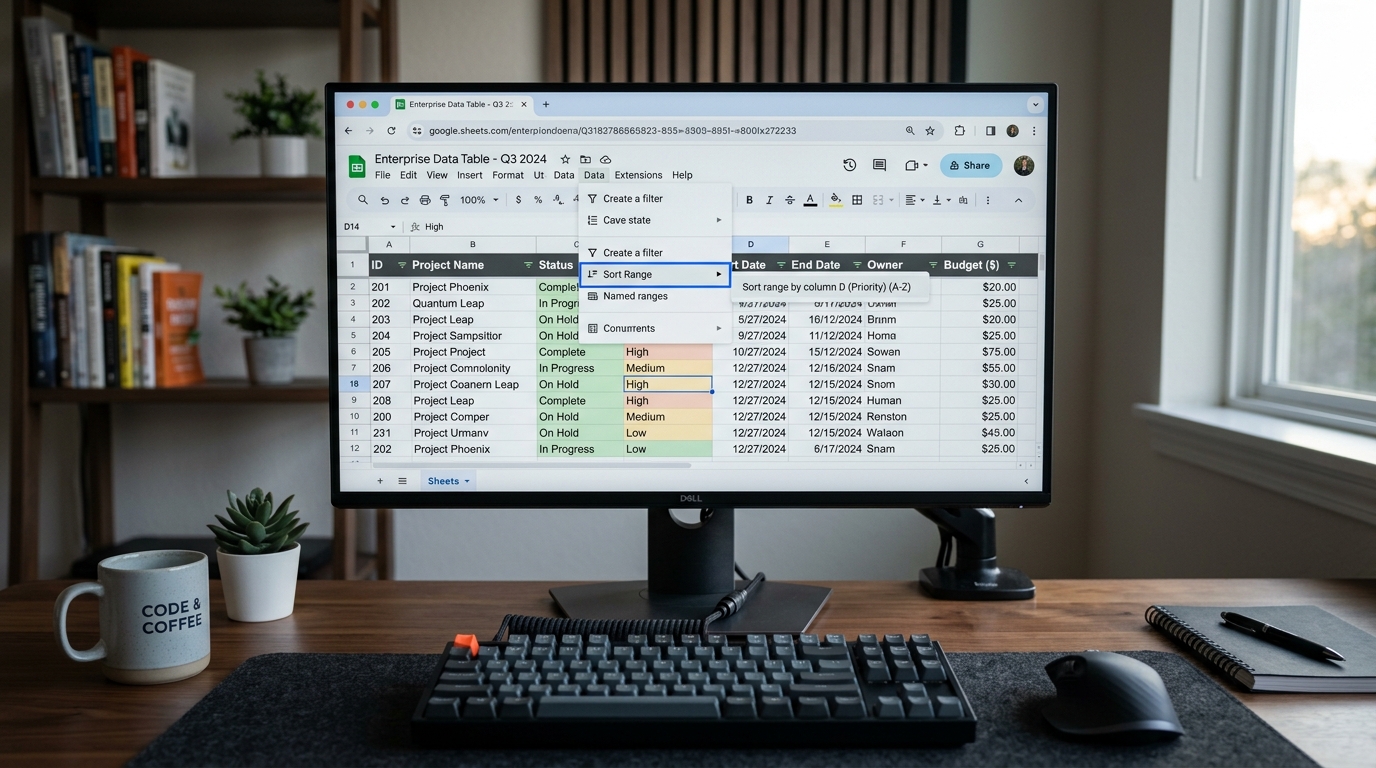
Google Sheets provides two fundamentally different sorting mechanisms under the primary Data menu: Sort sheet and Sort range. Understanding Google Sheets how to sort by column using these two options is key for avoiding structural layout errors:
Sort sheet by column: Reorders every single row across the entire worksheet tab from column A to column Z based on the values in the active column. If you maintain auxiliary lookup matrices, notes, or KPI summary boxes to the right of your primary data table, Sort sheet breaks those secondary tables by rearranging their horizontal alignment.
Sort range: Restricts reordering strictly to the highlighted cell coordinates. In a Google spreadsheet sort by value, only the cells within your active bounding box change positions, leaving external formulas, summary rows below the table, and sidebar calculation blocks completely undisturbed. This ensures your Google sheets sort by value operation affects only target business entities.
Executing Multi-Column Hierarchical Sorting
Production analytics often demands multi-tiered sorting hierarchies. If an operations manager asks how to sort two columns in Google Sheets, the native dialog handles this with ease. When configuring a Google spreadsheet sort multiple columns action, operators can assign hierarchical precedence across every dimension of the dataset.
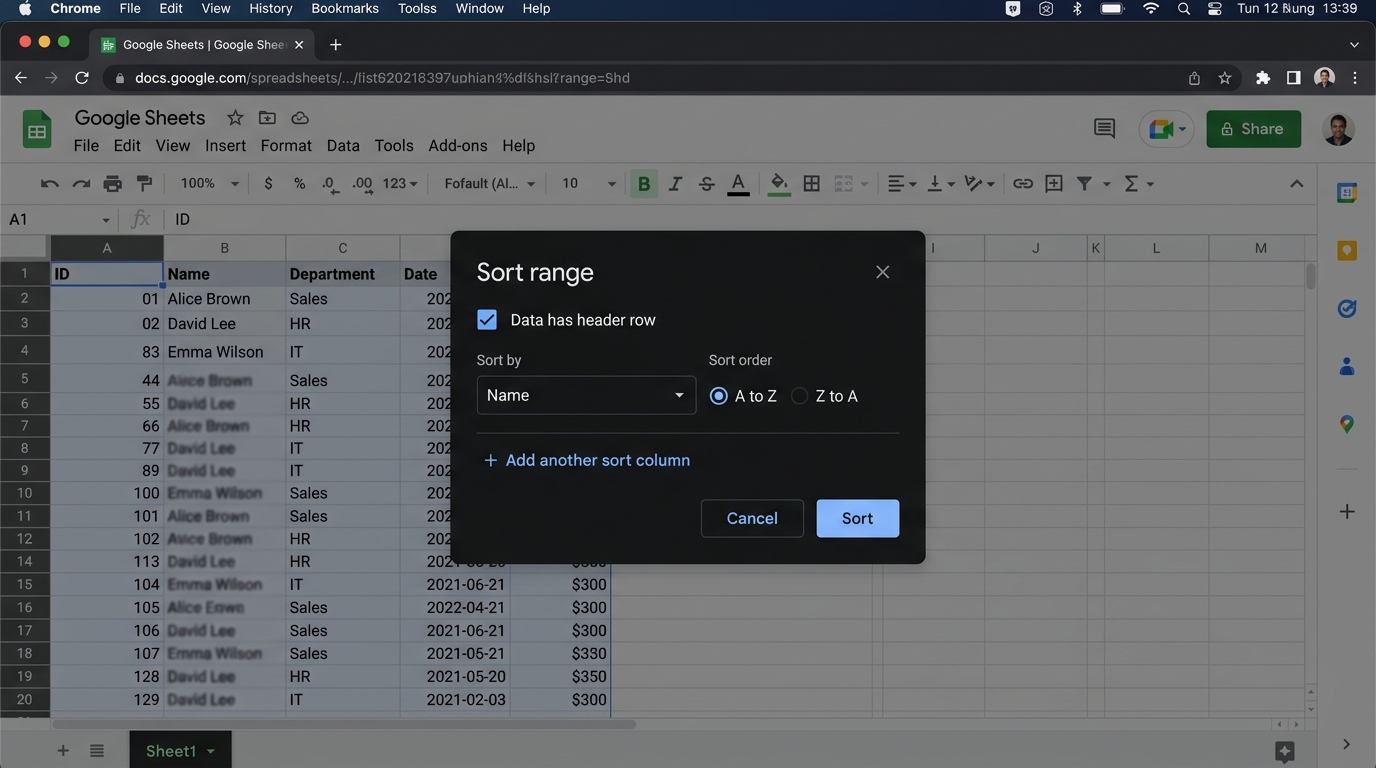
To configure a Google sheet sort by multiple columns workflow, follow these step-by-step instructions:
Highlight the entire target dataset, including the header row (for example, range A1:F500).
Click Data in the top toolbar, hover over Sort range, and click Advanced range sorting options.
In the modal dialog window, check the box labeled Data has header row. The drop-down menus will now display your real column titles instead of generic letters.
Select your primary sort column in the Sort by selector (for example, sort the data in ascending order by department) and choose A to Z.
Click Add another sort column to create a secondary rule. Select Hire Date and set the order to Z to A.
Add additional subordinate levels as required, and click the blue Sort button to execute the transformation.
Cross-Platform Workflows: How to Sort and Alphabetize in Excel
Enterprise teams often manage hybrid workflows across both Google Sheets and desktop Microsoft 365. Understanding how to sort in Excel and how to reorder data in Excel ensures parity between systems. The native sort feature in Excel provides identical functionality for sorting information in Excel across workbooks.
When working in Excel, operators can sort ascending in Excel or arrange in ascending order in Excel using the ribbon controls under Data > Sort. Choosing ascending order Excel (often abbreviated as ascending Excel) orders records from A to Z or smallest to largest, whereas choosing Excel descending order flips records from Z to A. To sort Excel sheet by column, highlight your table and ensure Excel sort rows by column data respects adjacent fields. Running an Excel sort rows by column action with headers enabled prevents your title row from mixing with records.
If an analyst asks can you alphabetize in Excel or how can I sort alphabetically in Excel, the process is straightforward: highlight the target table, click Sort, pick your column, and set the order to A to Z. Whether you want to know how to alphabetize in Excel, how to alphabetise in Excel, how to arrange alphabetically in Excel, how to sort a Excel sheet, how to sort rows in Excel, how to put Excel in alphabetical order, how to sort a column alphabetically in Excel, how to alphabetize a column in Excel, how to sort Excel alphabetically, how to put a column in alphabetical order in Excel, or how to make alphabetical order in Excel, the ribbon dialog manages it reliably. When you need to Excel organize alphabetically or figure out how to put ABC order in Excel, such as understanding how to put names in alphabetical order in Excel, make sure first and last names reside in separate columns or use text formulas to sort by family name.
Configuring multi-column hierarchical sorting with locked header rows in Google Sheets.
Filter Views in Collaborative Shared Workspaces
The Shared Workspace Collision Problem
When twenty analysts work simultaneously within a single shared Google Sheet, applying a standard menu sort or activating a basic filter creates a severe workflow collision. Standard sorts alter the global sheet layout for every single connected user in real time. If Analyst A sorts by transaction date while Analyst B is entering line-item data on row 42, Analyst B's input shifts to a random row, creating data entry mistakes and confusion.
Configuring Non-Disruptive Filter Views
Google Sheets solves this collaborative dilemma through Filter Views. A Filter View creates an isolated, personalized viewport that reorders and filters rows exclusively on your local client machine without altering the view for any other teammate accessing the document.
Select the data range you wish to evaluate.
Click Data > Filter views > Create new filter view.
Notice the dark grey border that wraps around your spreadsheet canvas. This dark frame confirms that you are working inside an isolated layer.
Click the inverted filter triangle in any column header to sort ascending or descending. Only your screen changes.
Give your view a descriptive label in the top Name field (such as "DevOps Queue - Sarah") so you can reopen this exact sorted arrangement in the future.
Filter Views generate unique URL parameters containing a specific fvid hash. You can copy the URL directly from your browser bar and share it with colleagues. When they click the link, Google Sheets opens the document directly into that sorted filter view without modifying the master sheet layout.
Sorting by Date, Cell Color, and Priority Values
Numerical Value Sorting in Sheets and Excel
Understanding how to sort Google Sheets by number and how to sort numbers in Google Sheets requires distinguishing between numeric literals and string-wrapped values. In a Google spreadsheet sort by number routine, numeric values evaluate mathematically from lowest to highest. In contrast, string numbers evaluate lexicographically. To Excel arrange numerically without errors, verify that cell formats are set to Number rather than General or Text.
Fixing Out-of-Order Date Sorting
A common frustration occurs when dates sort unpredictably. For example, sorting dates ascending might place "10/05/2026" ahead of "02/14/2026". This error occurs when dates are stored as raw text strings rather than real numeric serial values. In text evaluation, "1" precedes "0" or "2" alphabetically, completely corrupting chronological sequencing.
To fix text dates, highlight the column and navigate to Format > Number > Date. If values fail to convert due to imported string formatting, insert a temporary helper column using the parsing formula =DATEVALUE(A2) or =TO_DATE(DATEVALUE(A2)) to extract standard serial values before running your sort routine.
Sorting by Cell Fill and Font Color
Teams tracking incident severity or sprint progress often apply conditional formatting or manual highlighting to cell backgrounds. If operators ask can you sort in Excel by color or how to sort by color in Excel (including British spelling how to sort by colour in Excel), both platforms support visual attributes directly.
In Google Sheets, activate filter icons across your headers by clicking Data > Create a filter. Click the filter icon triangle on your target status column, hover over Sort by color, and choose either Fill color or Text color to float designated rows to the top. To understand how to sort by cell color in Excel or how to sort by highlighted cells in Excel, select Data > Sort, choose your column, change the Sort On parameter from Cell Values to Cell Color, and pick the target color to position on top.
Custom Priority Sorting via Helper Indexes
Alphabetical sorting fails when business rules require custom logical ordering, such as ranking operational tickets by priority: High, Medium, and Low. Alphabetical sorting inevitably arranges them as High, Low, Medium.
To establish custom ordering, add an adjacent helper column utilizing the MATCH function. If status values sit in column C, enter this formula in column D:
=MATCH(C2, {"High", "Medium", "Low"}, 0)
This outputs 1 for High, 2 for Medium, and 3 for Low. Sorting by the numeric helper column instantly establishes your exact custom business hierarchy. This method integrates cleanly with standardized data validation systems, such as building an Excel drop down list or Google Sheets data validation rule to enforce uniform categorical inputs.
Alphabetizing Lists, Names, and Academic Citations in Spreadsheets
Using Spreadsheets as an A to Z Alphabetical Order Sorter
Beyond tabular corporate ledgers, spreadsheets function as an instant alphabetical order tool and alphabetical order sorter for everyday textual data. When educators, content managers, or students need to alphabetise a list, alphabetize a list, or put in alphabetical order a batch of raw records, spreadsheets outperform dedicated web tools. If you need to know how to sort words in alphabetical order or require an a to z sorter, simply paste your text items vertically into Column A.
Rather than relying on an ad-heavy external alphabetical order generator, abc order generator, or alphabetical order creator, entering =SORT(A1:A50) immediately accomplishes the task. If you want to sort text from A to Z, put these words in alphabetical order, or put this in ABC order, the formula executes instantaneously. Analysts frequently sort alphabetically to arrange alphabetical words in order, put list in alphabetical order, write the words in alphabetical order, or handle putting words in ABC order without manual copy-paste errors. A cloud spreadsheet operates as a clean word organizer and lightweight alphabetize app that retains all your raw strings securely.
Alphabetizing Academic Reference Citations and Bibliographies
A critical application for text sorting occurs in academic research and formal publishing, where style guides mandate strict alphabetical order citations. Researchers wondering how to put sources in alphabetical order, how to put citations in alphabetical order, or how to put references in alphabetical order often struggle with manual formatting in document editors.
Spreadsheets provide an ideal mechanism to alphabetize citations and structure an MLA alphabetical order bibliography. To understand how to alphabetize bibliography collections, alphabetize work cited entries, or format a work cited in alphabetical order list, paste each bibliographic citation into its own individual cell in Column A. Then, in Column B, enter:
=SORT(A1:A50, 1, TRUE)
Google Sheets instantly arranges your sources alphabetically by primary author surname. If citations contain leading quotation marks for article titles, a helper column using =REGEXREPLACE(A1, "^["']", "") strips leading punctuation so the sort indexes directly on the author or title letter. You can then copy the sorted results directly back into your final document.
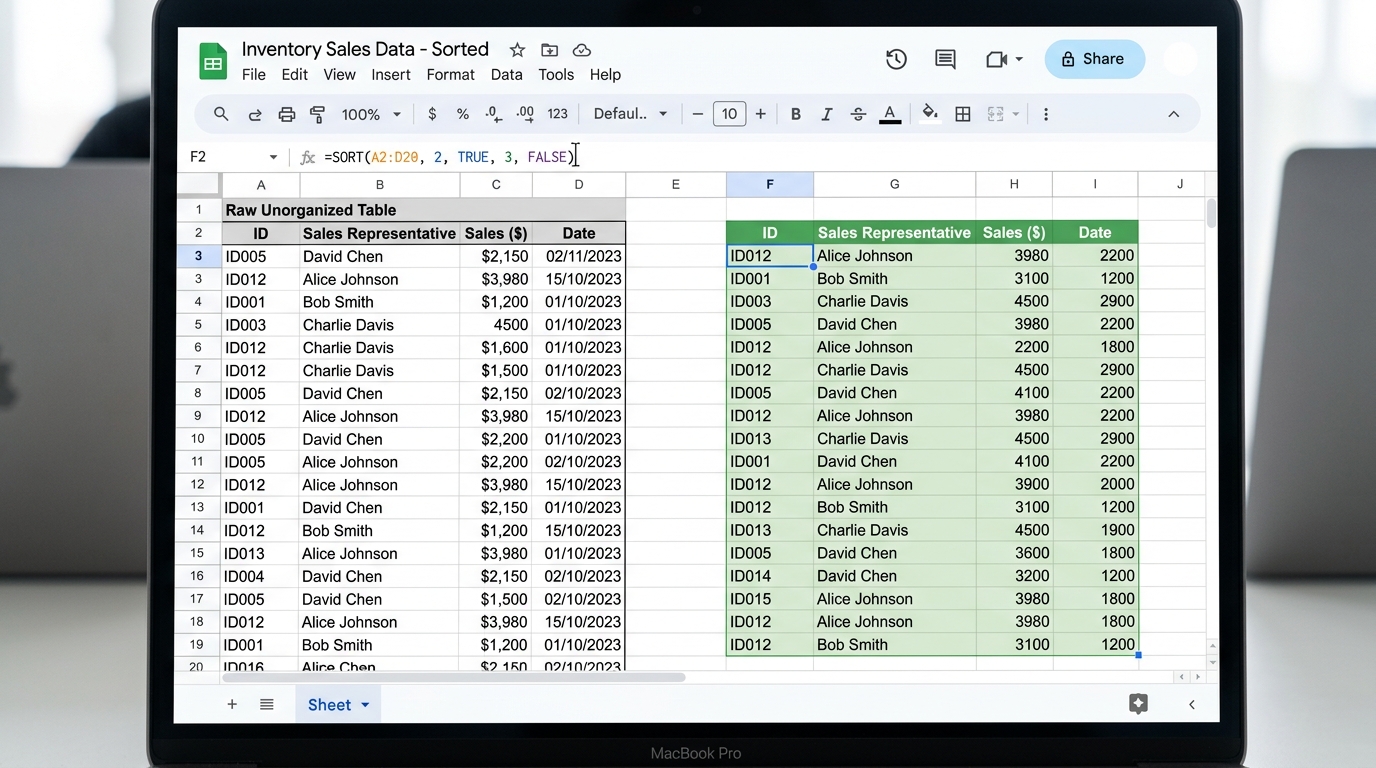
Non-destructive dynamic array sorting using the native SORT formula in Google Sheets.
Dynamic Non-Destructive Array Sorting With Formulas
Deploying the Native SORT Formula
Static menu sorting modifies the physical arrangement of source cells, which can disrupt downstream formula relationships and hardcoded cell references. When building automated reporting tabs, formula-driven dynamic sorting provides a non-destructive alternative. Deploying =SORT() establishes a Google spreadsheet auto sort engine that ensures Google sheets sort rows by column value automatically whenever new telemetry lands in the sheet.
The formal syntax for the function is structured as follows:
To sort an inventory table spanning A2:D100 by price in column 3 in descending order, enter the following expression in cell F2 of your reporting tab:
=SORT(A2:D100, 3, FALSE)
For hierarchical sorting across multiple columns, append additional column indexes and boolean sort direction flags. For example, sorting first by department in column 2 ascending, and then by performance score in column 4 descending:
=SORT(A2:E200, 2, TRUE, 4, FALSE)
Combining SORT With FILTER and QUERY
In production analytics workflows, engineers frequently need to exclude inactive rows before ordering results. Nesting the FILTER() formula inside SORT() achieves dynamic filtering and sorting simultaneously:
When building executive leaderboards where only the top performers must be displayed, deploy the SORTN() function. The expression below returns strictly the top 5 records from A2:D100 ranked by revenue in column 4:
=SORTN(A2:D100, 5, 0, 4, FALSE)
For complex transformations requiring conditional aggregation alongside sorting, the QUERY() function offers full SQL-like syntax in Google Sheets:
=QUERY(A2:E100, "SELECT A, B, D WHERE D > 1000 ORDER BY D DESC", 0)
These dynamic array formulas feed lookup workflows reliably, providing clean index tables that can be cross-referenced using dynamic lookup mechanics like the XLOOKUP function.
Decision Matrix and Sorting Method Comparison
Spreadsheet architects must weigh data mutability, multi-user safety, and calculation performance when choosing an arrangement approach. The matrix below outlines how each method functions across key engineering dimensions:
Sorting Approach
Data Mutability
Multi-User Safety
Calculation Cost
Recommended Use Case
Native Range Sort
Destructive (Overwrites)
Disrupts Collaborators
Zero Overhead
One-time historical data preparation and static table organization.
Filter Views
Non-Destructive (View Layer)
Completely Isolated
Low Overhead
Shared team spreadsheets where multiple operators audit live data.
Dynamic SORT() Formula
Non-Destructive (Array Output)
Safe (Read-Only)
Moderate Memory
Automated reporting tabs, live KPI dashboards, and auto-sort feeds.
SORTN() / QUERY()
Non-Destructive (Array Output)
Safe (Read-Only)
High Memory
Executive summaries, leaderboards, and complex conditioned feeds.
Google Apps Script
Destructive (Automated)
Scheduled / Triggered
Server-Side Execution
Nightly ingestion routines and automated batch form processing.
Troubleshooting Errors, Spill Blocks, and Edge Cases
Resolving the #REF! Spill Error
When utilizing dynamic array formulas like SORT(), the most common error is the #REF! indicator accompanied by the message: "Array result was not expanded because it would overwrite data in...". Dynamic array formulas generate a spill matrix that requires completely vacant cells across its entire destination range. If even a single stray space character or value exists in any cell within the expansion perimeter, Google Sheets blocks the calculation to prevent data overwrite. Clear all obstructing cells below and to the right of your formula anchor to resolve the error.
Handling Merged Cell Restrictions
Google Sheets strictly disables sorting actions across selections that contain merged cells. Merged cells break standard tabular coordinate geometry because a single cell spans multiple column or row indexes. When an operator attempts to sort a range containing merged cells, Google Sheets presents a dialog error stating that the operation cannot be completed. To fix this obstruction, highlight the entire dataset, click Format > Merge cells > Unmerge, and ensure every column maintains a clean, uniform grid structure.
Correcting Hidden Row Discrepancies
If an active dataset contains collapsed or hidden rows, sorting the visible range can lead to unexpected data shifts. Always verify that all rows within your target range are exposed before executing a manual sort, applying procedures similar to methods used when you unhide rows in Excel to ensure hidden calculations do not drift out of sequence.
Automating Nightly Sorts With Google Apps Script
For teams receiving continuous raw data imports from external forms or API webhooks, automating the sort process eliminates repetitive manual intervention. Google Apps Script provides programmatic access to spreadsheet coordinates. Below is an automated script that sorts an ingestion sheet by submission date in column B in descending order while preserving locked row 1 headers:
function autoSortIngestionTable() {
  const sheet = SpreadsheetApp.getActiveSpreadsheet().getSheetByName("IngestionFeed");
  if (!sheet) return;

  const lastRow = sheet.getLastRow();
  const lastColumn = sheet.getLastColumn();

  // Ensure table contains records beyond the header row
  if (lastRow > 1) {
    const dataRange = sheet.getRange(2, 1, lastRow - 1, lastColumn);
    // Sort by column 2 (Date/Timestamp) descending
    dataRange.sort({ column: 2, ascending: false });
  }
}
You can bind this script to an installable onEdit trigger or schedule it as a time-driven trigger that runs every night at midnight to maintain structured, ready-to-audit records.
Enterprise Data Hygiene and Protection Rules
Protecting Master Columns and Establishing Permissions
In enterprise environments, unrestricted sorting access poses severe operational risks. Junior team members or external contractors may inadvertently execute unconstrained sorts on primary financial spreadsheets. To prevent unauthorized structural modifications, implement Protected Ranges by selecting Data > Protect sheets and ranges.
Administrators can configure ranges so that general users possess view-only permissions on primary columns while retaining access to create independent Filter Views. This architectural configuration allows individual contributors to reorder and examine records without modifying the golden source dataset.
Audit Logs and Version History Recovery
If an inadvertent sort operation occurs and goes unnoticed through multiple autosaves, immediately check your document version history. Pressing Ctrl + Alt + Shift + H on Windows or Cmd + Option + Shift + H on macOS opens the full revision panel. Google Sheets logs individual modification batches, allowing system administrators to inspect exact timestamps and roll back the workbook to the precise state prior to the corrupted sort execution.
By pairing frozen header conventions, isolated Filter Views, dynamic formula projections, and protected range permissions, operations teams eliminate data corruption hazards and ensure flawless analytical reliability across cloud spreadsheets.
Frequently Asked Questions
Always select the entire data table range before opening the Data menu, or click anywhere inside the table and use Data > Sort range > Advanced range sorting options. Check 'Data has header row' so your titles remain anchored at the top while all related columns move together as unified rows.
Sarah Blake• Senior Data Operations & Spreadsheet Analyst3+ Years Industry Experience
Data analyst with 3+ years designing automated reporting engines, dynamic financial spreadsheets, and clean data workflows in Microsoft Excel and Google Sheets.