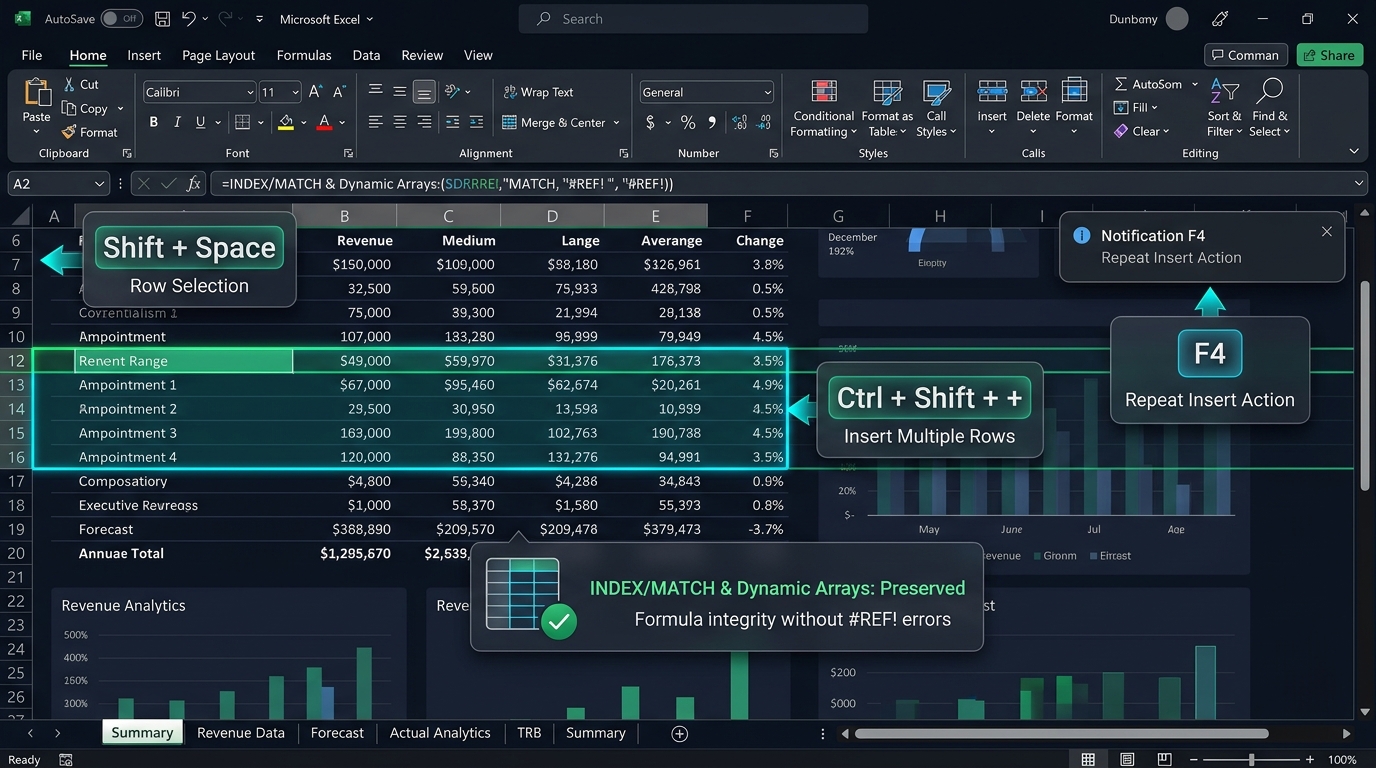
Financial analysts, database administrators, and operations specialists routinely spend hours structuring raw datasets inside Microsoft Excel. When entering transaction records, inserting manual subtotal dividers, or expanding forecasting tables, reaching for the mouse to right-click row headers introduces substantial cumulative latency. Mastering the primary insert row shortcut excel combinations unlocks rapid, keyboard-driven spreadsheet workflows across Windows, macOS, and Excel for the Web. From single-key combinations that spawn new rows in milliseconds to mass multi-row additions, in-cell multi-line returns, and structured table expansions, understanding how Excel manages row indexes preserves formula integrity, prevents reference errors, and accelerates high-volume data modeling.
Row Insertion Mechanics: The Three Operational Pathways
Depending on whether your active selection covers a single cell, an entire row, or a structured table boundary, Excel routes keyboard insertion commands through three distinct execution pathways:
1. Direct Entire-Row Insert
Shift + Space → Ctrl + +
Immediate insertion bypassing dialog boxes
2. Contextual Insert Dialog
Ctrl + Shift + + → R
Targeted row insertion from a single cell
3. Structured Table Auto-Grow
Tab Key at Bottom-Right
Automatic formula replication & styling
Core Row Insertion Mechanics in Microsoft Excel
Before memorizing specific key sequences, it is essential to understand how Microsoft Excel physically handles row insertion at the worksheet grid level. When you insert a new row into an active worksheet, Excel performs three simultaneous structural operations:
- Index Shifting: The existing active row and every subsequent row beneath it shift downward by the number of inserted rows. For example, when executing how to insert a new row in excel above Row 10, the old Row 10 becomes Row 11, Row 11 becomes Row 12, and so forth down to Row 1,048,576. Excel checks whether the bottom-most rows of the worksheet contain data; if Row 1,048,576 is populated, Excel aborts the insertion to prevent data loss.
- Formula Reference Updating: Excel automatically updates relative and absolute formula references spanning across the insertion boundary. Formulas referencing an internal range such as
SUM(B5:B20) dynamically expand to SUM(B5:B21) if the row is added within the interior boundary. However, if a row is inserted directly above Row 5 or directly below Row 20, formulas referencing fixed coordinates require careful range management.
- Format Inheritance: By default, newly inserted rows inherit formatting (cell fills, fonts, borders, and number formats) from the row directly above them. If you prefer inheriting formatting from the row below, clicking the floating Insert Options brush icon allows you to toggle the inheritance source between Format Same as Above, Format Same as Below, and Clear Formatting.
If your modeling tasks involve cleaning up messy datasets containing unwanted blank gaps rather than creating new ones, make sure to read our companion operational guide on how to remove blank rows in Excel at once using Go To Special, Power Query, and dynamic array filter functions.
Windows Primary Shortcuts: Ctrl + Shift + Plus and Alt + I + R
On Windows desktop versions of Microsoft Excel (including Microsoft 365, Excel 2024, 2021, and 2019), learning how to add a new row in excel and how to insert row in excel with keyboard shortcuts falls into two primary techniques: the direct keyboard shortcut and the legacy ribbon sequence.
Method 1: The Two-Step Instant Insertion (Shift + Space, then Ctrl + Shift + Plus)
This is the universal standard keyboard shortcut to insert new row in excel among financial analysts. When an entire row is pre-selected, Excel knows unambiguously that you want to insert a full row, bypassing the prompt dialog completely:
- Click any cell in the row where you want to insert space above.
- Press Shift + Space to highlight the entire worksheet row across all 16,384 columns.
- Press Ctrl + Shift + Plus (on standard keyboards where Plus shares the Equals key, this is physically
Ctrl + Shift + =). On full-size keyboards with a dedicated numeric keypad, you can simply press Ctrl + Plus on the tenkey pad without the Shift modifier.
- A clean, formatted blank row appears instantly above your active selection. This is the fastest shortcut key to add rows in excel during continuous data entry.
Method 2: Single-Cell Insert Dialog (Ctrl + Shift + Plus, then R)
If you do not wish to select the entire row first, you can trigger how to add another row in excel directly from an isolated active cell:
- Select the individual cell where you want a row above.
- Press Ctrl + Shift + Plus. Excel displays the native Insert dialog box offering four radio buttons: Shift cells right, Shift cells down, Entire row, and Entire column.
- Press the letter R on your keyboard (which highlights Entire row via keyboard accelerator).
- Press Enter to confirm. The entire row shifts downward immediately. This acts as an intuitive excel insert row command when you only have one hand on the keyboard.
Method 3: The Classic Legacy Alt Ribbon Sequence (Alt + I, then R)
Dating back to classic Excel 2003 menus, Microsoft maintains backwards compatibility for classic access keys. This excel hot key insert row sequence requires no simultaneous key holding:
- Select any cell where you need an extra row above.
- Press and release the Alt key to display key tips.
- Press the letter I (which triggers the classic Insert menu accelerator).
- Press the letter R (which triggers Row insertion).
- The row inserts immediately without showing any pop-up dialog, simplifying excel adding rows on compact keyboards.
macOS and Excel for the Web Row Insertion Shortcuts
Navigating Excel on Apple hardware or in modern cloud browsers involves slightly different modifier keys. Understanding these platform-specific adjustments prevents broken keystrokes when switching between workstations:
macOS Excel Key Combinations
On macOS, the primary modifier switches from Ctrl to Command:
- Entire Row Selection: Press Shift + Space on your MacBook or Magic Keyboard. Note: If macOS system spotlight or input source switching captures Shift+Space, disable that global macOS keyboard shortcut in System Settings.
- Instant Row Insertion: Press Command + Shift + Plus (physically
Cmd + Shift + =) or press Control + Shift + Plus.
- Insert Dialog from Cell: Press Command + Shift + Plus with an isolated cell selected, then press R and hit Return.
- Context Menu Access: Press Shift + F10 (or Function + Shift + F10) to open the cell context menu, then tap I to insert.
Excel for the Web (Browser Workflows)
When editing workbooks inside Chrome, Edge, Safari, or Firefox:
- Browser shortcut conflicts can occasionally intercept
Ctrl + Shift + + (triggering browser page zoom in certain configurations).
- The most reliable web method for excel how to add rows is selecting the row header (clicking the row number or pressing Shift + Space), right-clicking, and choosing Insert Rows.
- Alternatively, use the Alt key sequence via ribbon navigation: Alt → H → I → R (Home → Insert → Insert Sheet Rows).
- In modern Edge and Chrome, Microsoft 365 supports native keyboard shortcut overrides when full keyboard mode is enabled in Excel for Web settings.
Inserting Copied and Cut Rows with Keyboard Shortcuts
A very common administrative need in financial modeling is moving or copying an existing row and inserting it between two other rows without overwriting existing data. If you use standard copy-paste (Ctrl + C then Ctrl + V), Excel overwrites the destination row. To safely splice data into place, use the insert copied cells keystroke:
Step-by-Step Copied Row Insertion Workflow
- Highlight the source row by pressing Shift + Space (or select multiple rows).
- Copy the row by pressing Ctrl + C (a green animated marquee border appears around the selected row).
- Navigate to the target destination row where you want to insert the copied content.
- Highlight the destination row by pressing Shift + Space.
- Press Ctrl + Shift + Plus (or
Ctrl + + on the numeric keypad).
- Excel shifts the destination row downward and inserts the copied row intact, preserving all cell formulas, conditional formatting rules, and data validation parameters.
Cut Rows: You can also use Ctrl + X followed by Ctrl + Shift + Plus on a destination row to move an entire row to a new location without leaving an empty hole in the source table.
Mass Row Additions: Highlighting Multi-Row Ranges & F4 Rapid Repeat
When designing complex multi-period financial forecast sheets, entering budget categories, or staging imported ledger transactions, inserting a single row at a time is painfully inefficient. If you are wondering how to insert multiple rows in excel, how to add multiple rows in excel, or how can i insert multiple rows in excel quickly, Excel provides two high-speed methods for adding multiple rows in excel without writing complex code:
1. Multi-Row Range Highlighting (Proportional Insertion)
Excel follows an exact rule of proportionality: if you highlight N rows, Excel will insert exactly N rows above your selection. This is the cleanest solution for how to insert more than one row in excel or insert many rows excel at once:
- Select the first row where new blank rows should begin (for instance, Row 15).
- Hold Shift and press Down Arrow four times to select five consecutive rows (Rows 15 through 19).
- Press Shift + Space to ensure all five entire rows are selected across all columns.
- Press Ctrl + Shift + Plus.
- Excel immediately inserts five clean, consecutive blank rows, shifting the original data down by five spaces in a single operation. This allows you to insert several rows in excel or learn how to add more rows in excel in less than two seconds.
2. The F4 Rapid Repeat Superpower
In Microsoft Excel, the F4 key (or Ctrl + Y) repeats the most recent action executed on the worksheet. This creates a remarkably rapid cadence when you need to know how to insert more rows in excel continuously:
- Select a row using Shift + Space.
- Press Ctrl + Shift + Plus once to insert your first row.
- Now, simply tap the F4 key repeatedly. Every tap of F4 instantly inserts another blank row above your active selection.
- You can generate 20 or 50 blank rows in under three seconds with perfect format matching. On laptops where F4 serves as an audio or brightness key, hold the Fn key while pressing F4, or use Ctrl + Y instead.
Inserting Multiple Lines and Line Breaks Inside a Single Excel Cell (Alt + Enter)
A common point of confusion when users search for how to insert multiple lines in excel, how to add multiple lines in excel, or how to put lines in excel is the critical difference between adding new worksheet grid rows versus creating multiple rows in excel cell. If you are typing inside a cell and press the standard Enter key, Excel commits your entry and moves down to the next row. To type multiple lines of text within the exact same cell without creating new rows, you must use in-cell line breaks.
Method 1: The Alt + Enter In-Cell Line Break Keystroke
When managing customer shipping addresses, multi-item task descriptions, or multi-step formulas, learning how to add a line in excel cell or how to insert a new line in excel is straightforward:
- Double-click the cell (or press F2) to enter in-cell editing mode.
- Place your cursor at the exact spot where you want the line break to occur.
- Press Alt + Enter on Windows (or Option + Return on macOS).
- Excel inserts a carriage return character within the cell and moves the blinking cursor to the next line down.
- Type your next line of text. You can repeat this keystroke to format multiple rows in one cell excel or configure an excel multi row cell with three, four, or more lines.
- Press Enter to commit the cell. Excel automatically enables Wrap Text and expands the row height to show all lines.
Method 2: Programmatic Line Breaks in Formulas with CHAR(10)
If you are concatenating values from multiple columns (e.g., combining Street, City, and State) and need to know how to insert line break in excel or insert return in excel cell dynamically via formulas:
# Concatenating values with a dynamic carriage return
=A2 & CHAR(10) & B2 & ", " & C2 & " " & D2
After writing the formula, ensure you click the Wrap Text button on the Home tab ribbon. Without Wrap Text active, Excel displays the concatenated string on a single line instead of showing the inserted line break in excel cell.
Method 3: Adding Visual Gridlines vs Text Lines
If your search for how do i add lines to an excel spreadsheet, how to add lines to excel sheet, or how to insert a line on excel spreadsheet refers to visual dividing borders rather than text or worksheet rows:
- Cell Borders: Select your cells and press Alt → H → B → A to apply All Borders, creating crisp visible dividing lines around every cell.
- Sheet Gridlines: If gridlines disappear, navigate to the View tab on the ribbon and verify that the Gridlines checkbox is checked.
When collaborating on financial workbooks or auditing data assumptions, spreadsheet users often need to annotate rows without modifying the cell values. Microsoft Excel distinguishes between two types of annotations: traditional yellow sticky notes and modern collaborative threaded comments. Knowing the shortcut key to add note in excel and comment shortcut excel keeps your hands on the keyboard:
Inserting Notes: Shift + F2
To insert note in excel or learn how to open note in excel:
- Select the cell you want to annotate.
- Press Shift + F2. A classic yellow note box immediately opens with your cursor active inside.
- Type your documentation, explanation, or calculation audit note.
- Press Escape twice to exit the note box and return focus to the worksheet grid.
- A small red triangle appears in the top-right corner of the cell, indicating a note is present.
Inserting Threaded Comments: Ctrl + Shift + F2
To insert comment in excel or learn how to insert comment boxes in excel for team discussions:
- Select any active cell and press Ctrl + Shift + F2 (the primary shortcut to add comment in excel).
- A threaded discussion box opens, allowing you to @mention team members in Microsoft 365.
- Type your comment and press Ctrl + Enter to post the comment.
- Threaded comments display a purple badge indicator in the corner of the cell.
Excel Structured Tables: Seamless Tab Key Auto-Expansion
When managing ongoing operational logs, sales records, or employee rosters, the professional spreadsheet engineering best practice is converting standard data ranges into Excel Structured Tables (created via Ctrl + T). Structured tables eliminate the need to manually insert rows at the bottom of datasets:
The Single-Keystroke Auto-Expansion Workflow
- Ensure your data is formatted as an official Excel Table (select your dataset and press Ctrl + T, confirming your table has headers).
- Navigate to the very last cell in the bottom-right corner of the table.
- Press the Tab key once.
- Excel automatically creates a new row at the bottom of the table, expands the table boundary range, replicates all calculated column formulas, and copies alternating row zebra striping down without user intervention.
Inserting rows within a table: If you need to insert an internal row within an existing table, select any table cell, press Ctrl + Shift + Plus, and choose Table Rows Above.
When working with large tables containing hundreds of rows, keeping header names visible is vital. Read our practical guide on how to freeze panes, top rows, and columns in Excel to ensure your column descriptions remain locked while navigating deep datasets.
VBA Macros & Office Scripts for Automated Mass Row Additions
In recurring enterprise reporting cycles, analysts often face specialized automation challenges, such as how to insert multiple rows in excel between data automatically, or inserting multiple blank rows whenever a category changes. Performing this manually across thousands of rows is prone to human error. A lightweight VBA macro accomplishes this in seconds:
VBA Macro: Insert Blank Row Between Every Record
Sub InsertAlternateBlankRows()
    Dim lastRow As Long
    Dim i As Long

    ' Optimize performance by disabling screen repainting
    Application.ScreenUpdating = False
    Application.Calculation = xlCalculationManual

    ' Find the last populated row in Column A
    lastRow = Cells(Rows.Count, "A").End(xlUp).Row

    ' Loop backwards from bottom to top to preserve index positions
    For i = lastRow To 2 Step -1
        Rows(i).EntireRow.Insert Shift:=xlDown
    Next i

    ' Restore application state
    Application.Calculation = xlCalculationAutomatic
    Application.ScreenUpdating = True

    MsgBox "Alternate rows successfully inserted!", vbInformation, "Automation Complete"
End Sub
Always ensure you iterate backwards (from lastRow To 2 Step -1) when writing row-insertion macros. Looping forward causes the loop counter to target the newly inserted blank rows repeatedly, creating an infinite loop.
Modern Office Scripts (TypeScript) for Web and Cloud Workbooks
If you are operating inside Microsoft 365 cloud environments or running scheduled Power Automate pipelines, Office Scripts replaces legacy VBA with modern TypeScript APIs:
function main(workbook: ExcelScript.Workbook) {
  let selectedSheet = workbook.getActiveWorksheet();
  let table = selectedSheet.getTables()[0];

  // Appends a new blank row at the end of the structured table
  table.addRow(-1);
}
The comprehensive matrix below contrasts keyboard shortcuts, menu accelerators, and operational behaviors across all supported platforms and editions of Microsoft Excel:
| Operating Platform |
Primary Shortcut |
Pre-Selection Required |
Alternative Accelerator |
Operational Best Use Case |
| Windows Desktop (Full Keyboard) |
Shift + Space → Ctrl + + |
Row Selected |
Alt → I → R |
Financial modeling, rapid subtotaling, clean insertion |
| Windows Laptop (Compact Keyboard) |
Shift + Space → Ctrl + Shift + = |
Row Selected |
Ctrl + Shift + + → R → Enter |
Laptops without dedicated numeric keypad |
| macOS Desktop & MacBook |
Shift + Space → Cmd + Shift + + |
Row Selected |
Control + Shift + + |
Mac enterprise modeling, Magic Keyboard workflows |
| Excel for the Web (Edge / Chrome) |
Alt → H → I → R |
Row Selected |
Right-Click Header → Insert Rows |
Cloud editing where browser shortcuts conflict |
| Structured Tables (All Platforms) |
Tab (at bottom-right cell) |
Bottom-Right Cell |
Ctrl + Shift + + (Inside Table) |
Log appending, dynamic financial records, auto-formulas |
While inserting rows is routine, performing mass insertions inside existing financial workbooks can trigger unintended formula breakage if dependencies are not handled properly:
1. Preventing Dynamic Array Spill Collision (#SPILL! Error)
In modern Excel with dynamic array formulas (such as FILTER, UNIQUE, or SORT), inserting blank rows directly beneath a formula cell can obstruct the formula's calculation spill range. If an inserted row enters the spill path, Excel displays a #SPILL! error. To resolve this, ensure you insert rows outside the dynamic output range, or learn how to isolate boundaries in our technical guide on fixing the #SPILL! error in Excel formulas.
2. Preserving Lookup Formula Boundaries (XLOOKUP & VLOOKUP)
When using older functions like VLOOKUP with fixed index integers (e.g., column index 4), inserting entire columns or rows outside the lookup range can distort data alignment. Upgrading legacy lookups to modern dynamic functions prevents this completely. Review our comprehensive breakdown on VLOOKUP vs XLOOKUP syntax and examples to implement non-breaking lookup models.
3. Avoiding Accidental Hidden Row Collisions
If your worksheet has filtered or hidden rows, inserting rows using Ctrl + Shift + Plus without verifying visible row numbers can insert space inside collapsed groups, causing data fragmentation. Always verify row header numbering or unhide active segments first using our walkthrough on how to view and unhide hidden rows in Excel.
For additional spreadsheet formulas, automation tutorials, and data cleaning techniques, explore our full library in the Data & Excel Automation category hub.