Master how to type an em dash on Mac, configure automated text replacements, differentiate en dashes from hyphens, and access essential macOS special symbols.
Whether you are drafting an academic thesis in Microsoft Word, writing technical documentation in Markdown, or formatting marketing copy inside Apple Pages, mastering how to type an em dash on mac elevates your typography from amateur to publication-grade. The em dash is one of the most expressive punctuation marks in the English language, used to signal an abrupt change of thought, amplify an emphatic parenthetical statement, or introduce an author attribution. Yet despite its widespread use across professional publishing, the mark does not have a dedicated physical key on Apple Magic Keyboards or MacBook laptops. Learning the primary em dash on mac shortcut, configuring automated macOS text replacements, and understanding the typographic hierarchy between hyphens, en dashes, and em dashes unlocks seamless typing productivity across macOS Sequoia, Sonoma, and Ventura.
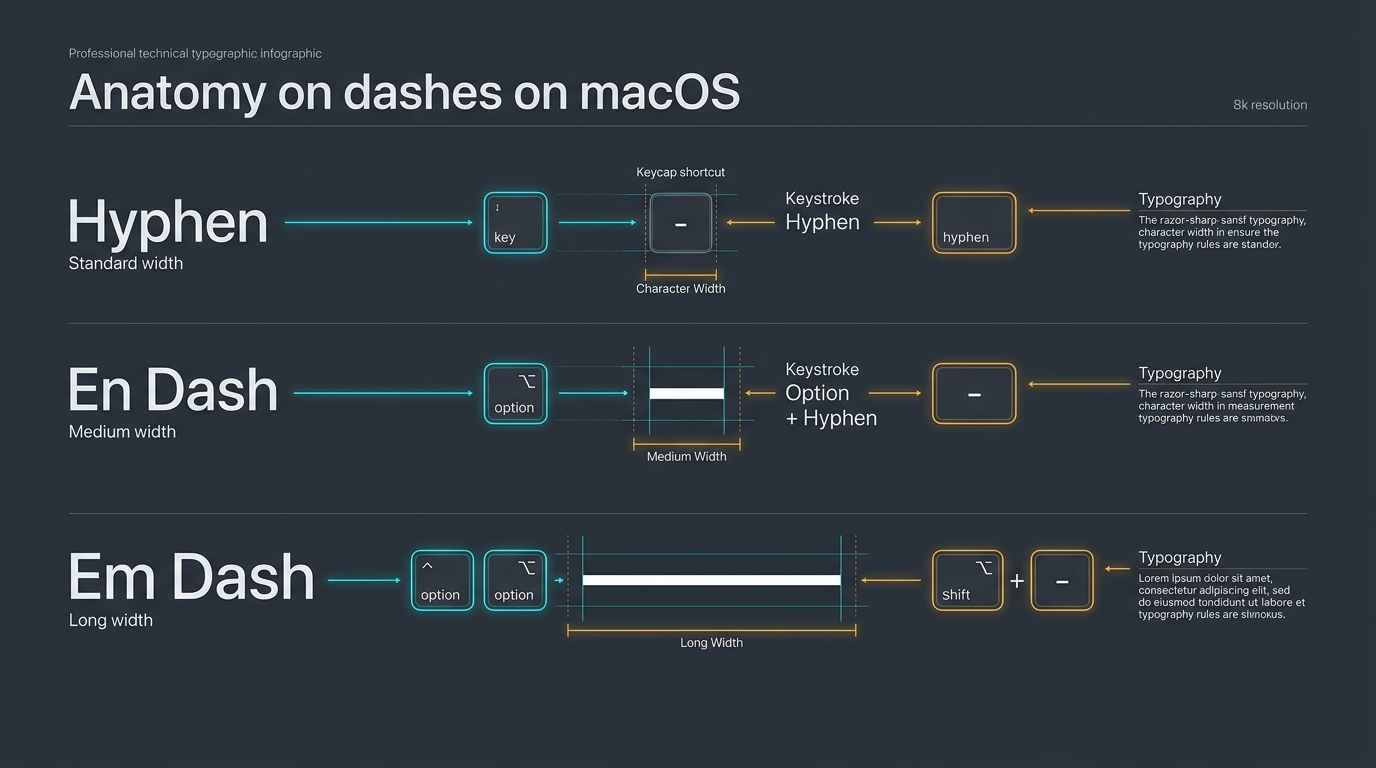
Quick Reference: The Three Primary Dashes on macOS
Apple keyboards feature dedicated hardware modifier combinations to produce every typographic dash instantly:
1. Standard Hyphen (-)
Press Hyphen Key (-)
Compound words, phone numbers, and code syntax
2. En Dash (Option + -)
Option + Hyphen
Number ranges, dates, scores, and conflicting relationships
3. Em Dash (Option + Shift + -)
Option + Shift + Hyphen
Parenthetical thoughts, abrupt breaks, and attributions
The Primary Keystroke: How to Type an Em Dash on Mac
On any modern Apple computer, including the MacBook Pro, MacBook Air, Mac mini, Mac Studio, or iMac, the universal keyboard shortcut for em dash on mac is:
Universal macOS Keystroke
Option + Shift + Hyphen (-)
Press and hold Option and Shift together, then tap the Hyphen key (located between the 0 and equals keys).
To execute this keystroke smoothly while typing at full speed:
Place your left thumb or ring finger on the Option key (labeled alt on some international keyboards).
Hold down the left or right Shift key simultaneously.
With your right hand, tap the Hyphen key (often referred to as the minus key).
Release all three keys. A clean, full-width em dash appears immediately at your cursor location.
This key combination for em dash on mac functions natively across the entire operating system, including Safari, Google Chrome, Apple Notes, Slack, Terminal, and third-party writing environments. Unlike Windows, which historically required a dedicated numeric tenkey pad or multi-digit Alt codes, macOS makes typographic punctuation a first-class citizen directly on the primary alpha-numeric tier.
Hyphen vs En Dash vs Em Dash: Typographic Hierarchy & Grammar Rules
Understanding when to use em dash versus en dash or standard hyphens is essential for clear technical writing and editorial compliance. While all three appear as horizontal lines, their width, meaning, and historical origin differ significantly:
"The deployment succeeded, but only after midnight."
When to Use an En Dash
The en dash represents spans of time, page numbers, or geographical routes. If you can substitute the word "to" or "through" between two numbers, use an en dash. For example, write "May to August" or "the New York to London flight" with an en dash (created via Option + Hyphen).
When to Use an Em Dash
The em dash creates visual breathing room. It can replace a colon to emphasize a concluding thought, replace parentheses to create a stronger interruption, or replace a pair of commas to isolate an essential appositive. It signals a dramatic narrative pause that guides the reader's attention.
Typographic dash hierarchy on macOS showing width comparisons and keystrokes for hyphens, en dashes, and em dashes.
The Spacing Controversy: AP Style vs Chicago Manual of Style
One of the most fiercely debated topics among copyeditors and writers is whether spaces should surround an em dash. The answer depends strictly on which editorial style manual your publication enforces:
The Chicago Manual of Style (CMOS)
CMOS represents the standard for book publishers, academic journals, and literary manuscripts:
Strict Rule: An em dash should be set closed with no spaces on either side.
Visual Format:word[em dash]word with characters touching the dash.
Rationale: Prevents awkward line-wrapping where a space at the end of a line might orphan a dash on the next line.
The Associated Press (AP) Stylebook
AP Style governs newspapers, digital journalism, press releases, and online media:
Strict Rule: Place a space on both sides of the em dash.
Visual Format:word [em dash] word with clear white space separating text.
Rationale: Improves legibility in narrow mobile columns and printed newspaper columns where unspaced letters might feel cramped.
In high-end digital publishing, some typographers compromise by utilizing a hair space (Unicode U+200A) or thin space on either side, providing subtle optical breathing room without creating full word breaks.
Configuring macOS Text Replacements for Instant Auto-Typing
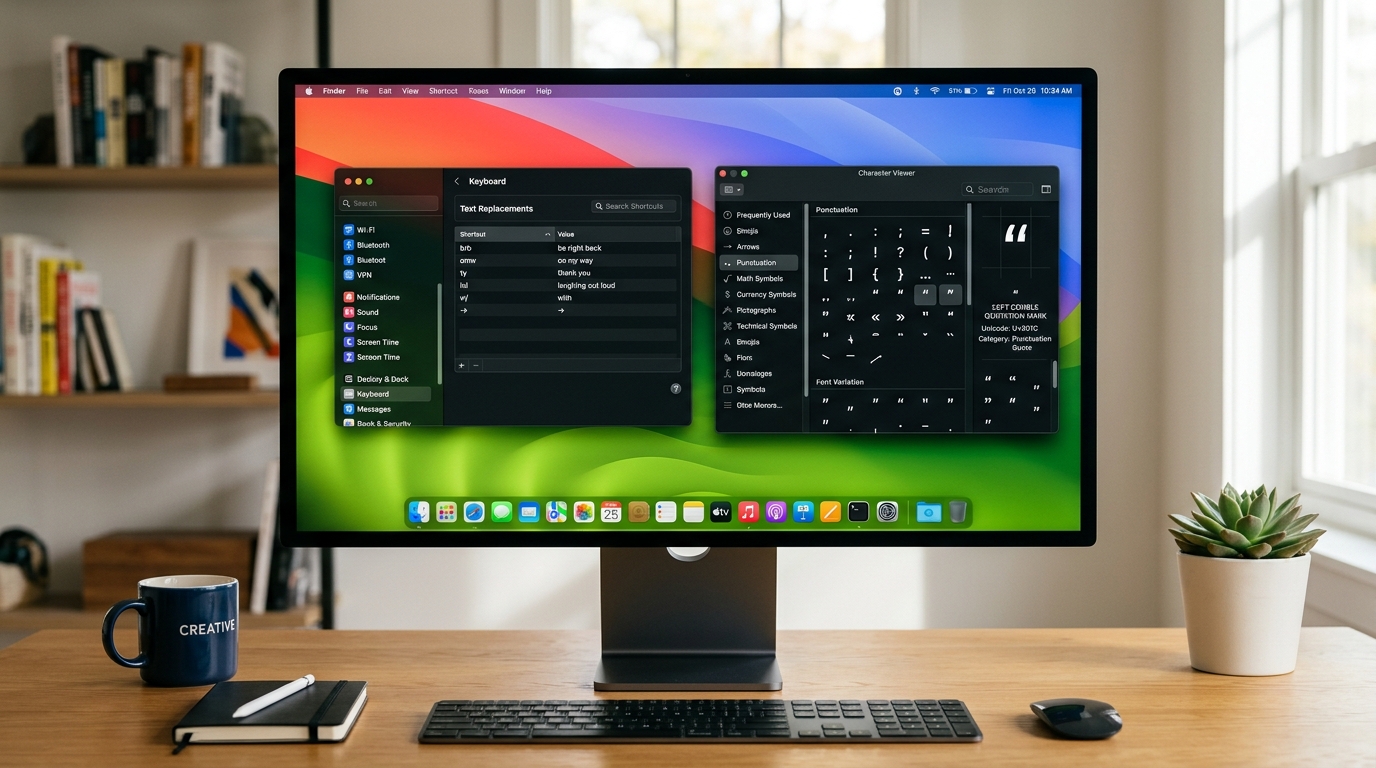
If holding three keys simultaneously feels cumbersome during rapid typing sessions, macOS includes an automated text expansion engine built directly into System Settings. You can configure macOS to automatically convert double hyphens (--) or a custom trigger (such as ;;) into an em dash system-wide:
Step-by-Step Setup in macOS Sequoia, Sonoma & Ventura
Under the Text Input section, click the Text Replacements... button.
Click the Plus (+) icon at the bottom of the list to add a new replacement rule.
In the Replace field, type your desired shortcut trigger (for example, type two hyphens: -- or type m--).
In the With field, insert your em dash (press Option + Shift + Hyphen).
Click Done to save your configuration.
Because macOS synchronizes Text Replacements across iCloud, your custom shortcut rule immediately syncs to your iPhone and iPad. Whenever you type your trigger followed by a space in Safari, Mail, Messages, or Notes, Apple auto-replaces it instantly.
Application-Specific Workflows: Word, Google Docs & Apple Pages
Different writing software programs handle punctuation with varying automated behaviors. Here is how to navigate the em dash across the most popular productivity suites on Mac:
1. Microsoft Word for Mac
Microsoft Word includes its own AutoCorrect engine independent of macOS system settings:
Automatic Conversion: Type a word, immediately type two hyphens without spaces, type the following word, and press the spacebar (e.g., word--word). Word automatically converts the two hyphens into an em dash.
Dedicated Word Keystroke: If your Mac keyboard has a numeric keypad, press Command + Option + Minus (on the numpad).
Custom AutoCorrect: Navigate to Word → Preferences → AutoCorrect to verify that "Replace text as you type" is enabled.
2. Google Docs on Chrome and Safari
Google Docs operates in the browser and features built-in document substitution rules:
Native Keystroke: Press Option + Shift + Hyphen directly within any Google Docs document on Mac.
Automatic Substitution: Open Google Docs, navigate to Tools → Preferences → Substitutions. In the left column, enter --, and in the right column, enter the em dash. Whenever you type two hyphens and hit space, Google Docs converts it on the fly.
3. Apple Pages & Keynote
Apple native iWork applications support Smart Dashes:
In Pages, choose Edit → Substitutions → Smart Dashes. When checked, typing two hyphens automatically renders an em dash, while typing a number, hyphen, and number creates an en dash.
Automating Mac typography: configuring text replacement rules in System Settings alongside the macOS Character Viewer.
The macOS Character Viewer, Unicode & Developer Code Points
When you need visual access to rare mathematical symbols, accented glyphs, or technical notation, the built-in macOS Character Viewer (Emoji & Symbols) is your command center:
Opening the macOS Character Viewer
# Primary global shortcut
Control + Command + Spacebar

# On Apple Silicon MacBooks with Globe key
Press the Globe (fn) key once
To locate and insert dashes and punctuation through the viewer:
Press Control + Command + Space to pop up the Emoji & Symbols window.
Click the small window icon in the top-right corner to expand into the full two-column Character Viewer palette.
Click the Punctuation category in the left sidebar (or type "em dash" into the search bar in the top-right).
Double-click the desired dash to insert it directly into your active text editor. You can also right-click and add it to your Favorites list for instant access.
Web Developers, Markdown & Programmers Reference Table
Format / Standard
Code Representation
Implementation Context
Unicode Code Point
U+2014
Universal hex identifier for EM DASH
HTML Entity (Named)
—
Semantic HTML markup and templates
HTML Entity (Decimal)
—
Standard web browsers and legacy encodings
LaTeX Typesetting
--- (three hyphens)
Scientific papers and academic manuscripts
Markdown Syntax
Native UTF-8 or —
Static documentation, blogs, and README files
Complete macOS Special Symbols & Option Key Cheat Sheet
The Option key on Mac is a powerful gateway to hundreds of hidden typographic, commercial, and mathematical symbols. Below is an exhaustive operational cheat sheet for daily productivity:
Website footers, legal terms, and copyright notices
Registered Trademark
®
Option + R
Brand naming, official product trademarks
Trademark
™
Option + 2
Unregistered commercial logos and trademarks
Degree Symbol
°
Option + Shift + 8
Weather temperatures (72°F) and geometry angles
Bullet Point
•
Option + 8
Manual bulleted lists and visual item dividers
Ellipsis
…
Option + ; (Semicolon)
Single-glyph typographic ellipsis (prevents word breaks)
Euro Currency
€
Option + Shift + 2
European Union financial pricing and balances
Pound Sterling
£
Option + 3
British currency and international commerce
Cent Sign
¢
Option + 4
Fractional monetary amounts
Plus or Minus
±
Option + Shift + =
Statistical tolerances and error margins
Division Symbol
÷
Option + /
Mathematical formulas and equations
Apple Logo
Option + Shift + K
Apple brand icon (renders within Apple system fonts)
When typing international foreign languages, macOS also provides a press-and-hold feature: hold down any vowel (such as e or a) for one second, and a numbered popover menu appears displaying acute, grave, umlaut, and circumflex variations. Alternatively, Option-key dead keys (e.g., Option + e followed by e creates é; Option + u followed by u creates ü) deliver rapid touch-typing without pausing.
If your daily workflow involves maintaining precision physical hardware or mechanical keyboards, explore our operational maintenance guide on how to safely clean mechanical and laptop keyboard keys to prevent sticky switches and preserve tactile actuation.
Cross-Platform Equivalents: iPhone, iPad & Windows Workstations
Modern professionals rarely work on a single operating system. Understanding how to type an em dash across companion mobile devices and Windows desktop rigs ensures consistency:
Typing Em Dash on iPhone & iPad
On the iOS or iPadOS touch keyboard, switch to the numeric layout (tap the 123 key). Press and hold your finger on the Hyphen (-) key for one second. A contextual popover strip expands showing three options: the hyphen, en dash, and em dash. Slide your finger over the em dash and lift to insert. On physical iPad keyboards (such as the Apple Magic Keyboard), the standard Mac shortcut (Option + Shift + Hyphen) works identically.
Typing Em Dash on Windows 11 & Windows 10
On Windows workstations, three distinct methods exist:
Emoji Panel: Press Windows Key + . (Period), click the Symbols tab (Ω), and select the General Punctuation category to find the em dash.
Alt Code: On full-size keyboards with a numeric keypad, hold Alt and type 0151 on the number pad.
Microsoft Word on Windows: Press Ctrl + Alt + Minus (on numpad).
If you frequently alternate between enterprise operating systems, review our technical breakdown on Windows 11 Pro vs Home feature breakdown to understand administrative features, Remote Desktop protocols, and system productivity tools.
Troubleshooting: Shortcut Conflicts & International Keyboard Layouts
If pressing Option + Shift + Hyphen fails to produce an em dash, one of three common configuration conflicts is typically responsible:
1. International & Regional Keyboard Layouts
On standard US QWERTY layouts, the hyphen key is situated adjacent to the zero key. On certain European or ISO layouts (such as German QWERTZ or French AZERTY), the hyphen is assigned to a different physical key. To verify your layout mapping, navigate to System Settings → Keyboard → Input Sources, click Edit, and enable Show Input menu in menu bar. Selecting "Show Keyboard Viewer" from the menu bar displays an interactive on-screen map showing exactly which key yields an em dash when Option and Shift are pressed.
2. Third-Party App Interception (Raycast, Alfred & Window Managers)
Productivity launchers or window tiling utilities occasionally bind global hotkeys that conflict with standard typography modifiers. If you have customized hotkeys in Raycast, Alfred, or Rectangle, check their settings to verify that Option + Shift + - is not claimed as a global launcher or window-resizing command.
3. Terminal Emulators & Shell Bindings
In terminal emulators (such as iTerm2 or native Terminal), the Option key is frequently configured to act as an Esc+ (Meta key) to enable jumping words backwards and forwards. Under this mode, pressing Option transmits escape sequences rather than special characters. To type special punctuation in Terminal, either paste the character, use Character Viewer, or configure your profile in Terminal Preferences → Profiles → Keyboard to treat Option as a normal character key.
When managing process workloads or diagnosing background hotkey interceptors, having visibility into running tasks is crucial. Read our companion operational manual on what is task manager and process monitoring to learn how Activity Monitor and terminal diagnostics track active application threads on macOS.
For additional Mac tutorials, operating system configuration guides, and systems administration roadmaps, explore our complete library in the OS & Systems category hub.
Frequently Asked Questions
The universal keyboard shortcut for an em dash on Mac is Option + Shift + Hyphen (-). Hold down both the Option and Shift keys, then tap the Hyphen key (located between 0 and equals) on your Apple keyboard.
Evan Mitchell• Cloud Infrastructure Specialist & Systems Administrator3+ Years Industry Experience
Systems administrator with 3+ years managing enterprise Linux servers, AWS EC2 instances, and Docker containers. Evan focuses on practical bash scripting and secure network configurations.